> ## Documentation Index
> Fetch the complete documentation index at: https://docs.servflow.io/llms.txt
> Use this file to discover all available pages before exploring further.
# Entries and entry handlers
> The ways an agent can be started, and how entry handlers let it receive messages from GitHub, Telegram, and Discord and reply where they came from
An entry is a way into an agent: something that starts it and, usually, somewhere its reply goes. An entry handler is an entry that connects the agent to a service you already use, so a message there starts the agent and the reply appears there. Read this page when you are deciding how people or other systems will reach an agent.
For every setting, see the [Entry handlers reference](/references/entry-handlers).
## The three kinds of entry
| Entry | What starts the agent | Where the reply goes |
| ------------- | -------------------------------------------------------------- | ------------------------------------------------------- |
| Entry handler | A message on GitHub, Telegram, or Discord | Back to the pull request, chat, or channel it came from |
| Webhook | Your own application, by sending a request to the agent's path | Back to your application, as the response |
| Trigger | You, a schedule, or another agent handing over a task | Nowhere. It is written to the log. |
A **path** is the address on your ServFlow instance that starts the agent, such as `/ask`.
Whichever entry starts it, the agent does the same work. An entry changes how a run begins and where the reply goes, not what the agent does.
## What a handler does that a webhook does not
A webhook is a plain door. Anything that knows the path can send a request, and whatever sent it gets the agent's reply back. That suits an application you write yourself, because you decide what it sends and what it does with the reply.
GitHub, Telegram, and Discord each have their own rules for sending messages and receiving replies. An entry handler knows the rules of one service, so you do not have to. A handler:
1. **Checks the message is really from your bot or App.** Anything else is turned away before the agent runs.
2. **Decides whether the message is for the agent.** Its settings choose which events, places, or mentions count, so the agent does not answer everything it can see.
3. **Keeps the conversation together,** so the agent remembers earlier messages where that makes sense.
4. **Posts the reply where the message came from,** as your bot or App.
The agent's part is to read the message and say something. It needs no tool to reply, and its prompt needs no instructions about how to reply.
## The handlers
There are three. Each is an option under **Entry type** in the dashboard.
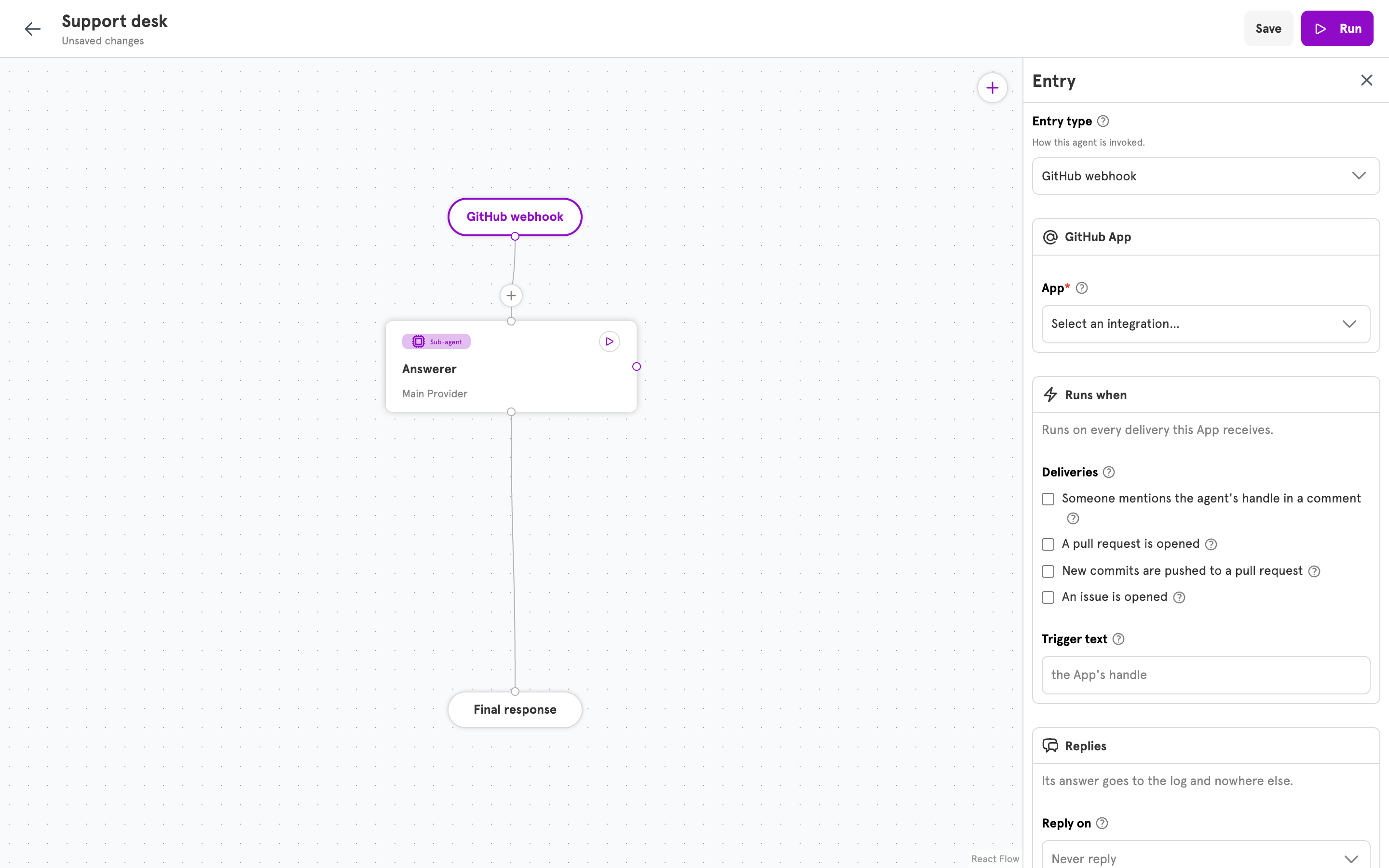 **Entry type** lists **GitHub webhook**, **Telegram bot**, and **Discord bot** after the trigger and the webhook. When you choose one, its settings appear below.
### GitHub webhook
Starts the agent when something happens in a repository where your GitHub App is installed: a comment on an issue or pull request, a review comment, a push. By default a comment has to mention the App. The agent's reply is posted as a comment on the same pull request or issue, once you choose where under **Reply on**. A new GitHub entry is set to **Never reply**.
You need a GitHub App integration and a path. See [`github_webhook`](/references/entry-handlers#github_webhook).
### Telegram bot
Starts the agent when someone messages your Telegram bot. The chat shows the bot typing while the agent works, and the reply arrives as a message in the same chat.
You need a Telegram bot integration and a path. See [`telegram_webhook`](/references/entry-handlers#telegram_webhook).
### Discord bot
Starts the agent when someone messages your Discord bot, by default only when they mention it. The reply arrives as a reply to that message. Discord needs no path, so the agent works even from a laptop that nothing outside can reach.
You need a Discord integration. See [`discord_gateway`](/references/entry-handlers#discord_gateway), and [Connect an agent to Discord](/guides/connect-an-agent-to-discord) for the whole setup.
### Set a handler in the dashboard
The steps are the same for all three.
1. Add the handler's [integration](/guides/add-an-integration), if you do not have one yet.
2. Open the agent in the editor and click the entry node at the top of the canvas. The **Entry** panel opens.
3. Under **Entry type**, choose **GitHub webhook**, **Telegram bot**, or **Discord bot**. The handler's settings appear.
4. Choose the integration. For GitHub and Telegram, enter a **Path**. An entry that already had a path keeps it, and the field is under **Advanced settings**.
5. Click **Save**.
## What the agent remembers
An agent remembers the earlier messages of the conversation a run belongs to. The entry decides what counts as one conversation.
| Entry | One conversation is |
| -------------- | --------------------------------------------------------------------------------------------------------------------------------------------- |
| GitHub webhook | One event. Each comment is handled on its own. |
| Telegram bot | One chat. |
| Discord bot | One channel. A Discord thread counts as its own channel. |
| Webhook | One request, unless your application asks to continue an earlier conversation. The [reference](/references/entry-handlers#webhook) shows how. |
| Trigger | One run. |
This is why a Telegram bot remembers what you said a minute ago with nothing set up, and why a pull request reviewer reads each comment fresh.
## Where the reply goes
Telegram and Discord receive the reply as a message, in the chat or channel that asked.
GitHub does not wait for an agent. The handler answers GitHub straight away with the status code `202`, which means "received, working on it". When the agent finishes, the handler posts the reply as a comment.
A webhook caller waits for the agent and receives the reply as the response, with the status code `200`. If the agent said nothing, the status code is `204`, which means "done, nothing to return".
A trigger has nobody to reply to. For a triggered agent to have an effect, give it [tools](/guides/add-a-tool).
## What the prompt can read
A handler gives the prompt the parts of a message by name. A Discord agent reads the message text as `{{ .discord.content }}`, and a GitHub agent reads a comment as `{{ .github.comment_body }}`. A webhook agent reads a field your application sent with `{{ body "question" }}`. The reference lists every name.
## More than one way in
An agent can have several entries. A common pairing is a webhook, so your application can ask the agent questions, and a trigger, so other agents can hand it tasks.
**Entry type** lists **GitHub webhook**, **Telegram bot**, and **Discord bot** after the trigger and the webhook. When you choose one, its settings appear below.
### GitHub webhook
Starts the agent when something happens in a repository where your GitHub App is installed: a comment on an issue or pull request, a review comment, a push. By default a comment has to mention the App. The agent's reply is posted as a comment on the same pull request or issue, once you choose where under **Reply on**. A new GitHub entry is set to **Never reply**.
You need a GitHub App integration and a path. See [`github_webhook`](/references/entry-handlers#github_webhook).
### Telegram bot
Starts the agent when someone messages your Telegram bot. The chat shows the bot typing while the agent works, and the reply arrives as a message in the same chat.
You need a Telegram bot integration and a path. See [`telegram_webhook`](/references/entry-handlers#telegram_webhook).
### Discord bot
Starts the agent when someone messages your Discord bot, by default only when they mention it. The reply arrives as a reply to that message. Discord needs no path, so the agent works even from a laptop that nothing outside can reach.
You need a Discord integration. See [`discord_gateway`](/references/entry-handlers#discord_gateway), and [Connect an agent to Discord](/guides/connect-an-agent-to-discord) for the whole setup.
### Set a handler in the dashboard
The steps are the same for all three.
1. Add the handler's [integration](/guides/add-an-integration), if you do not have one yet.
2. Open the agent in the editor and click the entry node at the top of the canvas. The **Entry** panel opens.
3. Under **Entry type**, choose **GitHub webhook**, **Telegram bot**, or **Discord bot**. The handler's settings appear.
4. Choose the integration. For GitHub and Telegram, enter a **Path**. An entry that already had a path keeps it, and the field is under **Advanced settings**.
5. Click **Save**.
## What the agent remembers
An agent remembers the earlier messages of the conversation a run belongs to. The entry decides what counts as one conversation.
| Entry | One conversation is |
| -------------- | --------------------------------------------------------------------------------------------------------------------------------------------- |
| GitHub webhook | One event. Each comment is handled on its own. |
| Telegram bot | One chat. |
| Discord bot | One channel. A Discord thread counts as its own channel. |
| Webhook | One request, unless your application asks to continue an earlier conversation. The [reference](/references/entry-handlers#webhook) shows how. |
| Trigger | One run. |
This is why a Telegram bot remembers what you said a minute ago with nothing set up, and why a pull request reviewer reads each comment fresh.
## Where the reply goes
Telegram and Discord receive the reply as a message, in the chat or channel that asked.
GitHub does not wait for an agent. The handler answers GitHub straight away with the status code `202`, which means "received, working on it". When the agent finishes, the handler posts the reply as a comment.
A webhook caller waits for the agent and receives the reply as the response, with the status code `200`. If the agent said nothing, the status code is `204`, which means "done, nothing to return".
A trigger has nobody to reply to. For a triggered agent to have an effect, give it [tools](/guides/add-a-tool).
## What the prompt can read
A handler gives the prompt the parts of a message by name. A Discord agent reads the message text as `{{ .discord.content }}`, and a GitHub agent reads a comment as `{{ .github.comment_body }}`. A webhook agent reads a field your application sent with `{{ body "question" }}`. The reference lists every name.
## More than one way in
An agent can have several entries. A common pairing is a webhook, so your application can ask the agent questions, and a trigger, so other agents can hand it tasks.
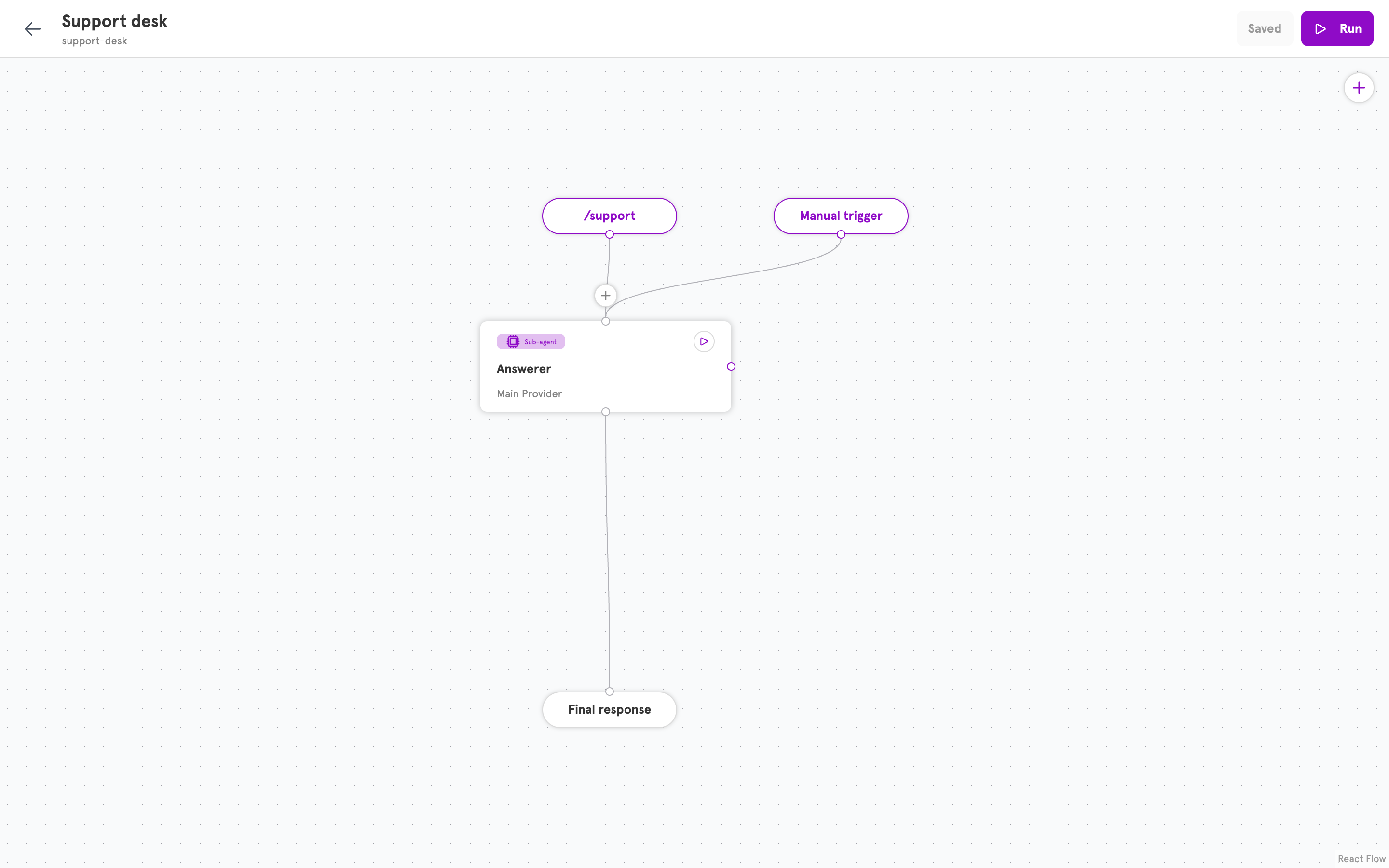 To add one, click **+** on the canvas and choose **Entry** in the **Add to canvas** panel. The new entry appears with its **Entry** panel open, and you set its **Entry type** as above. **Remove entry** at the bottom of the panel takes it off again. An agent can have one entry of each type.
## Handlers and integrations
Every handler needs one [integration](/references/integrations): the stored details of your bot or App. The handler uses it to check incoming messages and to reply as that bot or App. You add the integration first, and the agent refers to it by its id.
Several agents can share one integration. With Discord, take care: every agent on the same bot sees every message the bot sees, and each decides for itself whether to answer. Give each agent its own channels or commands, or two of them will reply to the same message.
## Related
Every entry type, each handler's settings, and the names it gives the prompt.
Set up a Discord entry, end to end.
The bot or App details a handler checks messages against and replies as.
What an agent is made of, and where entries fit.
To add one, click **+** on the canvas and choose **Entry** in the **Add to canvas** panel. The new entry appears with its **Entry** panel open, and you set its **Entry type** as above. **Remove entry** at the bottom of the panel takes it off again. An agent can have one entry of each type.
## Handlers and integrations
Every handler needs one [integration](/references/integrations): the stored details of your bot or App. The handler uses it to check incoming messages and to reply as that bot or App. You add the integration first, and the agent refers to it by its id.
Several agents can share one integration. With Discord, take care: every agent on the same bot sees every message the bot sees, and each decides for itself whether to answer. Give each agent its own channels or commands, or two of them will reply to the same message.
## Related
Every entry type, each handler's settings, and the names it gives the prompt.
Set up a Discord entry, end to end.
The bot or App details a handler checks messages against and replies as.
What an agent is made of, and where entries fit.