> ## Documentation Index
> Fetch the complete documentation index at: https://docs.servflow.io/llms.txt
> Use this file to discover all available pages before exploring further.
# Call other agents
> Let a sub-agent ask another sub-agent for an answer, or hand a task to a different agent and carry on
There are two ways for one agent to use another, and they do different jobs. This guide sets up both.
| You want | Use | What comes back |
| -------------------------------------------------------------------------------- | ------------------- | ----------------------------------------- |
| One sub-agent to ask another sub-agent **in the same agent**, and use its answer | **Call sub-agent** | The other sub-agent's reply |
| To hand a job to **a different agent** and carry on without waiting | **Agent Task Tool** | Nothing. The other agent works on its own |
## Before you begin
* For **Call sub-agent**: an agent with two sub-agents, each with a provider. See [Create an agent](/guides/create-an-agent).
* For **Agent Task Tool**: a second agent that is enabled and whose entry is a trigger. See [Entries and entry handlers](/concepts/entries).
* Both checks run the agents. Your model company bills you for those runs.
## Let a sub-agent ask another sub-agent
The example is an agent named Support desk. Its `Support` sub-agent answers customers, and asks a `Researcher` sub-agent for the facts first.
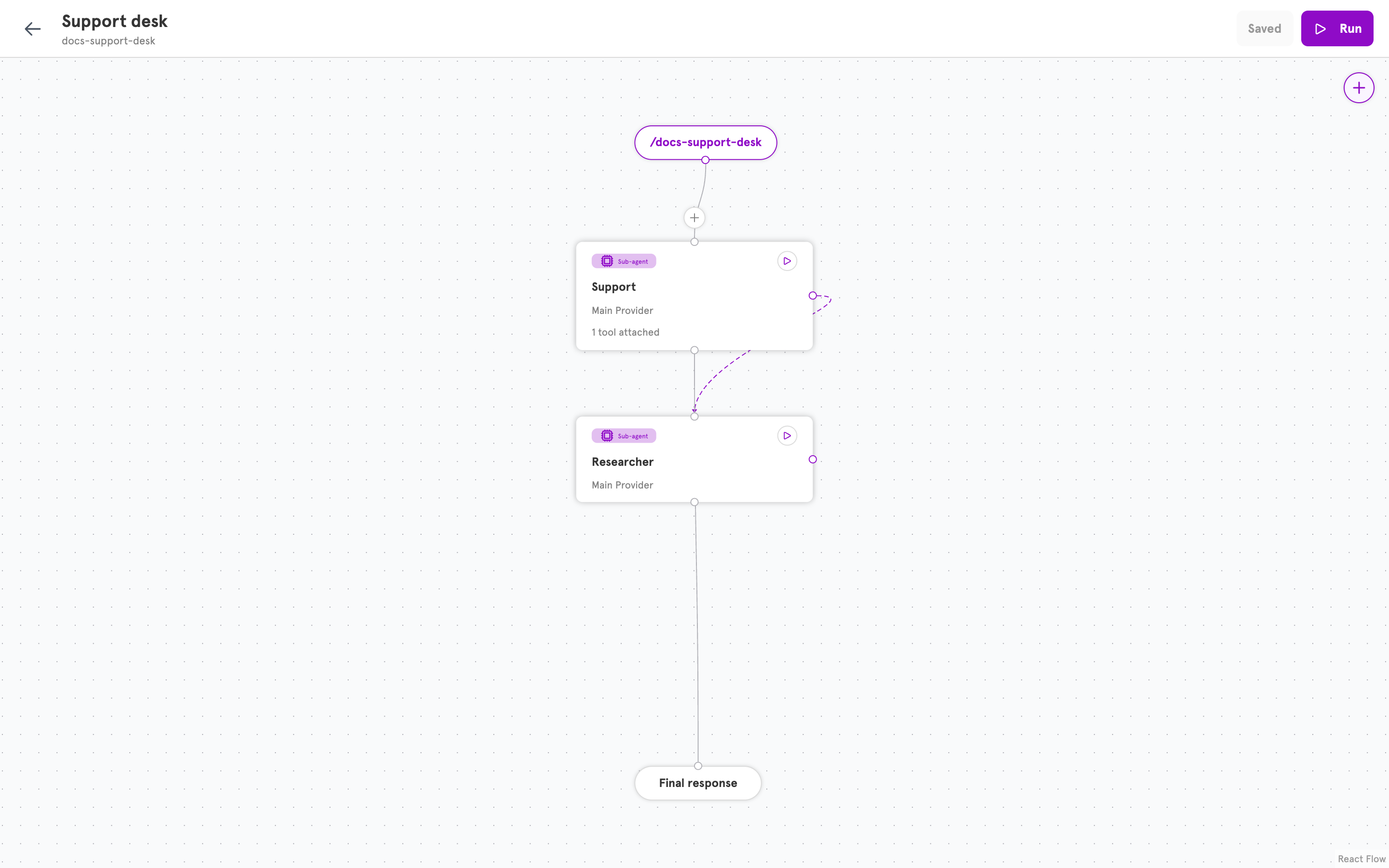 Click `Support` on the canvas. Its panel opens.
Under **Tools**, open **Add a tool…** and choose **Call sub-agent…**. The **Configure Call sub-agent** dialog opens.
In **Display name**, enter `ask_researcher`. Use letters, numbers, and underscores, with no spaces. Some model companies reject a tool whose name contains a space.
In **When to use**, enter `Ask the researcher to look up the facts needed to answer the customer.` The model reads this to decide when to call the tool.
Under **Sub-agent**, choose `Researcher`.
Click `Support` on the canvas. Its panel opens.
Under **Tools**, open **Add a tool…** and choose **Call sub-agent…**. The **Configure Call sub-agent** dialog opens.
In **Display name**, enter `ask_researcher`. Use letters, numbers, and underscores, with no spaces. Some model companies reject a tool whose name contains a space.
In **When to use**, enter `Ask the researcher to look up the facts needed to answer the customer.` The model reads this to decide when to call the tool.
Under **Sub-agent**, choose `Researcher`.
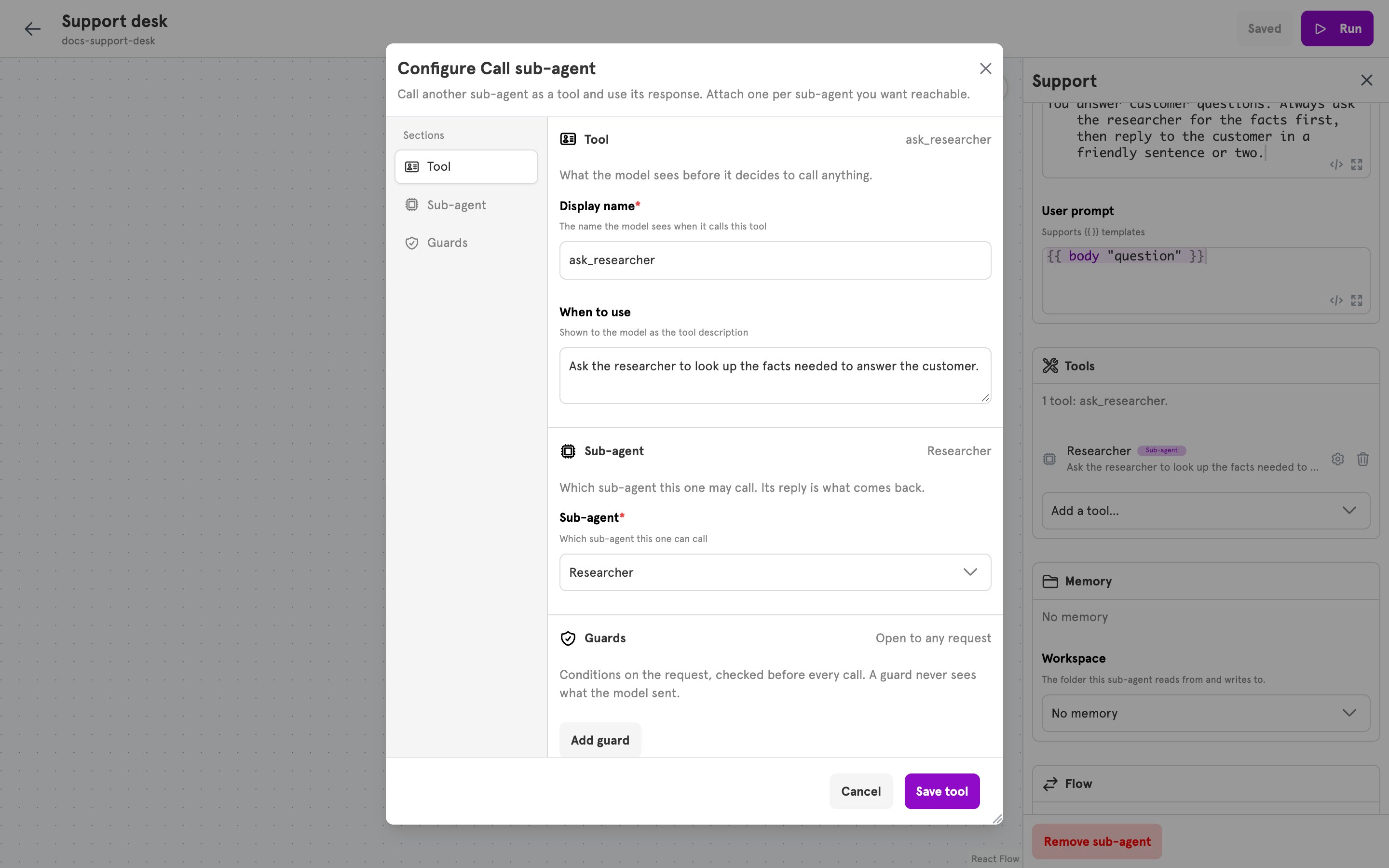 Click **Save tool**. The tool appears under **Tools**.
In the **System prompt** of `Support`, say when to use the tool:
```
You answer customer questions. Always ask the researcher for the facts first, then reply to the customer in a friendly sentence or two.
```
Without this, the model may answer on its own and never call the tool.
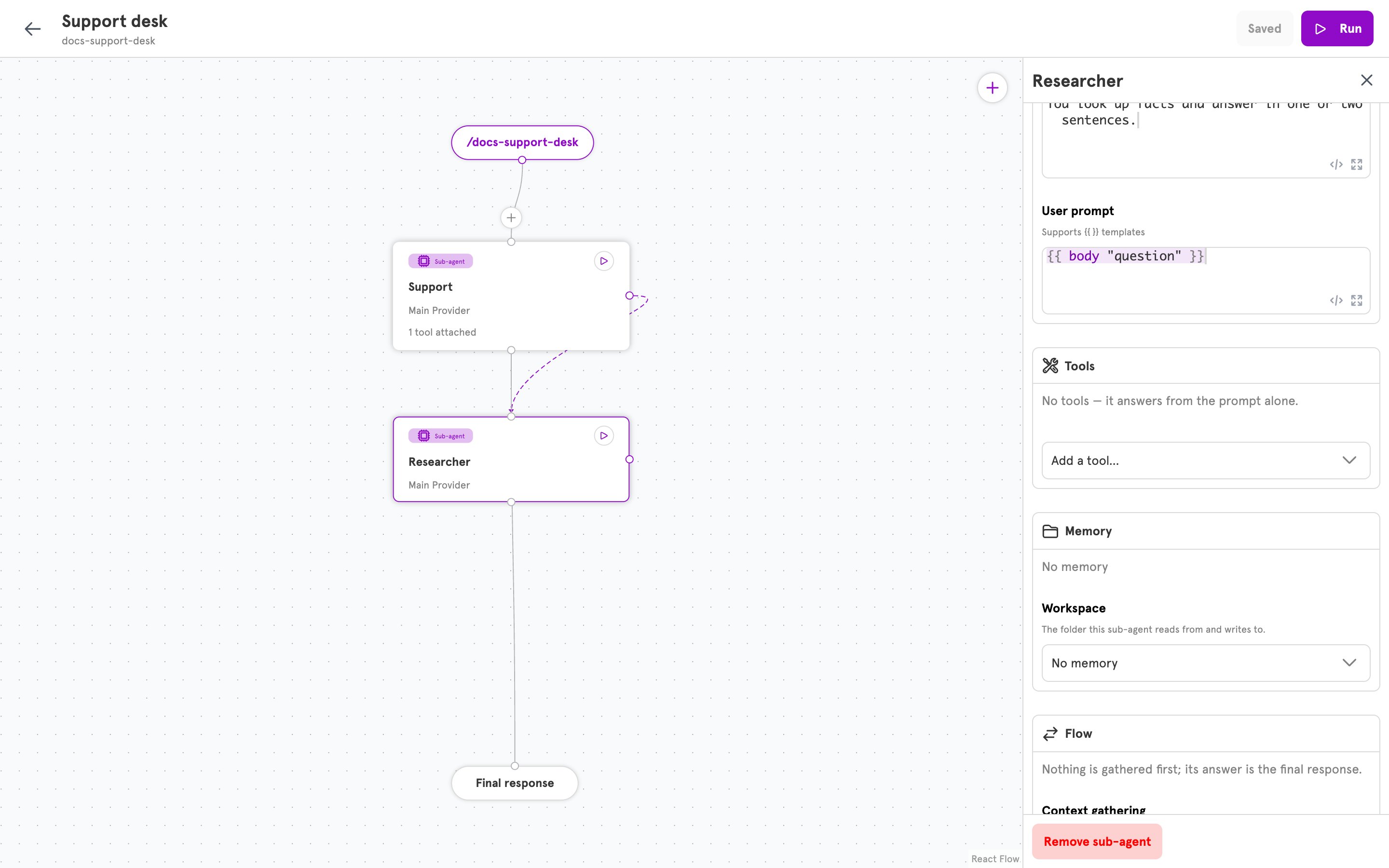
Click `Researcher`. The caller does not pass its question along. The called sub-agent asks whatever its own **User prompt** says, so point that prompt at the message that started the run:
```
{{ body "question" }}
```
Give it a **System prompt** for its own job, such as `You look up facts and answer in one or two sentences.`
Click **Save tool**. The tool appears under **Tools**.
In the **System prompt** of `Support`, say when to use the tool:
```
You answer customer questions. Always ask the researcher for the facts first, then reply to the customer in a friendly sentence or two.
```
Without this, the model may answer on its own and never call the tool.
Click `Researcher`. The caller does not pass its question along. The called sub-agent asks whatever its own **User prompt** says, so point that prompt at the message that started the run:
```
{{ body "question" }}
```
Give it a **System prompt** for its own job, such as `You look up facts and answer in one or two sentences.`
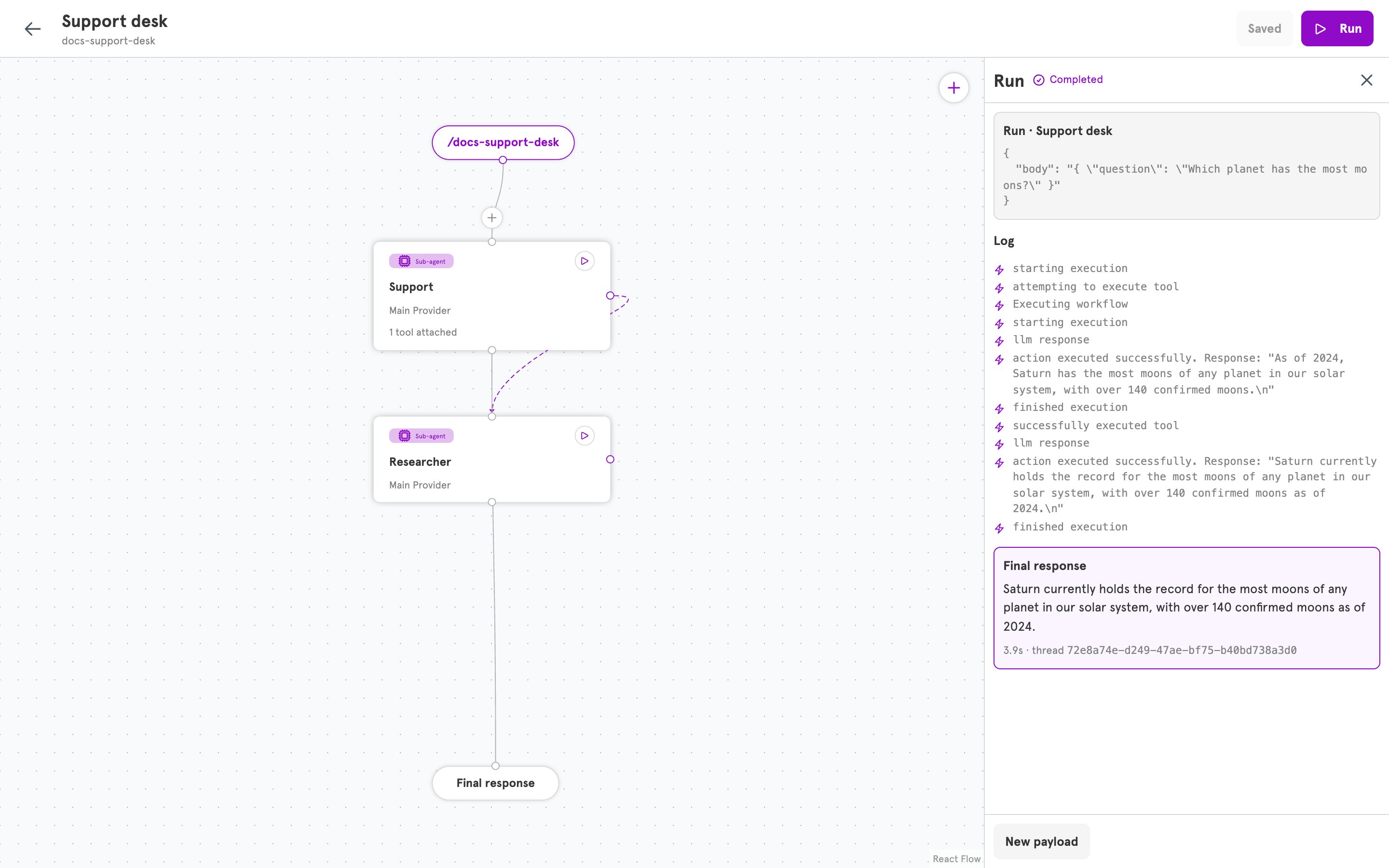
 Click **Save**, then **Run**, and enter a request:
```json theme={null}
{ "question": "Which planet has the most moons?" }
```
The **Log** shows `Support` starting a tool, `Researcher` answering, the tool finishing, and then the reply from `Support`.
Click **Save**, then **Run**, and enter a request:
```json theme={null}
{ "question": "Which planet has the most moons?" }
```
The **Log** shows `Support` starting a tool, `Researcher` answering, the tool finishing, and then the reply from `Support`.
 The called sub-agent uses its own provider, tools, and workspace, and does not see the caller's conversation. Add one tool for each sub-agent you want reachable.
### Pass a question of the caller's own
If you create agents from config files, the calling model can write its own question for the called sub-agent. Declare a parameter on the tool with `params`, and read it in the called sub-agent's prompt with `tool_param`:
```yaml theme={null}
tools:
- type: agent
name: ask_researcher
description: Ask the researcher to look up a fact. Pass the question.
params: [question]
agentConfig:
id: researcher
```
The called sub-agent's `userPrompt` then reads `{{ tool_param "question" }}`. The dashboard's **Configure Call sub-agent** dialog has no setting for parameters. For the whole shape of an agent, see the [CLI reference](/references/cli#the-shape-of-an-agent).
## Hand a task to another agent
The example is a Helpdesk agent that hands report writing to a separate agent named Weekly report.
Open the Weekly report agent. Its entry has to be a trigger, and the agent has to be enabled.
In its sub-agent's **User prompt**, enter:
```
{{ input "instruction" }}
```
Click **Save**. The task arrives under the name `instruction`.
Open the Helpdesk agent and click its sub-agent. Under **Tools**, open **Add a tool…** and choose **Agent Task Tool…**. The **Configure Agent Task Tool** dialog opens.
In **Display name**, enter `start_weekly_report`. In **When to use**, enter `Hand over writing the weekly report. Say what it should cover.`
Under **Agent**, choose Weekly report. The list shows enabled agents whose entry is a trigger.
The called sub-agent uses its own provider, tools, and workspace, and does not see the caller's conversation. Add one tool for each sub-agent you want reachable.
### Pass a question of the caller's own
If you create agents from config files, the calling model can write its own question for the called sub-agent. Declare a parameter on the tool with `params`, and read it in the called sub-agent's prompt with `tool_param`:
```yaml theme={null}
tools:
- type: agent
name: ask_researcher
description: Ask the researcher to look up a fact. Pass the question.
params: [question]
agentConfig:
id: researcher
```
The called sub-agent's `userPrompt` then reads `{{ tool_param "question" }}`. The dashboard's **Configure Call sub-agent** dialog has no setting for parameters. For the whole shape of an agent, see the [CLI reference](/references/cli#the-shape-of-an-agent).
## Hand a task to another agent
The example is a Helpdesk agent that hands report writing to a separate agent named Weekly report.
Open the Weekly report agent. Its entry has to be a trigger, and the agent has to be enabled.
In its sub-agent's **User prompt**, enter:
```
{{ input "instruction" }}
```
Click **Save**. The task arrives under the name `instruction`.
Open the Helpdesk agent and click its sub-agent. Under **Tools**, open **Add a tool…** and choose **Agent Task Tool…**. The **Configure Agent Task Tool** dialog opens.
In **Display name**, enter `start_weekly_report`. In **When to use**, enter `Hand over writing the weekly report. Say what it should cover.`
Under **Agent**, choose Weekly report. The list shows enabled agents whose entry is a trigger.
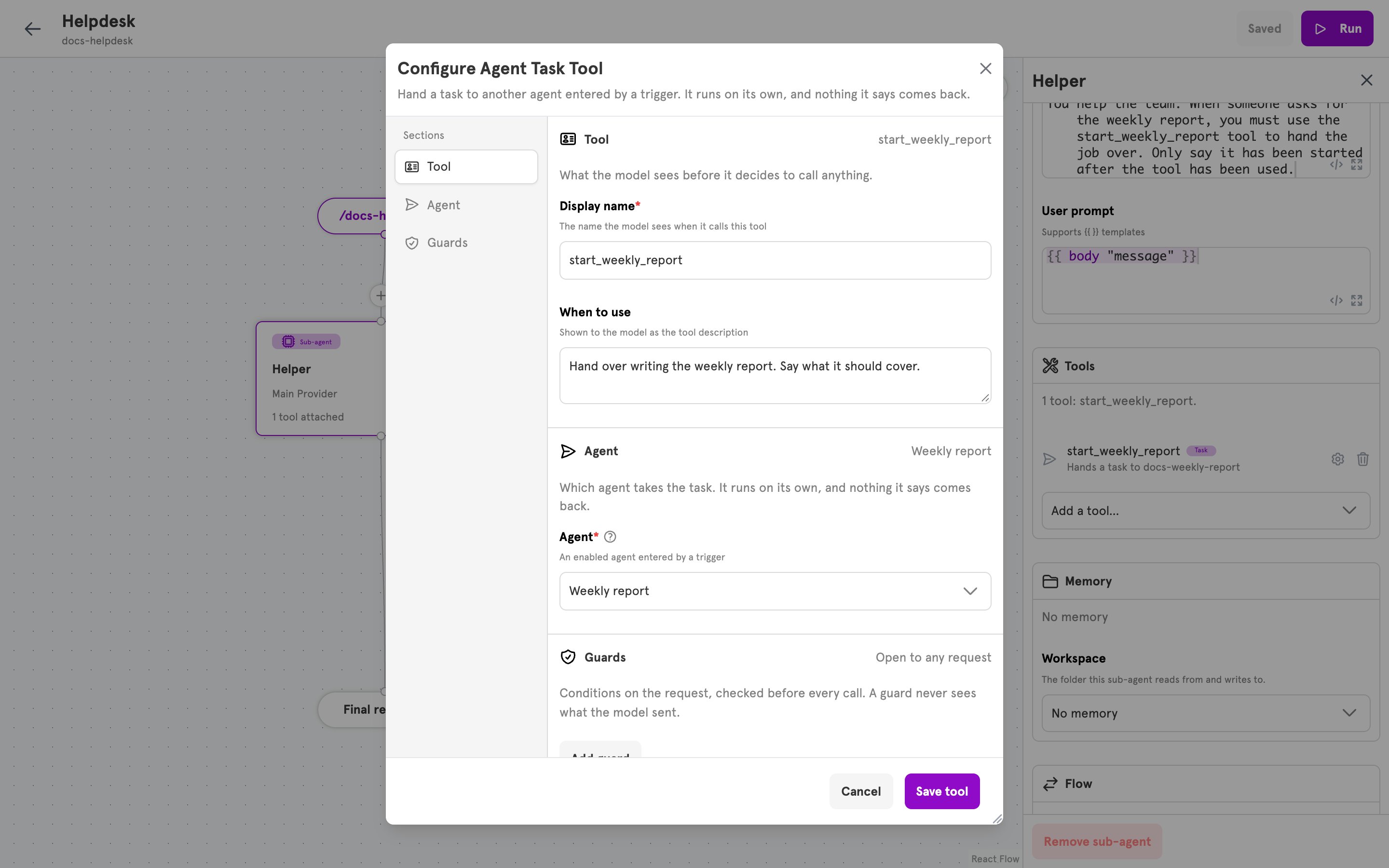 Click **Save tool**. In the sub-agent's **System prompt**, say when to use the tool and what to say afterwards:
```
When someone asks for the weekly report, you must use the start_weekly_report tool to hand the job over. Only say it has been started after the tool has been used.
```
Without the second sentence, the model may say the report has started without starting it.
Click **Save**, then **Run**, and ask for the report. The **Log** shows "attempting to execute tool" and "successfully executed tool", and the agent replies that the report has been started.
Click **Save tool**. In the sub-agent's **System prompt**, say when to use the tool and what to say afterwards:
```
When someone asks for the weekly report, you must use the start_weekly_report tool to hand the job over. Only say it has been started after the tool has been used.
```
Without the second sentence, the model may say the report has started without starting it.
Click **Save**, then **Run**, and ask for the report. The **Log** shows "attempting to execute tool" and "successfully executed tool", and the agent replies that the report has been started.
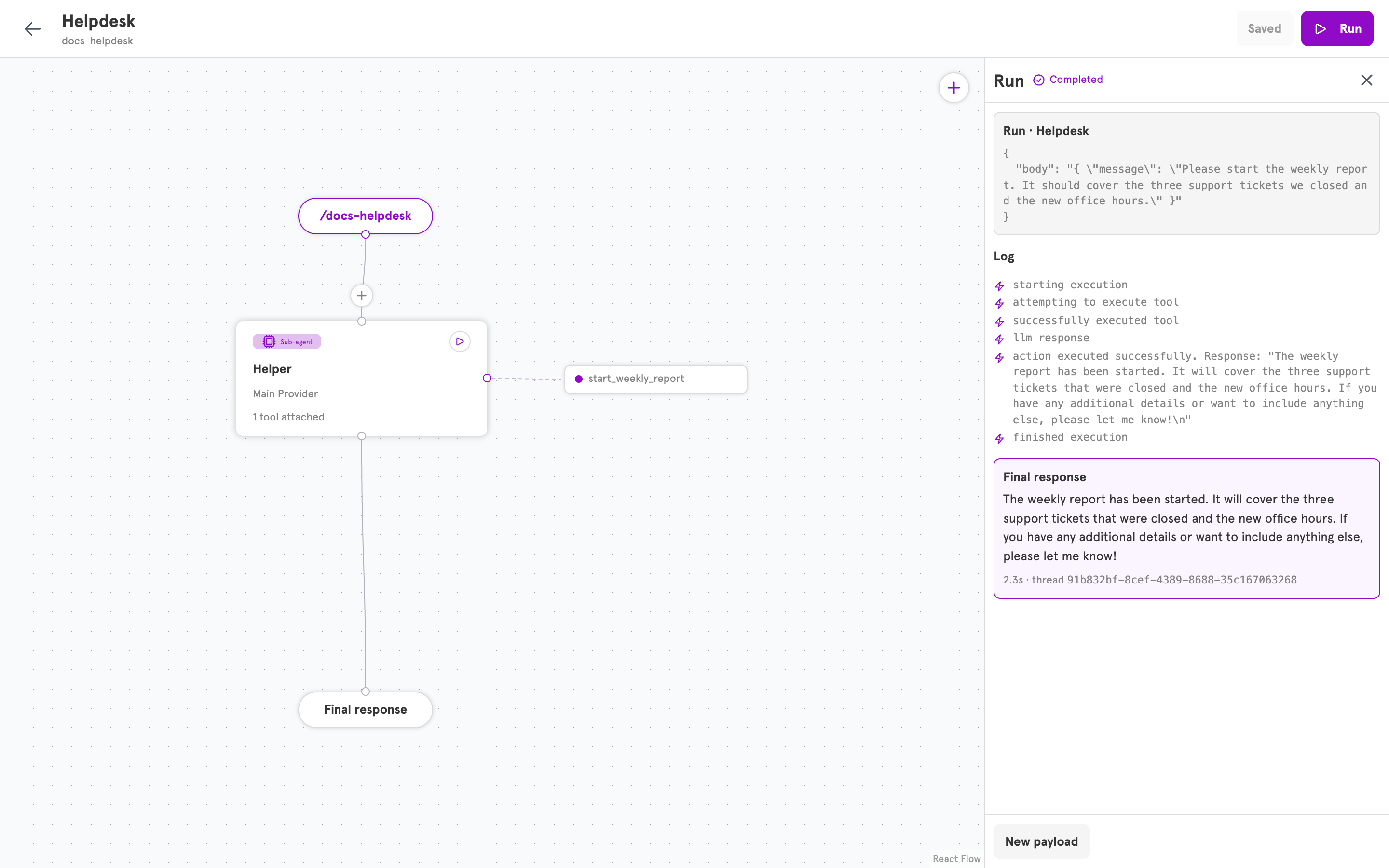 The other agent's answer never comes back to the first one. If the agent you want is missing from the **Agent** list, it is disabled or its entry is not a trigger.
## Limit who can set this off
Both tools take guards. A guard checks who sent the message before the tool runs, so you can let everyone talk to an agent while only some people can make it call another one. See [Guard rails](/concepts/guard-rails).
## Related
The other kinds of tool a sub-agent can have.
Limit what people can make your agent do.
Triggers and the other ways an agent is started.
Every tool type and its fields.
The other agent's answer never comes back to the first one. If the agent you want is missing from the **Agent** list, it is disabled or its entry is not a trigger.
## Limit who can set this off
Both tools take guards. A guard checks who sent the message before the tool runs, so you can let everyone talk to an agent while only some people can make it call another one. See [Guard rails](/concepts/guard-rails).
## Related
The other kinds of tool a sub-agent can have.
Limit what people can make your agent do.
Triggers and the other ways an agent is started.
Every tool type and its fields.