> ## Documentation Index
> Fetch the complete documentation index at: https://docs.servflow.io/llms.txt
> Use this file to discover all available pages before exploring further.
# Connect an agent to Discord
> Run an agent as a Discord bot: create the bot, add it as an integration, and set the agent's entry to answer messages in your server
This guide turns an existing agent into a Discord bot that replies when someone mentions it in your server. It covers creating the bot in Discord, adding it to ServFlow as an integration, and setting the agent's entry. The bot holds a connection open to Discord, so the agent needs no public URL and works behind NAT.
## Before you begin
* A running instance with an LLM provider. See [Install ServFlow](/installation).
* An agent to connect. See [Creating your first agent](/guides/create-an-agent).
* A Discord account with permission to add bots to the server you want the agent in.
## Create the bot in Discord
These steps happen in the [Discord Developer Portal](https://discord.com/developers/applications), not in ServFlow.
1. Create an application, then open its **Bot** page and copy the bot's token. You paste it into ServFlow in the next section.
2. On the same page, under **Privileged Gateway Intents**, turn on the **Message Content** intent. Discord refuses the connection when a bot asks for an intent it has not been granted, so the agent does not start without it.
3. Open **OAuth2 > URL Generator**. Select the `bot` scope, then the **View Channels**, **Send Messages**, **Send Messages in Threads**, and **Read Message History** permissions.
4. Open the generated URL and add the bot to your server.
## Add the Discord integration
In the sidebar under **Configure**, open **Integrations** and click **New Integration**.
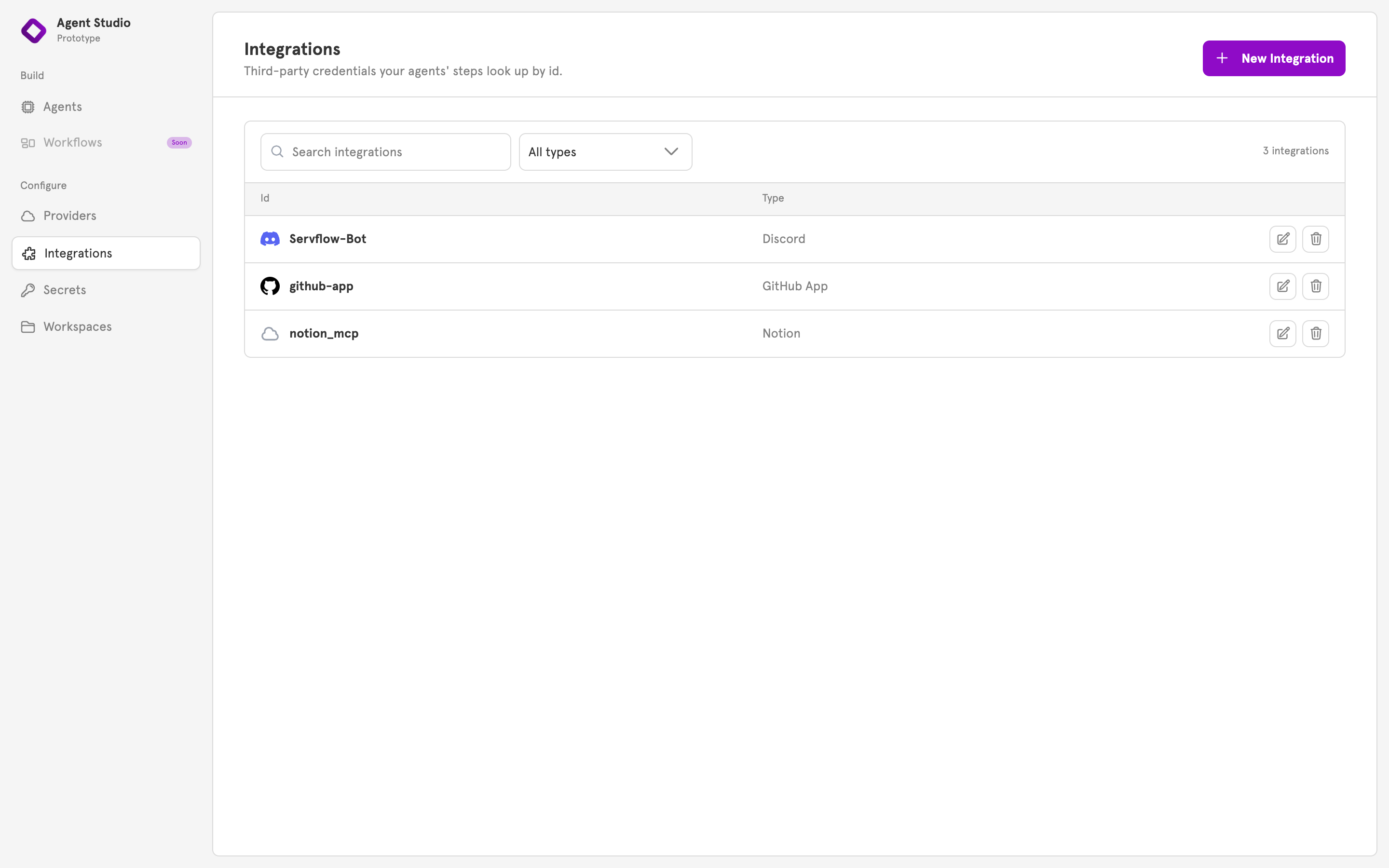 Choose **Discord**, which is marked **Guided setup**. The **Connect Discord** dialog opens.
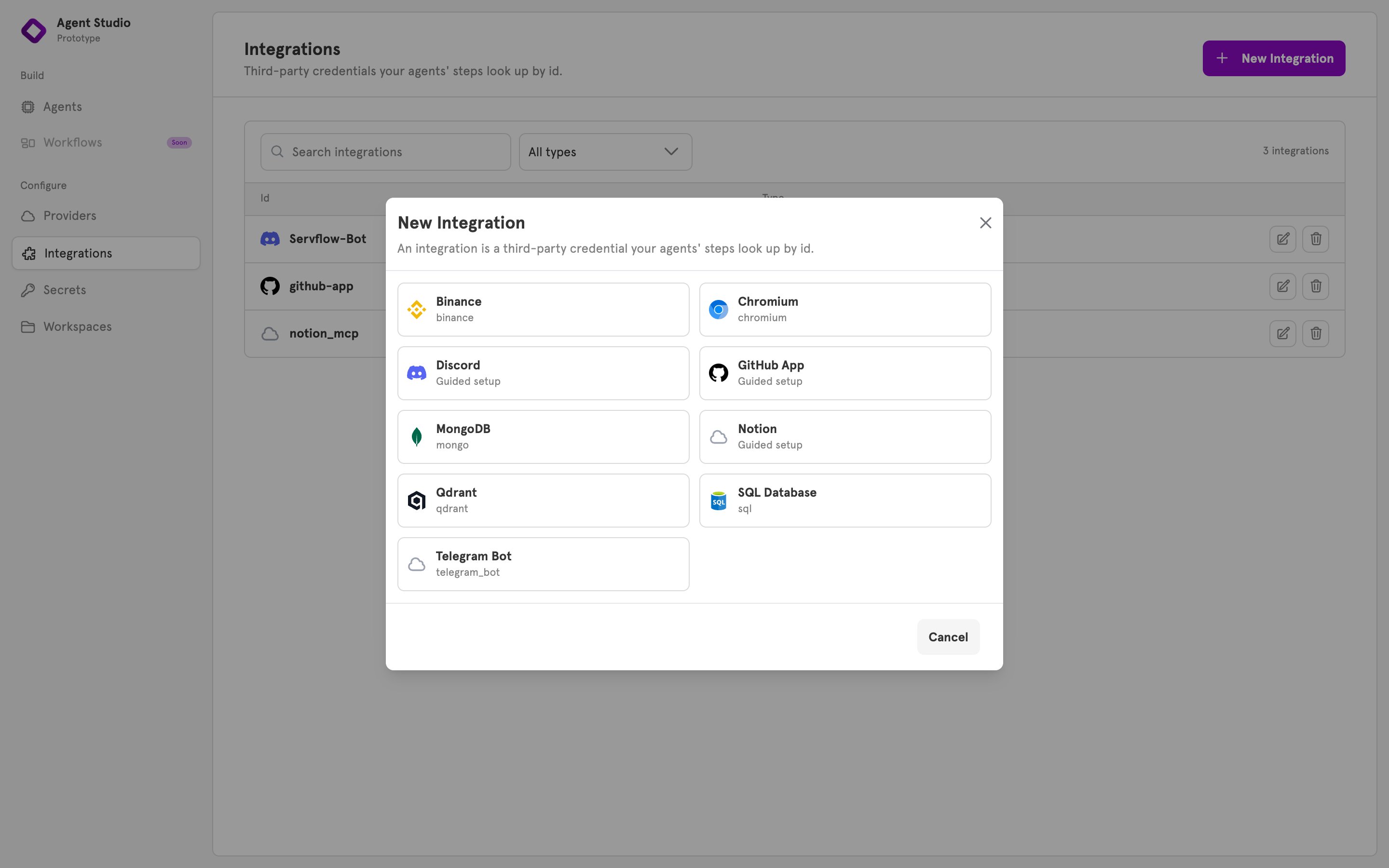 Enter an **Id**, for example `discord`. Agents reference the integration by this id, and it cannot be changed later.
Under **Bot Token**, choose a stored secret that holds the token, or choose **+ New secret…** to store it now. To paste the token into the integration instead, choose **Enter a value directly…**. A secret keeps the token out of the integration's config. See [Secrets](/references/secrets).
Click **Next**.
Enter an **Id**, for example `discord`. Agents reference the integration by this id, and it cannot be changed later.
Under **Bot Token**, choose a stored secret that holds the token, or choose **+ New secret…** to store it now. To paste the token into the integration instead, choose **Enter a value directly…**. A secret keeps the token out of the integration's config. See [Secrets](/references/secrets).
Click **Next**.
 ServFlow asks Discord which servers the bot has been added to and lists them. Select your server. If it is not listed, enter its **Server id** directly.
If the bot is in no server yet, the dialog says so. Go back to the invitation step in Discord, then enter the server id.
Click **Add integration**. The integration appears in the list on the Integrations page, with the type **Discord**.
## Set the agent's entry to Discord
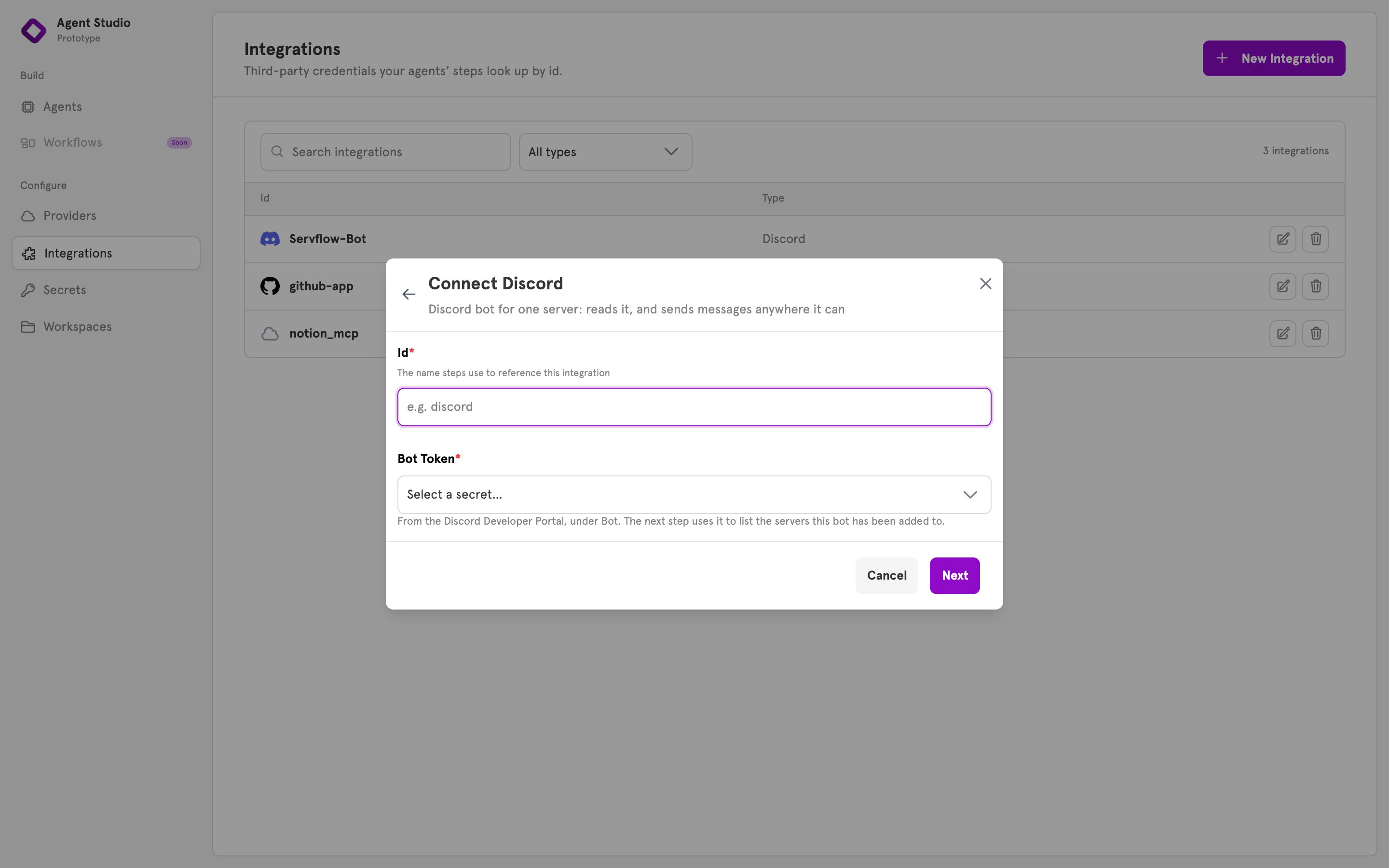
Open the agent in the editor and click the entry node at the top of the canvas. The **Entry** panel opens.
Under **Entry type**, choose **Discord bot**. The entry node relabels to **Discord bot**. A Discord entry has no path.
Under **Bot**, choose the integration you added.
Optional: under **Super user**, enter one person's Discord user id or `@username`. Every run then tells the prompt whether that person sent the message, so the agent can take instructions from them alone. A user id is safer, because a username can change.
ServFlow asks Discord which servers the bot has been added to and lists them. Select your server. If it is not listed, enter its **Server id** directly.
If the bot is in no server yet, the dialog says so. Go back to the invitation step in Discord, then enter the server id.
Click **Add integration**. The integration appears in the list on the Integrations page, with the type **Discord**.
## Set the agent's entry to Discord
Open the agent in the editor and click the entry node at the top of the canvas. The **Entry** panel opens.
Under **Entry type**, choose **Discord bot**. The entry node relabels to **Discord bot**. A Discord entry has no path.
Under **Bot**, choose the integration you added.
Optional: under **Super user**, enter one person's Discord user id or `@username`. Every run then tells the prompt whether that person sent the message, so the agent can take instructions from them alone. A user id is safer, because a username can change.
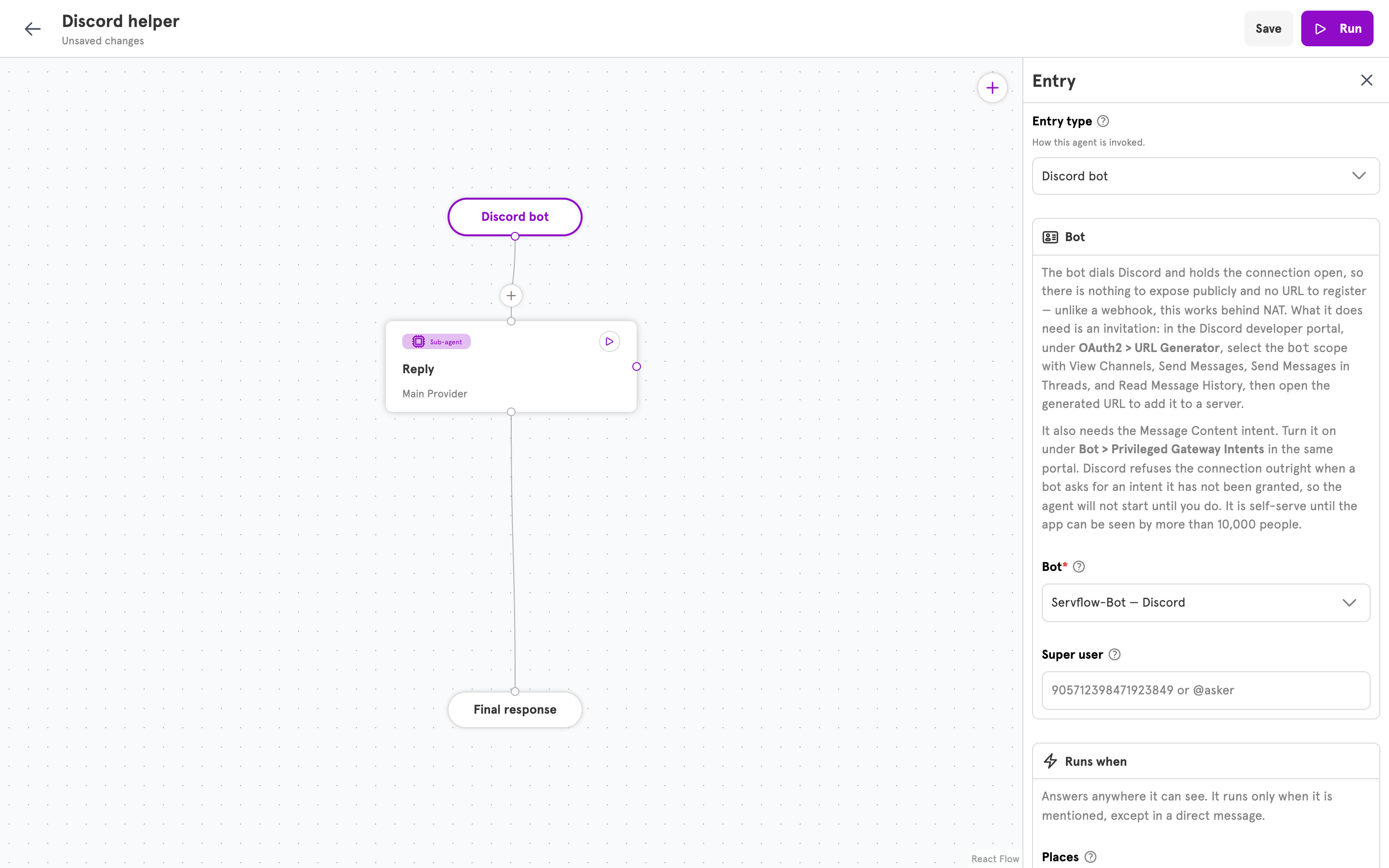 Under **Runs when**, choose the **Places** the agent answers in. The default is everywhere the bot can see. Keep **Require mention** set to **Only when the bot is mentioned**, so the agent answers people addressing it rather than every message in the channel. A direct message never needs a mention.
Under **Replies**, keep **Show "typing…"** so people see the agent working until the reply arrives.
Under **Runs when**, choose the **Places** the agent answers in. The default is everywhere the bot can see. Keep **Require mention** set to **Only when the bot is mentioned**, so the agent answers people addressing it rather than every message in the channel. A direct message never needs a mention.
Under **Replies**, keep **Show "typing…"** so people see the agent working until the reply arrives.
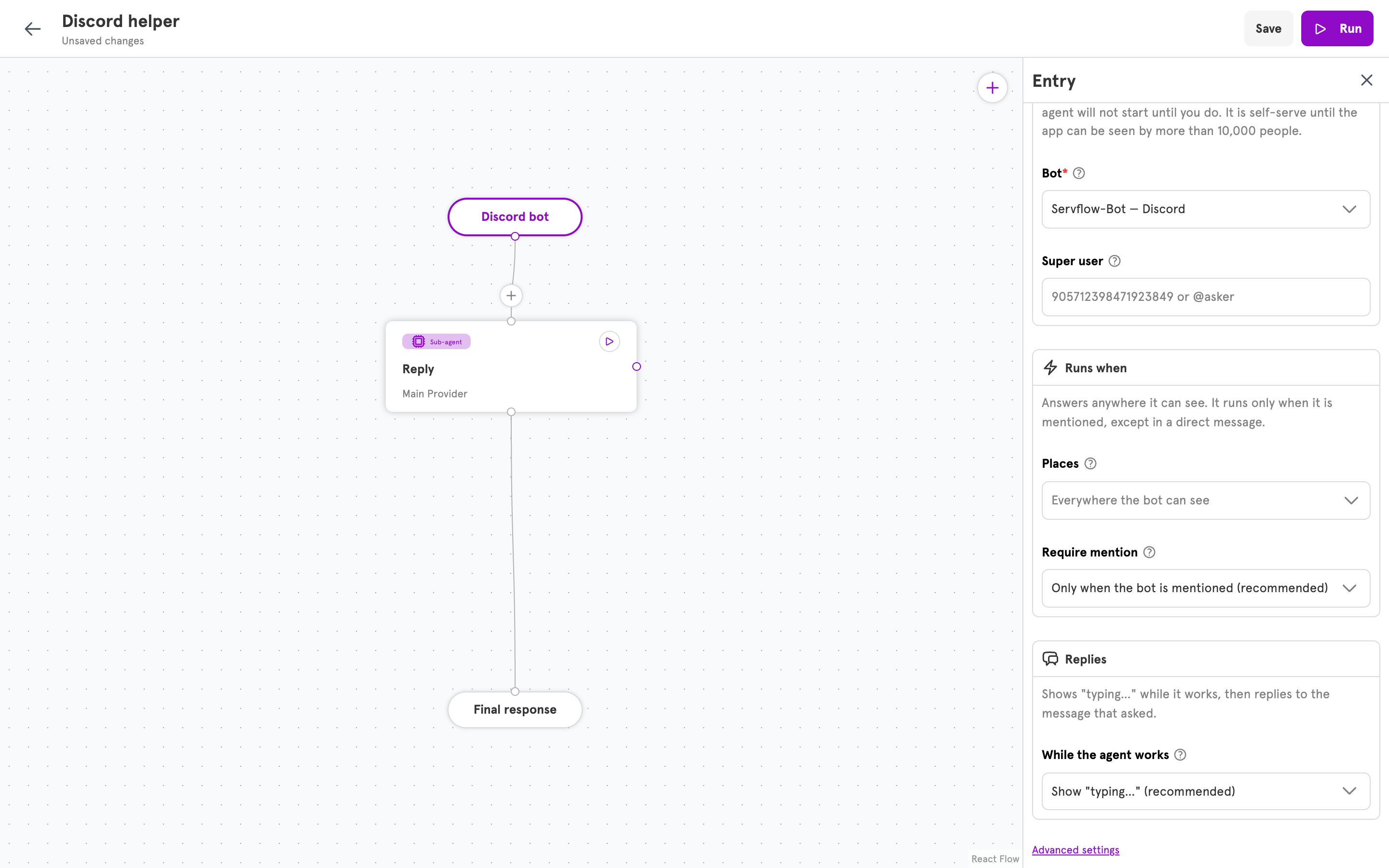 Optional: **Advanced settings** narrows the agent to specific servers, channels, or `!` commands, and decides whether it answers other bots. For every field, see [Entry handlers](/references/entry-handlers#discord_gateway).
## Read the message in the prompt
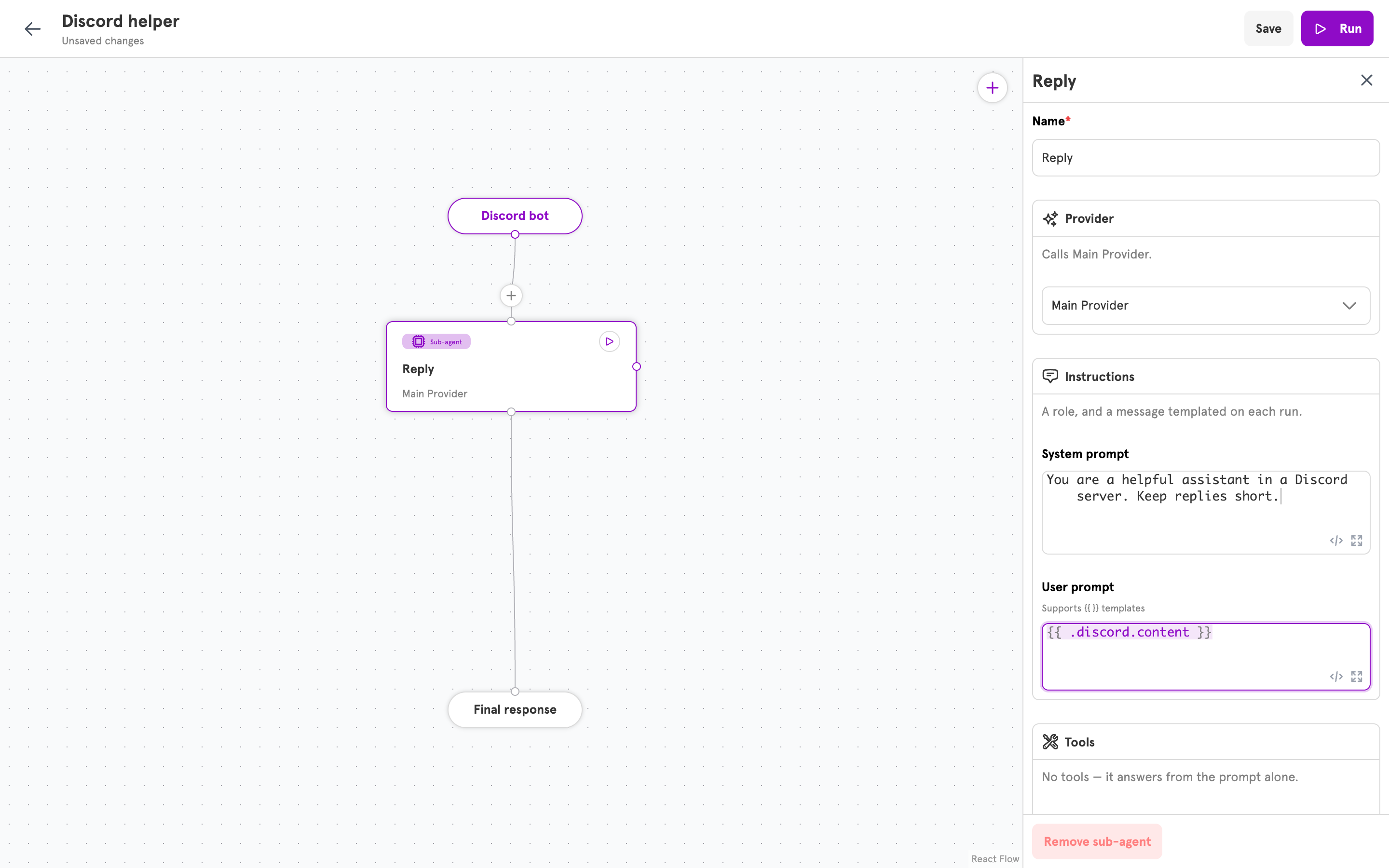
Click the agent's first sub-agent and set its **User prompt** to the message text:
```
{{ .discord.content }}
```
The bot's own mention is stripped from the message before the agent reads it. The entry also provides the sender's name, the channel, and whether the sender is the super user. For the full list, see [the Discord entry's variables](/references/entry-handlers#discord_gateway).
Optional: **Advanced settings** narrows the agent to specific servers, channels, or `!` commands, and decides whether it answers other bots. For every field, see [Entry handlers](/references/entry-handlers#discord_gateway).
## Read the message in the prompt
Click the agent's first sub-agent and set its **User prompt** to the message text:
```
{{ .discord.content }}
```
The bot's own mention is stripped from the message before the agent reads it. The entry also provides the sender's name, the channel, and whether the sender is the super user. For the full list, see [the Discord entry's variables](/references/entry-handlers#discord_gateway).
 ## Verify
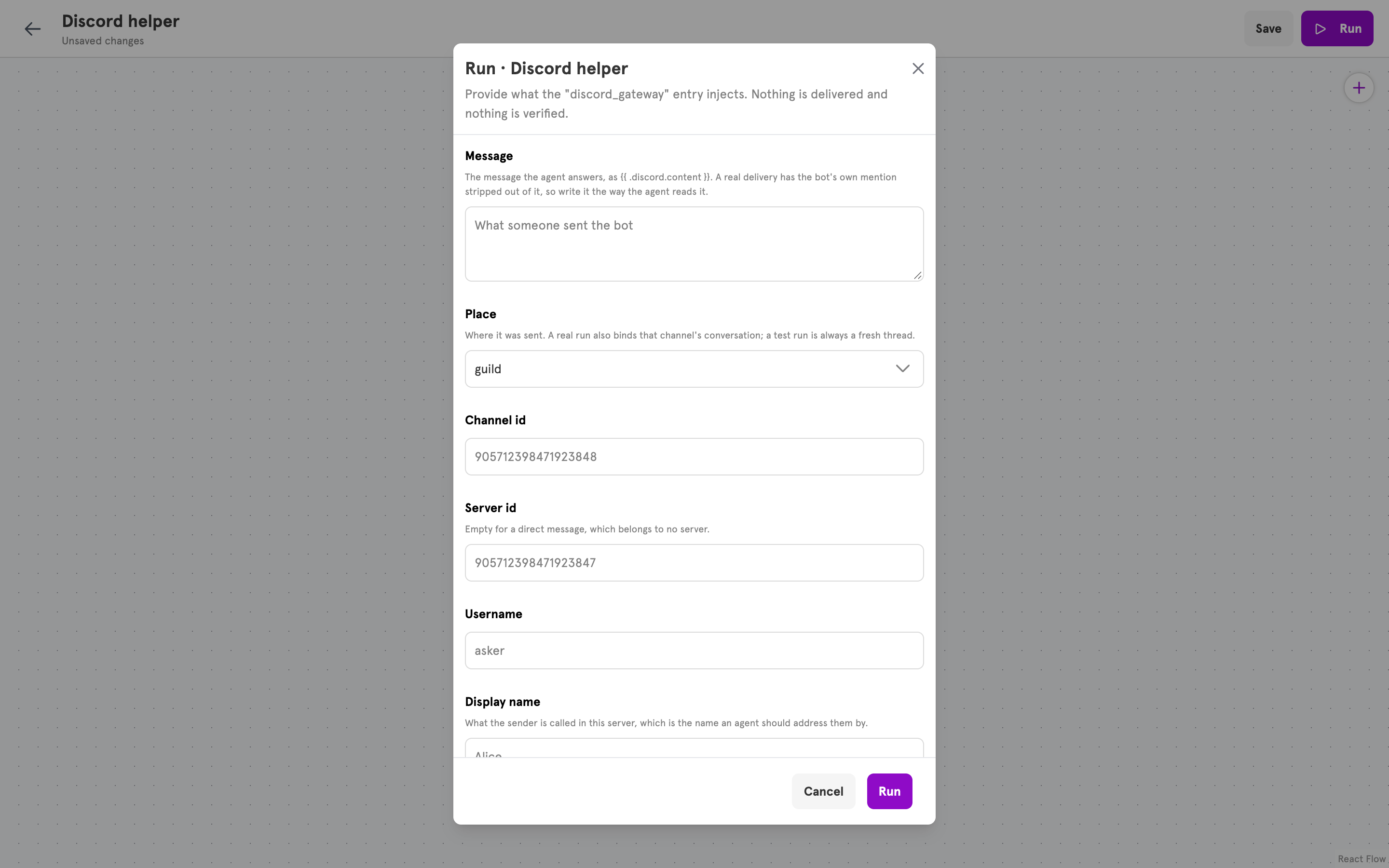
Click **Run**. For a Discord entry, the dialog asks for what a message would provide instead of a request body: the **Message**, the **Place**, the channel and server ids, and the sender. Enter a message and click **Run**. Nothing is sent to Discord, and the run panel shows the agent's reply.
## Verify
Click **Run**. For a Discord entry, the dialog asks for what a message would provide instead of a request body: the **Message**, the **Place**, the channel and server ids, and the sender. Enter a message and click **Run**. Nothing is sent to Discord, and the run panel shows the agent's reply.
 Click **Save**. The running server picks up the change without a restart. The agent must be enabled to connect. If it is not, run `servflowai resource agent enable `.
In a channel the bot can see, mention the bot with a question. The bot shows typing, then replies to your message.
## If the bot does not answer
* **The Message Content intent is off.** Discord refuses the connection, so the agent never starts. Turn it on in the Developer Portal.
* **The bot is not in the server.** Open the invitation URL from the Developer Portal again.
* **The message did not mention the bot.** With **Require mention** on, messages that do not mention the bot are ignored.
* **The channel is not allowed.** Check **Places** and **Advanced settings**.
* **Another agent uses the same bot.** Agents on one bot share a single connection to Discord. Each sees every message the bot can see and decides for itself whether to answer, so narrow each agent to its own channels or commands.
* **The agent is disabled.** Run `servflowai resource agent enable `.
## Related
Every field and variable of the Discord entry.
The Discord integration's fields and what uses it.
Send messages and read channel history from an agent's steps.
Build the agent this guide connects.
Click **Save**. The running server picks up the change without a restart. The agent must be enabled to connect. If it is not, run `servflowai resource agent enable `.
In a channel the bot can see, mention the bot with a question. The bot shows typing, then replies to your message.
## If the bot does not answer
* **The Message Content intent is off.** Discord refuses the connection, so the agent never starts. Turn it on in the Developer Portal.
* **The bot is not in the server.** Open the invitation URL from the Developer Portal again.
* **The message did not mention the bot.** With **Require mention** on, messages that do not mention the bot are ignored.
* **The channel is not allowed.** Check **Places** and **Advanced settings**.
* **Another agent uses the same bot.** Agents on one bot share a single connection to Discord. Each sees every message the bot can see and decides for itself whether to answer, so narrow each agent to its own channels or commands.
* **The agent is disabled.** Run `servflowai resource agent enable `.
## Related
Every field and variable of the Discord entry.
The Discord integration's fields and what uses it.
Send messages and read channel history from an agent's steps.
Build the agent this guide connects.