> ## Documentation Index
> Fetch the complete documentation index at: https://docs.servflow.io/llms.txt
> Use this file to discover all available pages before exploring further.
# Manage LLM providers
> Add the model account your agents use, point a sub-agent at it, and change or delete it safely
A provider is the account your agents call an AI model through, such as your OpenAI or Anthropic account, together with the model to use. This guide adds a provider, points a sub-agent at it, and shows how to change and delete one.
## Before you begin
* A running instance with the dashboard open. See [Install ServFlow](/installation).
* An API key from the company whose models you want to use. You enter the key yourself. After you save it, it is hidden.
## Add a provider
In the sidebar under **Configure**, open **Providers**. The page lists the providers you already have.
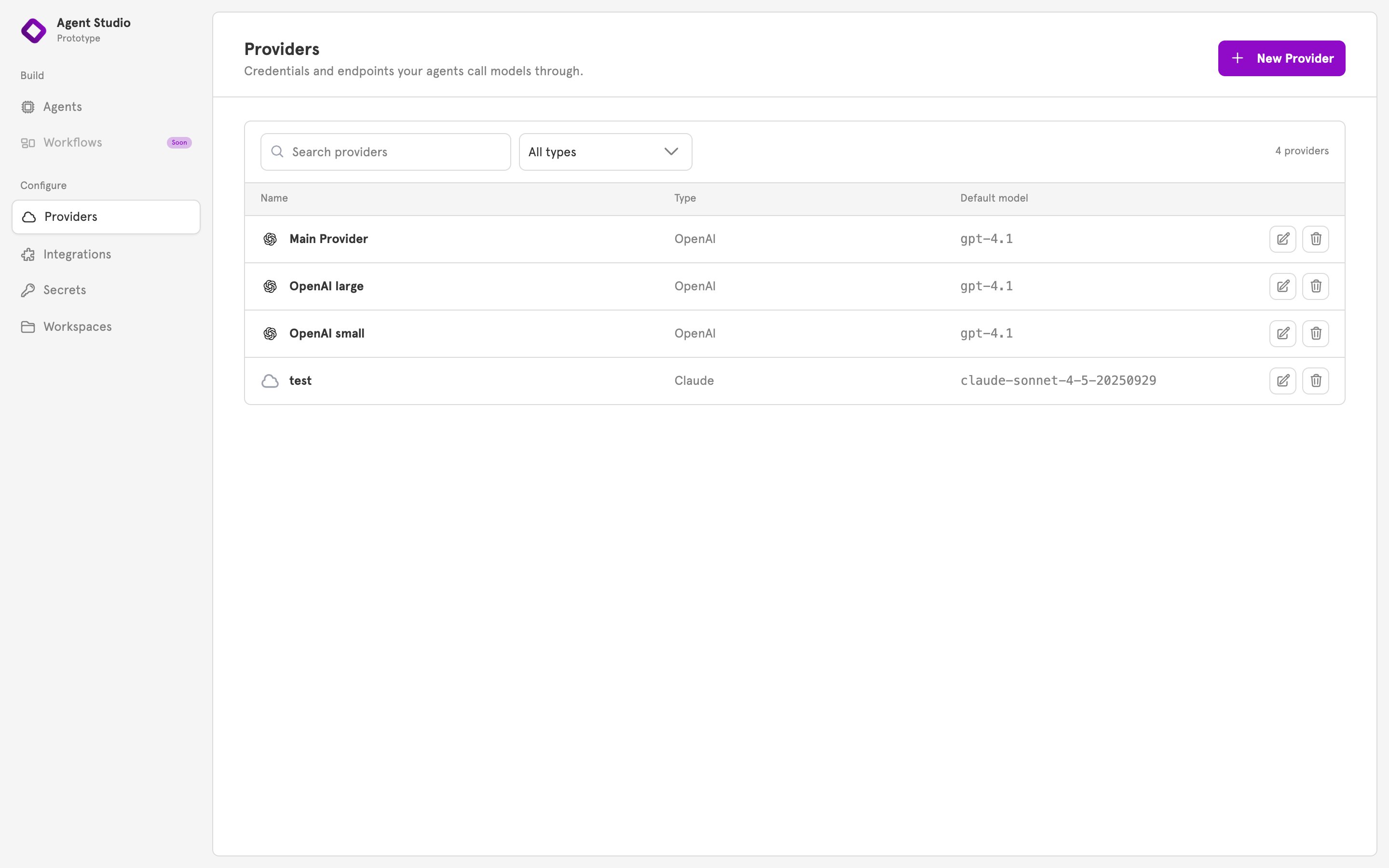 Click **New Provider** in the top right. The **New Provider** dialog opens.
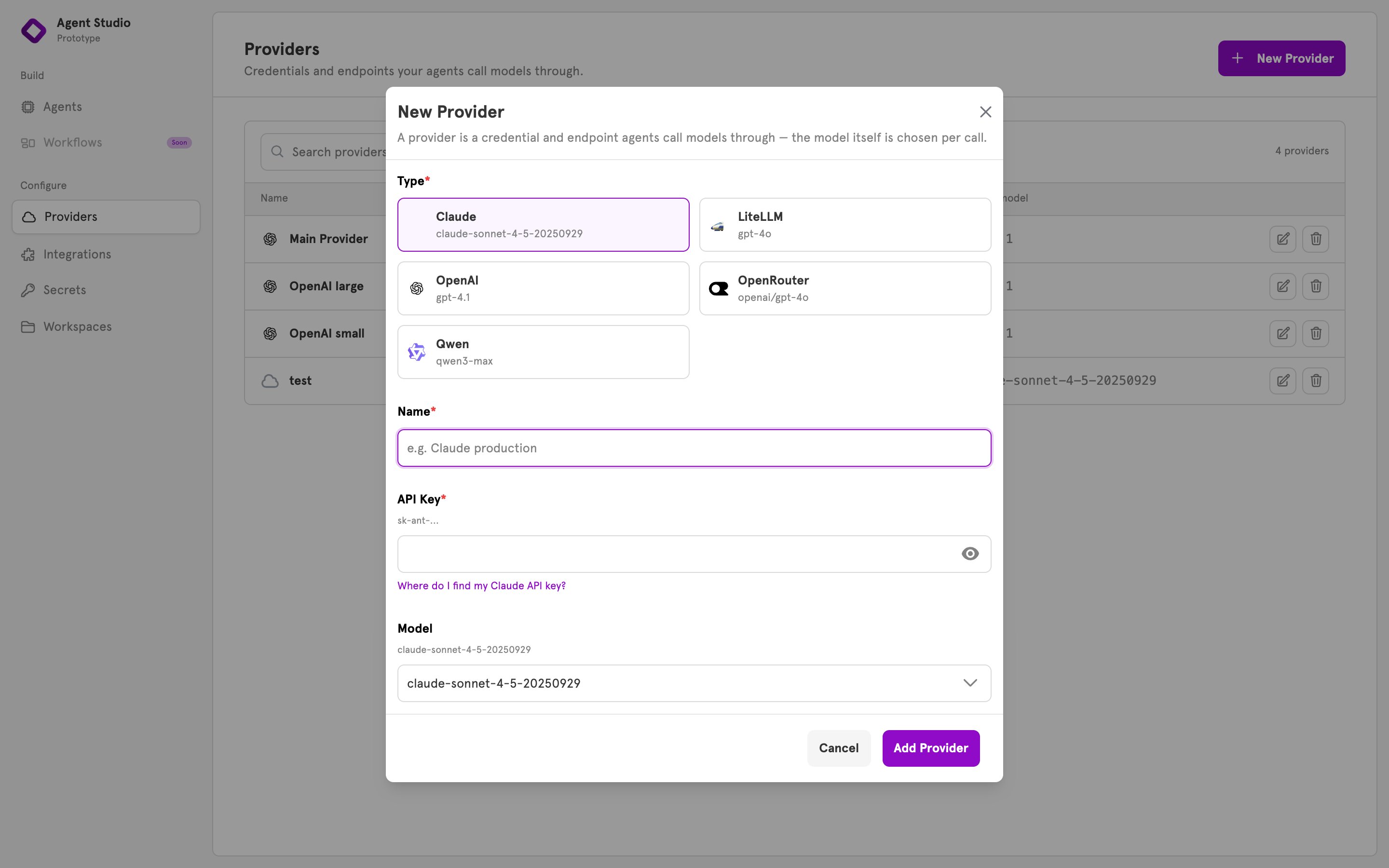 Under **Type**, click the card for your model company: Claude, LiteLLM, OpenAI, OpenRouter, or Qwen. The fields below the cards change to match.
LiteLLM, OpenRouter, and Qwen also ask for the web address of the service. OpenRouter adds a **Reasoning** setting. Leave it on its default unless you know you need it.
Enter a **Name**, for example `OpenAI production`. This is the name you choose in a sub-agent.
Enter your key under **API Key**. The field hides what you type. If you do not have a key yet, the link under the field opens the company's page for creating one.
Under **Model**, pick a model from the list or type a model name.
Under **Type**, click the card for your model company: Claude, LiteLLM, OpenAI, OpenRouter, or Qwen. The fields below the cards change to match.
LiteLLM, OpenRouter, and Qwen also ask for the web address of the service. OpenRouter adds a **Reasoning** setting. Leave it on its default unless you know you need it.
Enter a **Name**, for example `OpenAI production`. This is the name you choose in a sub-agent.
Enter your key under **API Key**. The field hides what you type. If you do not have a key yet, the link under the field opens the company's page for creating one.
Under **Model**, pick a model from the list or type a model name.
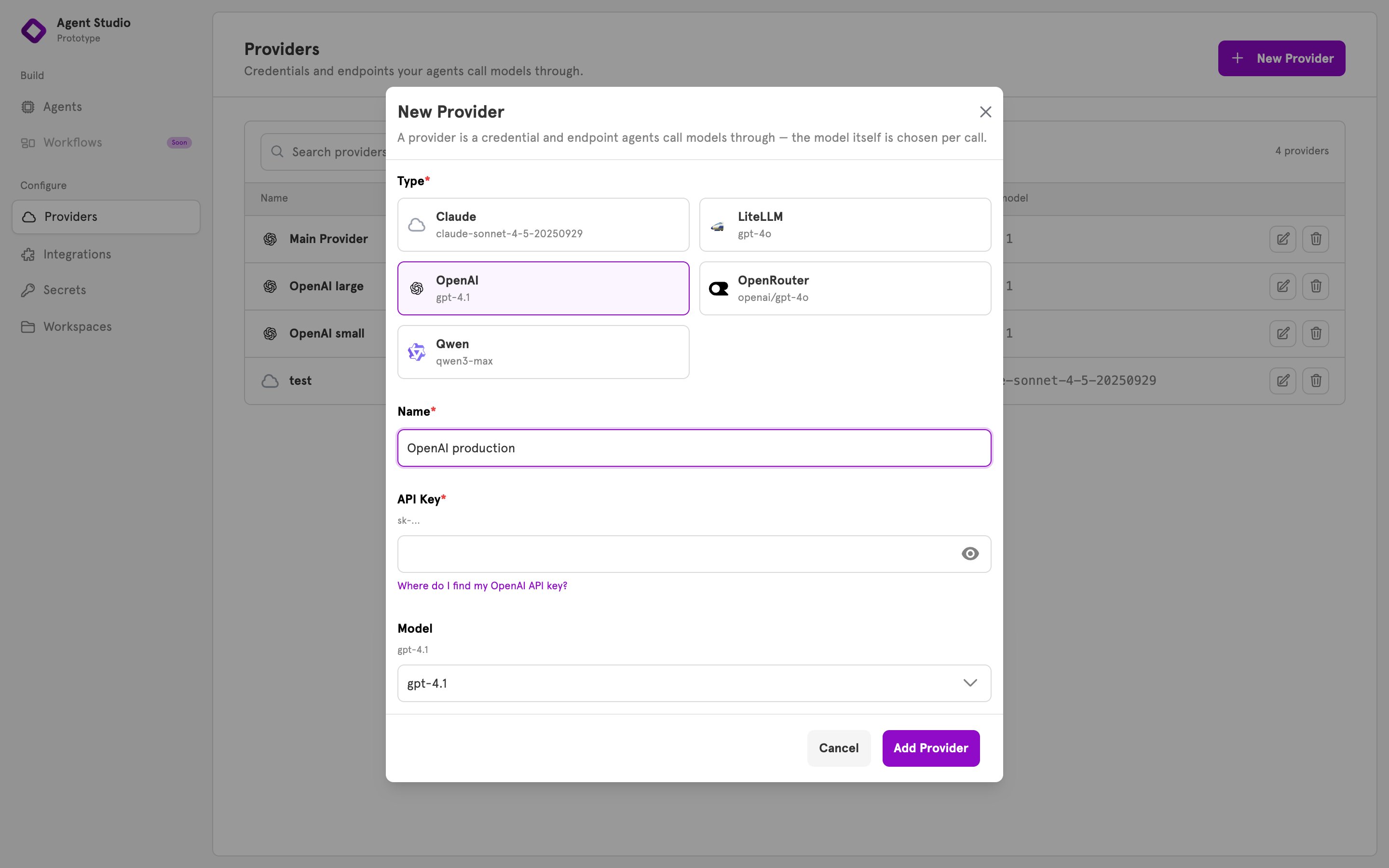 Click **Add Provider**. The dialog closes and the provider appears in the list with its type and model.
## Point a sub-agent at the provider
In the sidebar under **Build**, open **Agents** and open an agent. Click a sub-agent on the canvas. Its panel opens.
Under **Provider**, choose the provider. The panel confirms with "Calls" and the provider's name.
Click **Add Provider**. The dialog closes and the provider appears in the list with its type and model.
## Point a sub-agent at the provider
In the sidebar under **Build**, open **Agents** and open an agent. Click a sub-agent on the canvas. Its panel opens.
Under **Provider**, choose the provider. The panel confirms with "Calls" and the provider's name.
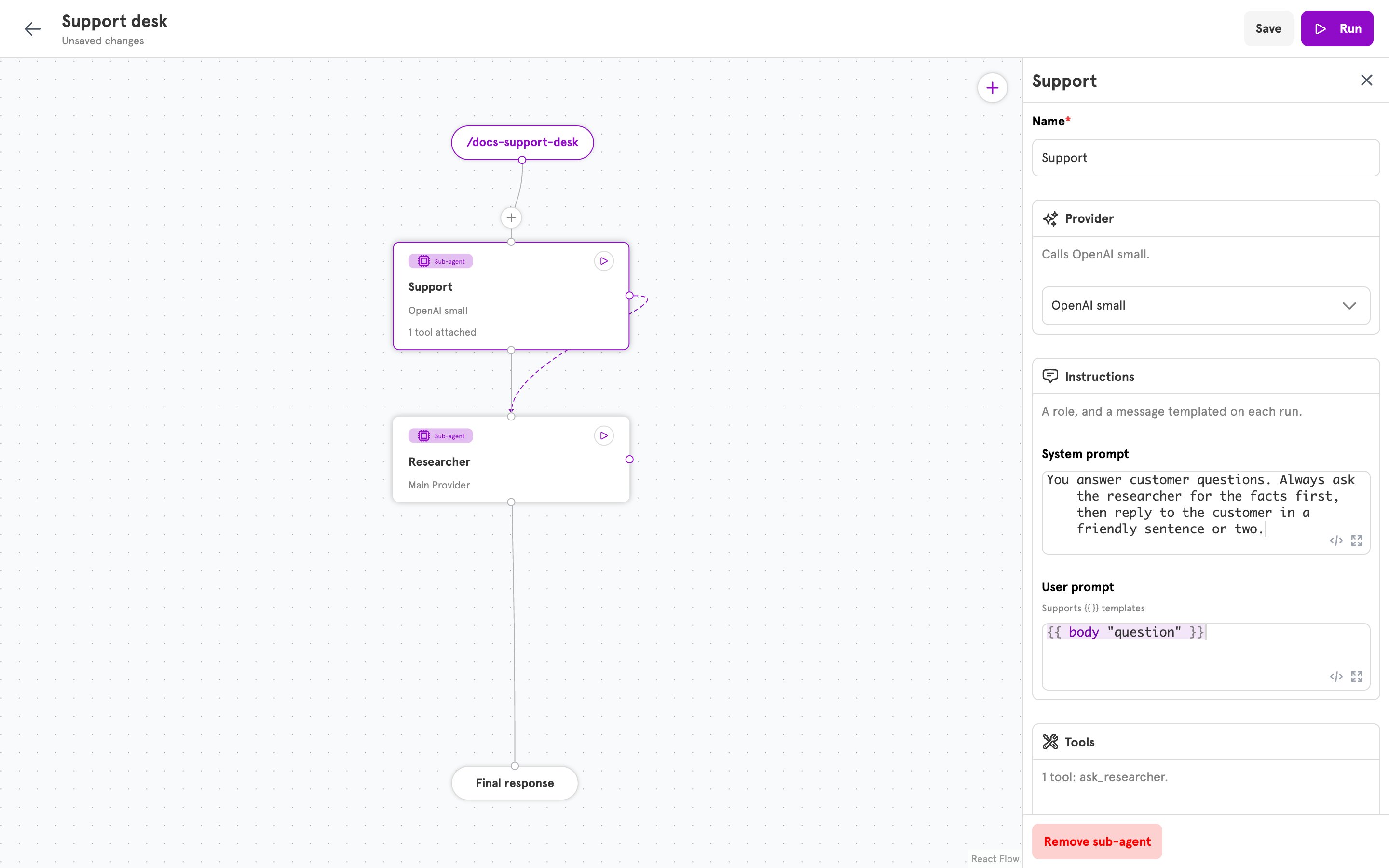 Click **Save** in the top bar.
## Use a different model for one sub-agent
The model belongs to the provider, not to the sub-agent, so a sub-agent's panel has no model setting. To give one sub-agent a different model, add a second provider of the same type with the other model, and choose it in that sub-agent. The same API key works for both.
## Change a provider's key or model
To change a provider's type, add a new provider instead. The type of an existing provider is fixed.
On the **Providers** page, click the **Edit provider** icon on the provider's row. The **Edit Provider** dialog opens.
Click **Save** in the top bar.
## Use a different model for one sub-agent
The model belongs to the provider, not to the sub-agent, so a sub-agent's panel has no model setting. To give one sub-agent a different model, add a second provider of the same type with the other model, and choose it in that sub-agent. The same API key works for both.
## Change a provider's key or model
To change a provider's type, add a new provider instead. The type of an existing provider is fixed.
On the **Providers** page, click the **Edit provider** icon on the provider's row. The **Edit Provider** dialog opens.
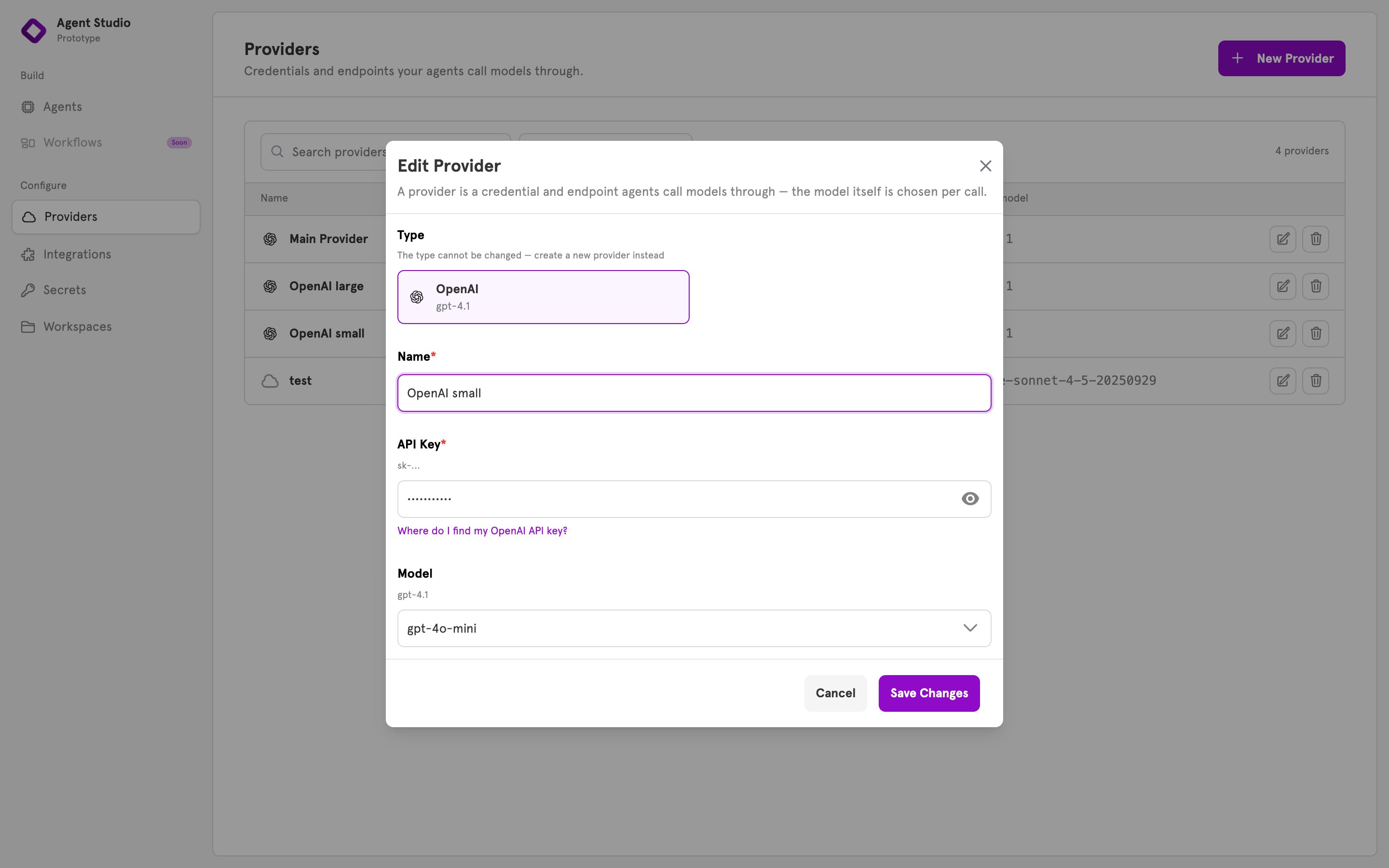 Enter a new **API Key** or choose another **Model**, then click **Save Changes**. Every agent that uses the provider picks up the change on its next run. You do not need to save the agents again.
## Delete a provider
Before you delete a provider, point every sub-agent that uses it at another one. ServFlow does not stop the delete, and an agent left pointing at a deleted provider fails the next time it runs.
On the **Providers** page, click the **Delete provider** icon on the provider's row and confirm.
## Manage providers from the CLI
To create a provider from a file, write its name, type, and config, and pass it to `create`:
```bash theme={null}
servflowai resource provider create -f provider.json
```
For every command and the body each one takes, see the [CLI reference](/references/cli#provider).
## Related
What a provider is and why sub-agents share one.
Every provider type and its fields.
Build an agent and choose a provider for each sub-agent.
Where tokens for integrations are kept, and why a provider's key is not one of them.
Enter a new **API Key** or choose another **Model**, then click **Save Changes**. Every agent that uses the provider picks up the change on its next run. You do not need to save the agents again.
## Delete a provider
Before you delete a provider, point every sub-agent that uses it at another one. ServFlow does not stop the delete, and an agent left pointing at a deleted provider fails the next time it runs.
On the **Providers** page, click the **Delete provider** icon on the provider's row and confirm.
## Manage providers from the CLI
To create a provider from a file, write its name, type, and config, and pass it to `create`:
```bash theme={null}
servflowai resource provider create -f provider.json
```
For every command and the body each one takes, see the [CLI reference](/references/cli#provider).
## Related
What a provider is and why sub-agents share one.
Every provider type and its fields.
Build an agent and choose a provider for each sub-agent.
Where tokens for integrations are kept, and why a provider's key is not one of them.