> ## Documentation Index
> Fetch the complete documentation index at: https://docs.servflow.io/llms.txt
> Use this file to discover all available pages before exploring further.
# Set up memory and file access
> Create a workspace, give it to a sub-agent, and have the agent keep notes and read your files
A workspace is a folder your agent can read from and write to. This guide creates one, gives it to a sub-agent, and checks that the agent can save a note and find it again on a later run.
## Before you begin
* An agent with at least one sub-agent and a provider. See [Create an agent](/guides/create-an-agent).
* The check at the end runs the agent twice. Your model company bills you for those runs.
## Create a workspace
In the sidebar under **Configure**, open **Workspaces**.
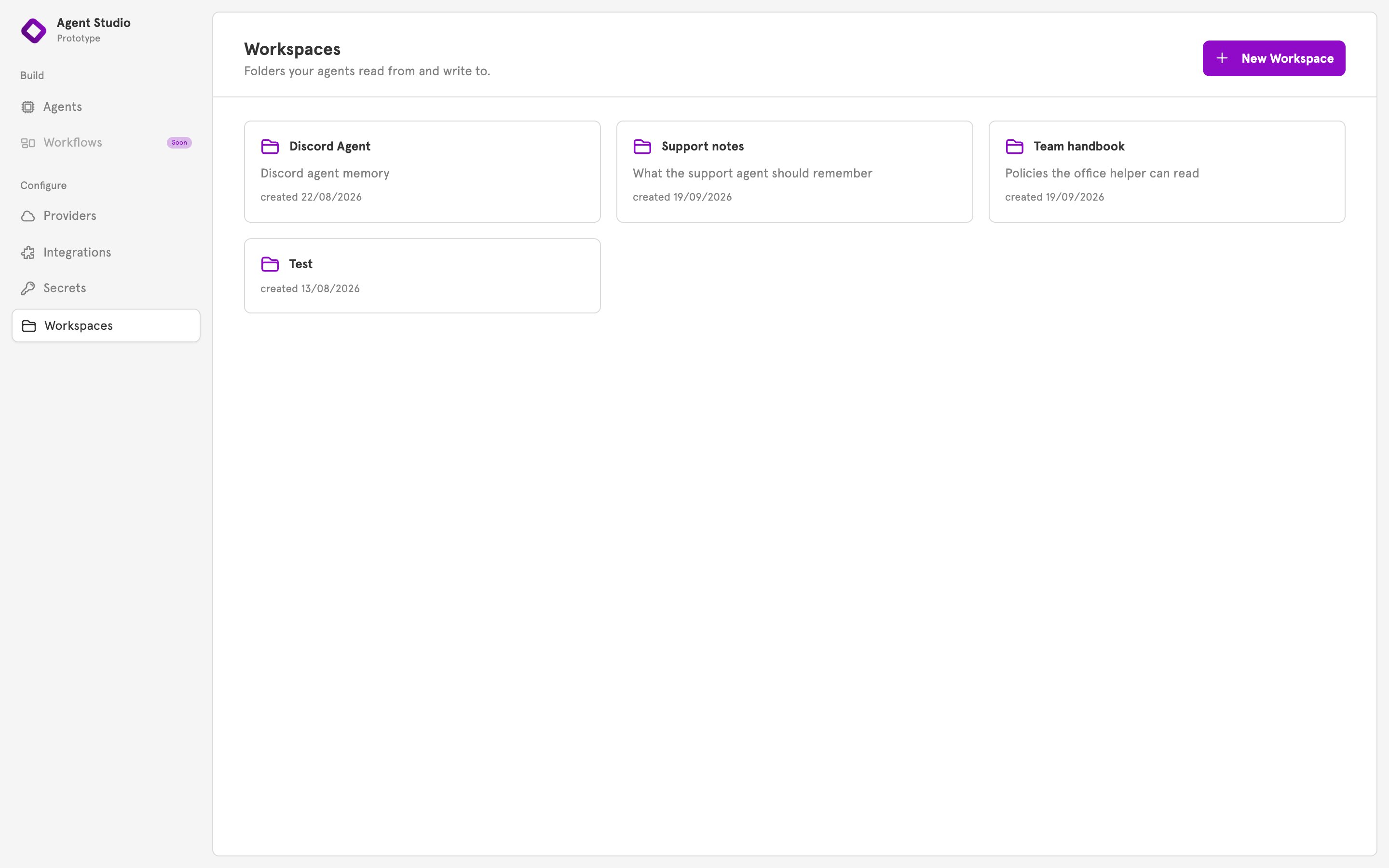 Click **New Workspace**. The **New Workspace** dialog opens.
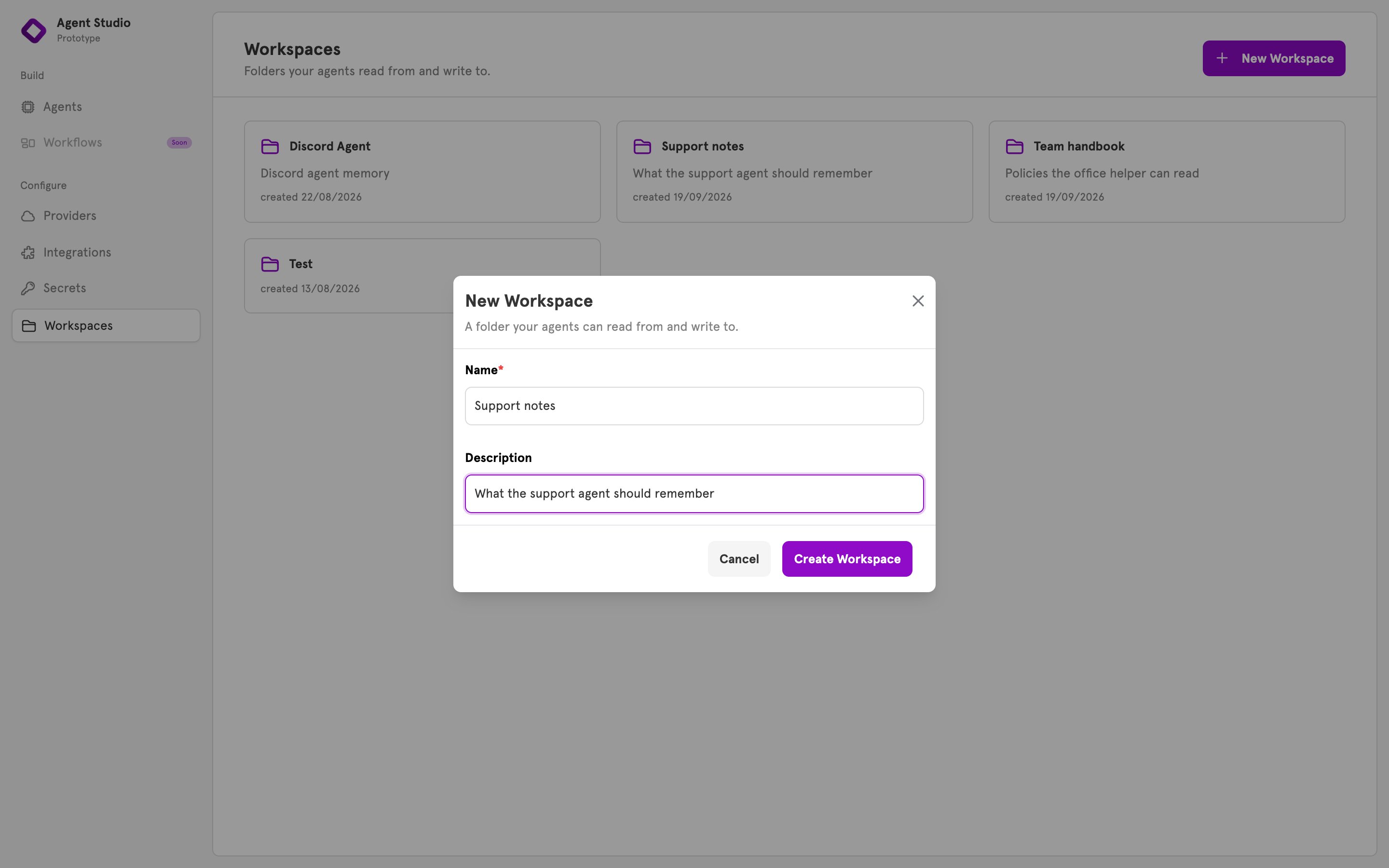
Enter a **Name**, such as `Support notes`, and a **Description**. Click **Create Workspace**. The workspace appears in the list.
Click **New Workspace**. The **New Workspace** dialog opens.
Enter a **Name**, such as `Support notes`, and a **Description**. Click **Create Workspace**. The workspace appears in the list.
 ## Add your own files
Optional: to give the agent documents to work from, click the workspace in the list. A new workspace reads "No files yet".
## Add your own files
Optional: to give the agent documents to work from, click the workspace in the list. A new workspace reads "No files yet".
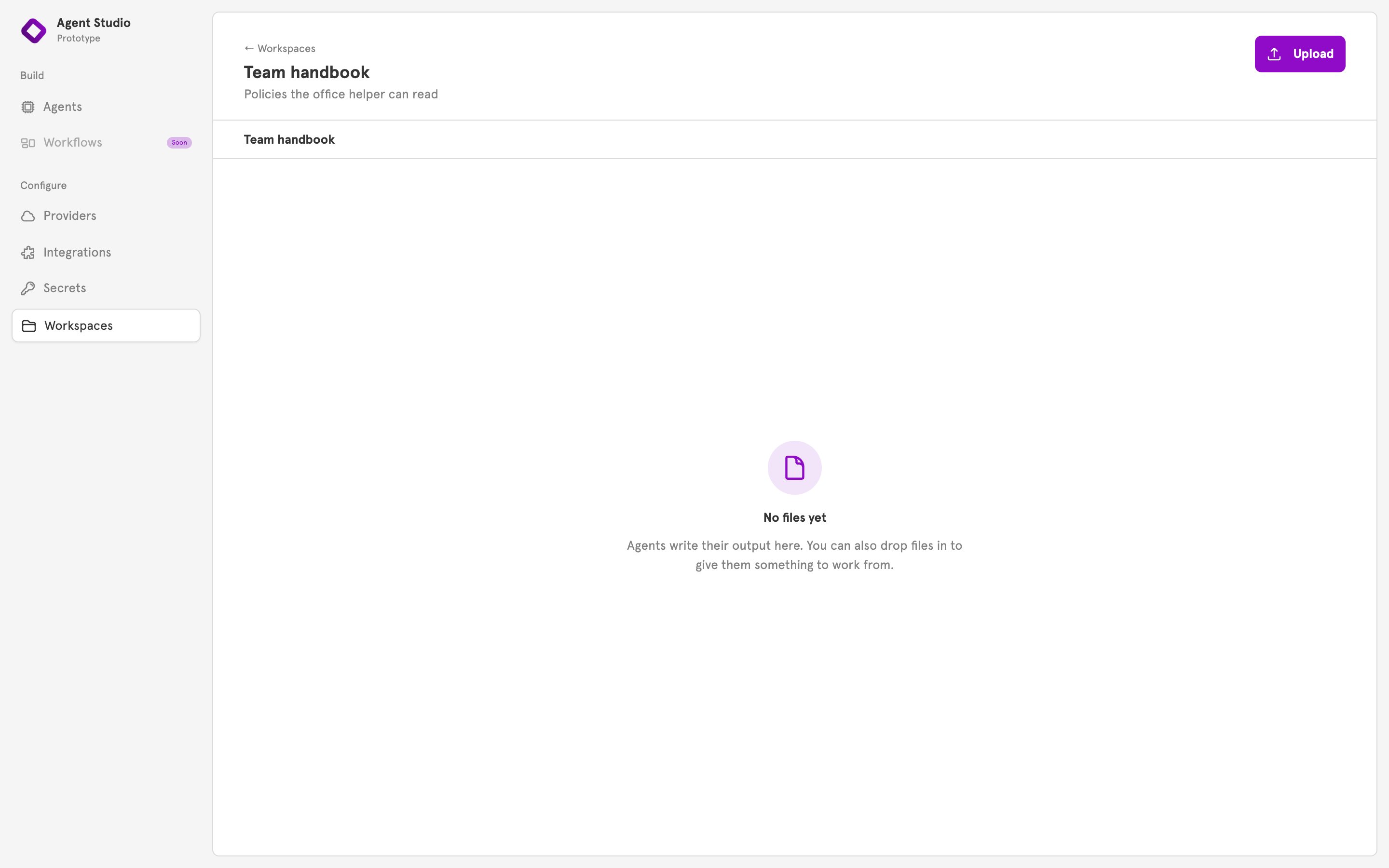 Click **Upload**, or drop files anywhere on the page. The files appear in the list.
The agent reads text files, such as `.md`, `.txt`, `.csv`, and `.json`. It cannot read pictures, PDFs, or other files that are not text.
## Give the workspace to a sub-agent
Open your agent and click the sub-agent on the canvas. Its panel opens.
Scroll to **Memory**. Under **Workspace**, choose your workspace. The section's summary changes from "No memory" to the workspace's name.
Click **Upload**, or drop files anywhere on the page. The files appear in the list.
The agent reads text files, such as `.md`, `.txt`, `.csv`, and `.json`. It cannot read pictures, PDFs, or other files that are not text.
## Give the workspace to a sub-agent
Open your agent and click the sub-agent on the canvas. Its panel opens.
Scroll to **Memory**. Under **Workspace**, choose your workspace. The section's summary changes from "No memory" to the workspace's name.
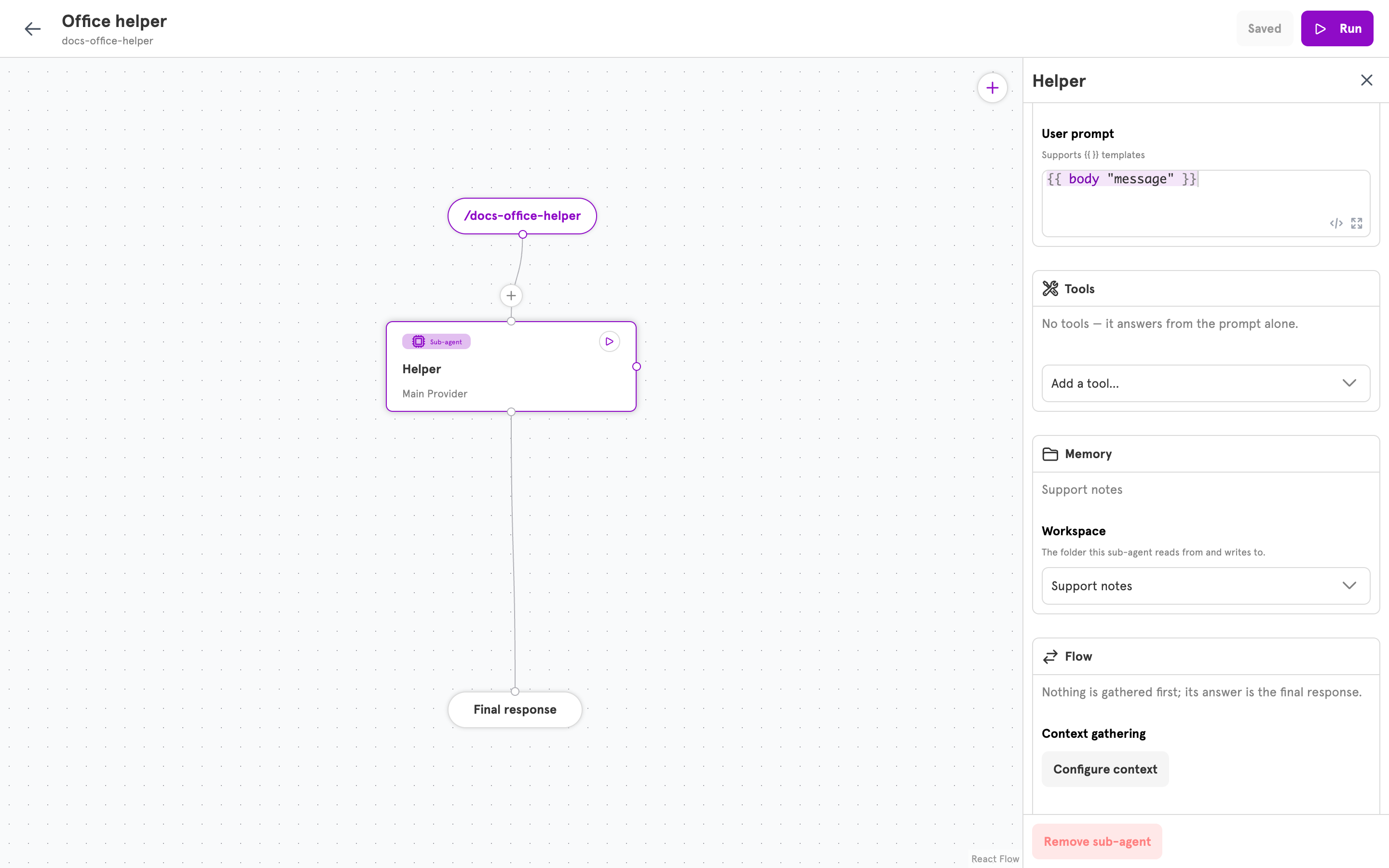 The sub-agent can now list, read, and write files in the workspace. There is nothing else to switch on.
## Tell the agent how to use the workspace
The agent now has the ability, but it needs the instruction. Without one, it answers from the message alone and leaves the files untouched.
In the sub-agent's **System prompt**, say which file to use and when:
```
You keep your notes in a file called notes.md.
Before every answer, use read_file to read notes.md. If it does not exist yet, carry on without it.
When someone asks you to remember something, read notes.md, add the new note, and use write_file to save the whole file.
```
The last line asks for the whole file because writing a file replaces what was in it.
Click **Save** in the top bar.
## Verify
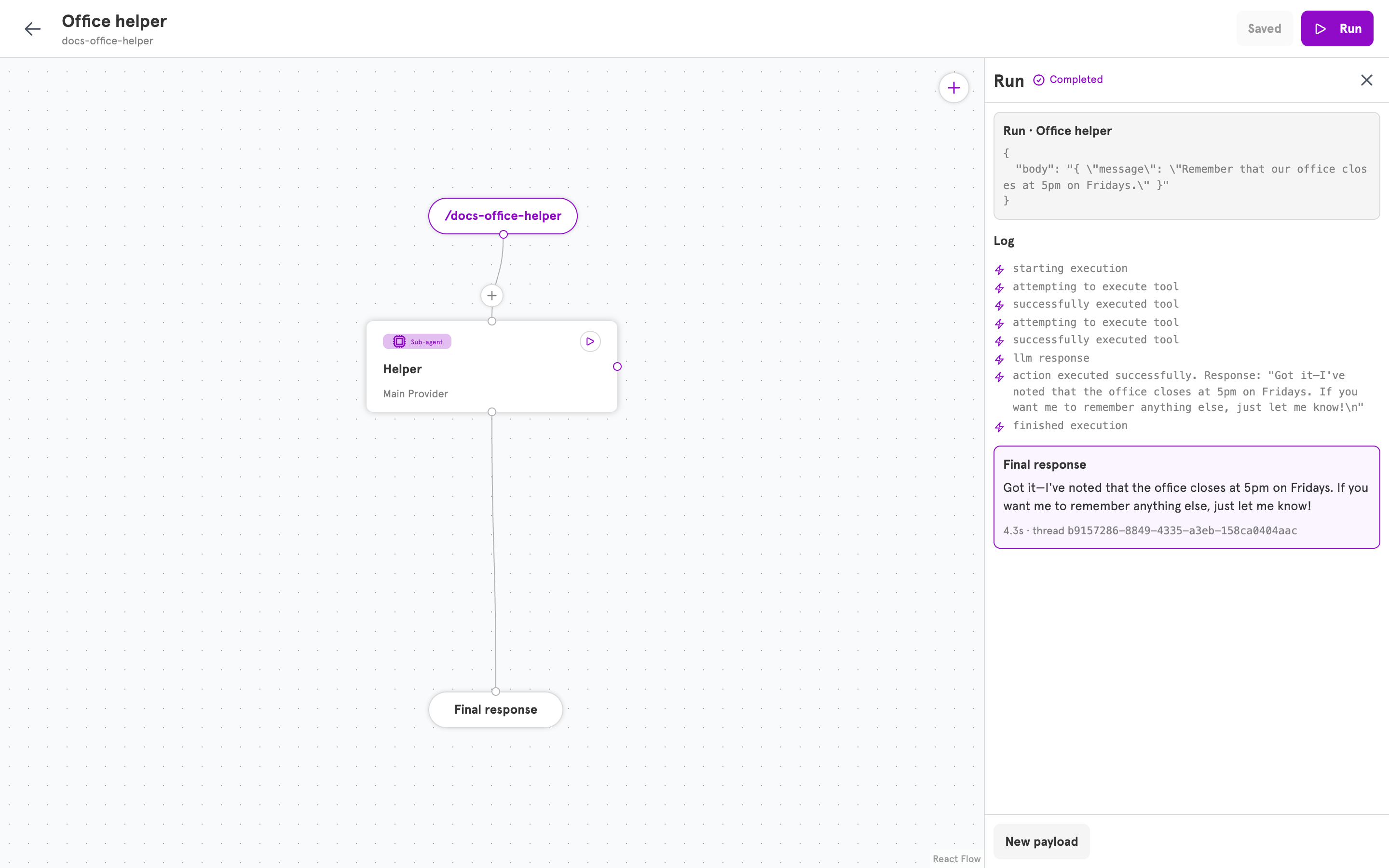
Click **Run**, enter a request that fits your agent's prompt, and click **Run**. For an agent that reads `{{ body "message" }}`:
```json theme={null}
{ "message": "Remember that our office closes at 5pm on Fridays." }
```
The **Log** in the **Run** panel shows "attempting to execute tool" and "successfully executed tool" twice, once for reading the notes and once for saving them, and the agent confirms.
The sub-agent can now list, read, and write files in the workspace. There is nothing else to switch on.
## Tell the agent how to use the workspace
The agent now has the ability, but it needs the instruction. Without one, it answers from the message alone and leaves the files untouched.
In the sub-agent's **System prompt**, say which file to use and when:
```
You keep your notes in a file called notes.md.
Before every answer, use read_file to read notes.md. If it does not exist yet, carry on without it.
When someone asks you to remember something, read notes.md, add the new note, and use write_file to save the whole file.
```
The last line asks for the whole file because writing a file replaces what was in it.
Click **Save** in the top bar.
## Verify
Click **Run**, enter a request that fits your agent's prompt, and click **Run**. For an agent that reads `{{ body "message" }}`:
```json theme={null}
{ "message": "Remember that our office closes at 5pm on Fridays." }
```
The **Log** in the **Run** panel shows "attempting to execute tool" and "successfully executed tool" twice, once for reading the notes and once for saving them, and the agent confirms.
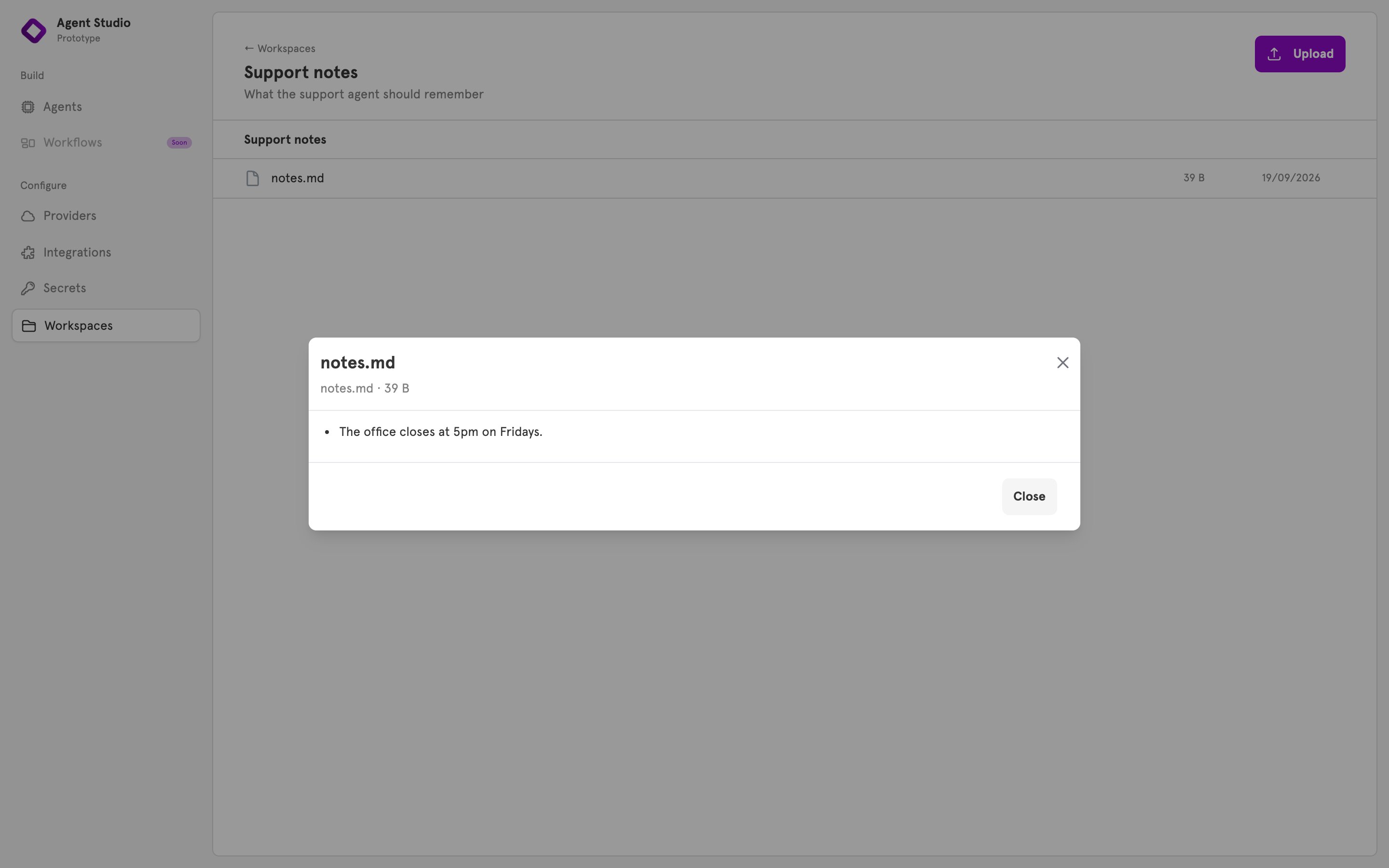
 Open **Workspaces** and open your workspace. `notes.md` is in the list. Click it to read it.
 Run the agent again with a question the note answers:
```json theme={null}
{ "message": "When does the office close on Fridays?" }
```
The log shows one tool step, and the agent answers from the note. Each run from the editor is a new conversation, so the agent can only know this from the file.
## Remove a file or a workspace
To delete a file, open the workspace, hover the file's row, click the delete icon, and confirm.
Before you delete a workspace, open every sub-agent that uses it and choose another workspace, or **No memory**. An agent left pointing at a deleted workspace stops loading until you do. Deleting a workspace removes it from ServFlow and leaves its files on the server's disk.
## Manage workspaces from the CLI
To create a workspace from a file:
```bash theme={null}
servflowai resource workspace create -f workspace.json
```
For every command and the body it takes, see the [CLI reference](/references/cli#workspace).
## Related
What a workspace is, and how it differs from the conversation an agent remembers on its own.
What an agent remembers within a conversation.
Limit what people can make your agent do.
Give a sub-agent other abilities.
Run the agent again with a question the note answers:
```json theme={null}
{ "message": "When does the office close on Fridays?" }
```
The log shows one tool step, and the agent answers from the note. Each run from the editor is a new conversation, so the agent can only know this from the file.
## Remove a file or a workspace
To delete a file, open the workspace, hover the file's row, click the delete icon, and confirm.
Before you delete a workspace, open every sub-agent that uses it and choose another workspace, or **No memory**. An agent left pointing at a deleted workspace stops loading until you do. Deleting a workspace removes it from ServFlow and leaves its files on the server's disk.
## Manage workspaces from the CLI
To create a workspace from a file:
```bash theme={null}
servflowai resource workspace create -f workspace.json
```
For every command and the body it takes, see the [CLI reference](/references/cli#workspace).
## Related
What a workspace is, and how it differs from the conversation an agent remembers on its own.
What an agent remembers within a conversation.
Limit what people can make your agent do.
Give a sub-agent other abilities.