> ## Documentation Index
> Fetch the complete documentation index at: https://docs.servflow.io/llms.txt
> Use this file to discover all available pages before exploring further.
# Conditionals
> Understanding Conditionals in ServFlow — branching logic for your API workflows
Conditionals are decision points in ServFlow workflows that evaluate expressions and route execution to different paths based on the result. They enable you to create dynamic workflows that respond differently based on input data, action results, or any other runtime values.
For information on how conditionals fit into the overall execution flow, see the [Actions](/concepts/actions/overview) documentation.
***
## Adding a Conditional to Your Workflow
To add a conditional to your workflow in the ServFlow dashboard:
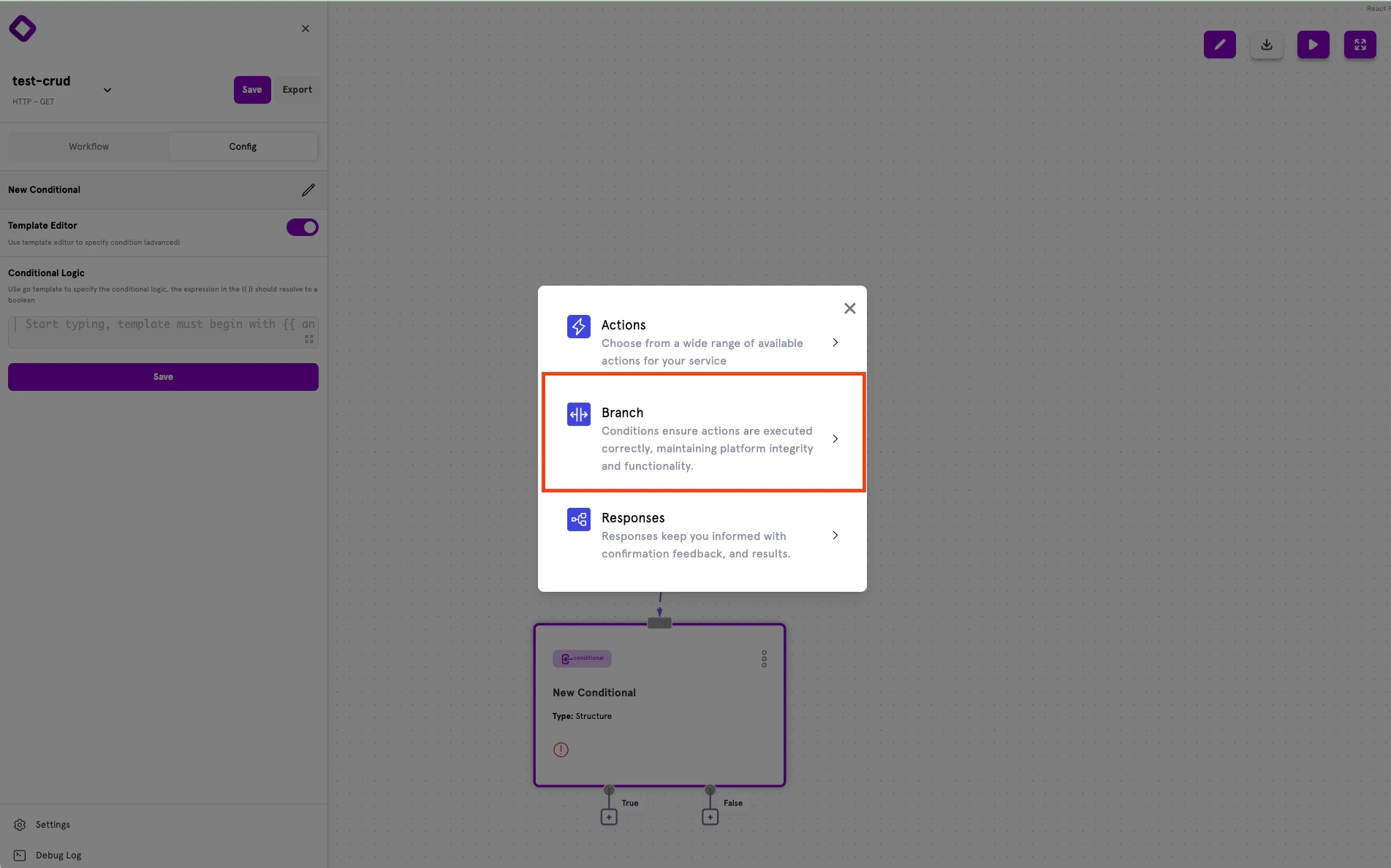
1. Click the **+** button below an existing node in the workflow canvas
2. Select **Branch** from the node type options
3. The conditional node will be added with True and False output handles
 ## Conditional Outputs
Every conditional node has two output handles that determine the flow based on evaluation:
* **True** — The path taken when the condition evaluates to `true`
* **False** — The path taken when the condition evaluates to `false`
Drag connections from these handles to other actions, conditionals, or response nodes to define your workflow's branching logic.
***
## Configuring Conditions
Selecting a conditional node opens the configuration panel on the left side of the screen. ServFlow offers two configuration modes:
* **Structured Mode** (Default) — Form-based interface for building conditions visually
* **Template Editor** (Advanced) — Write Go template expressions directly for complex logic
Structured Mode is recommended for most use cases.
### Structured Mode
Structured mode provides a form-based interface for building conditions without writing template expressions manually.
## Conditional Outputs
Every conditional node has two output handles that determine the flow based on evaluation:
* **True** — The path taken when the condition evaluates to `true`
* **False** — The path taken when the condition evaluates to `false`
Drag connections from these handles to other actions, conditionals, or response nodes to define your workflow's branching logic.
***
## Configuring Conditions
Selecting a conditional node opens the configuration panel on the left side of the screen. ServFlow offers two configuration modes:
* **Structured Mode** (Default) — Form-based interface for building conditions visually
* **Template Editor** (Advanced) — Write Go template expressions directly for complex logic
Structured Mode is recommended for most use cases.
### Structured Mode
Structured mode provides a form-based interface for building conditions without writing template expressions manually.
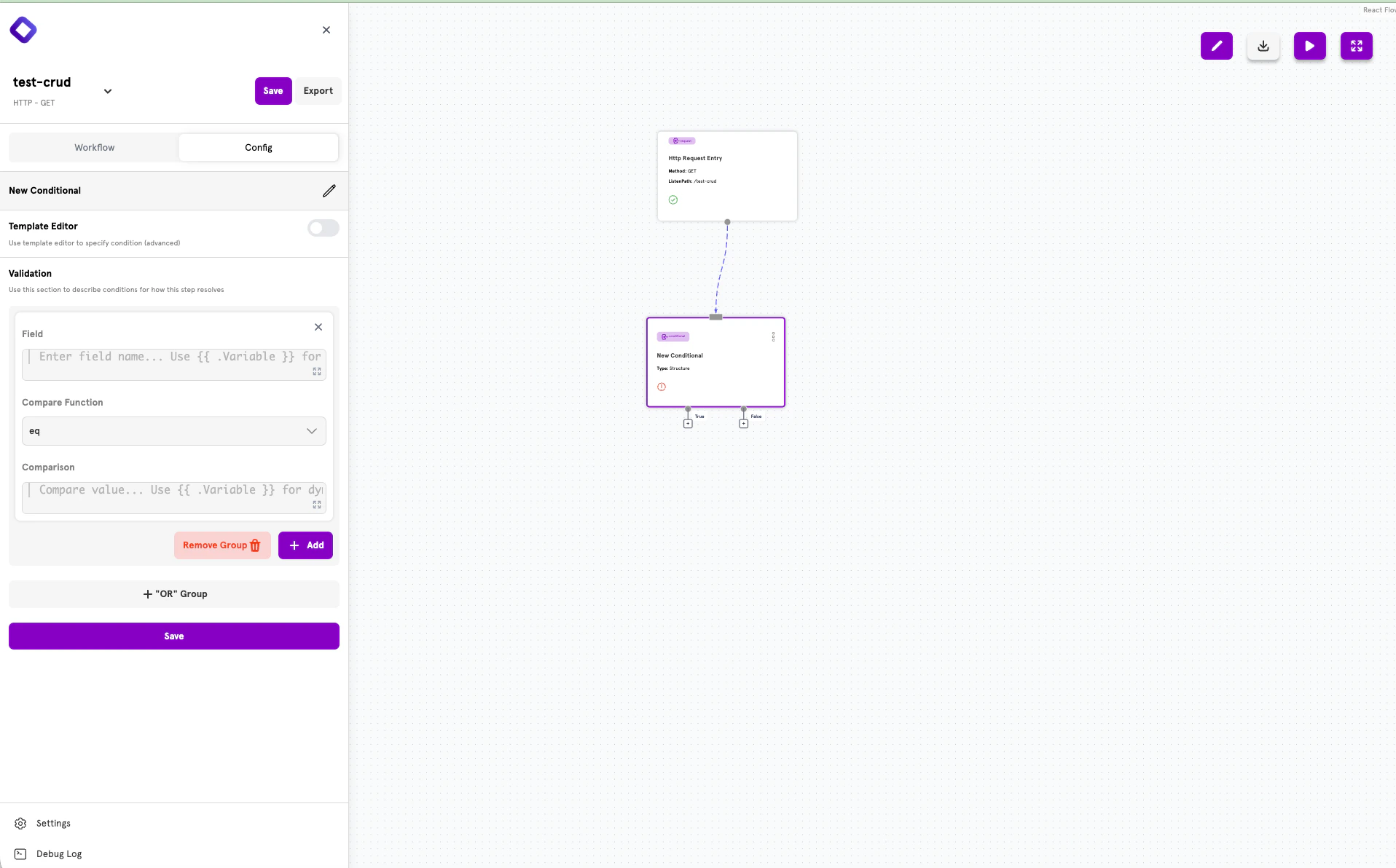 The configuration panel displays:
* **Field** — The value to evaluate (use `{{ .Variable }}` for dynamic values)
* **Compare Function** — The comparison operation (eq, ne, gt, lt, etc.)
* **Comparison** — The value to compare against
### Combining Conditions with AND
To require multiple conditions to all be true, add them to the same group using the **+ Add** button.
The configuration panel displays:
* **Field** — The value to evaluate (use `{{ .Variable }}` for dynamic values)
* **Compare Function** — The comparison operation (eq, ne, gt, lt, etc.)
* **Comparison** — The value to compare against
### Combining Conditions with AND
To require multiple conditions to all be true, add them to the same group using the **+ Add** button.
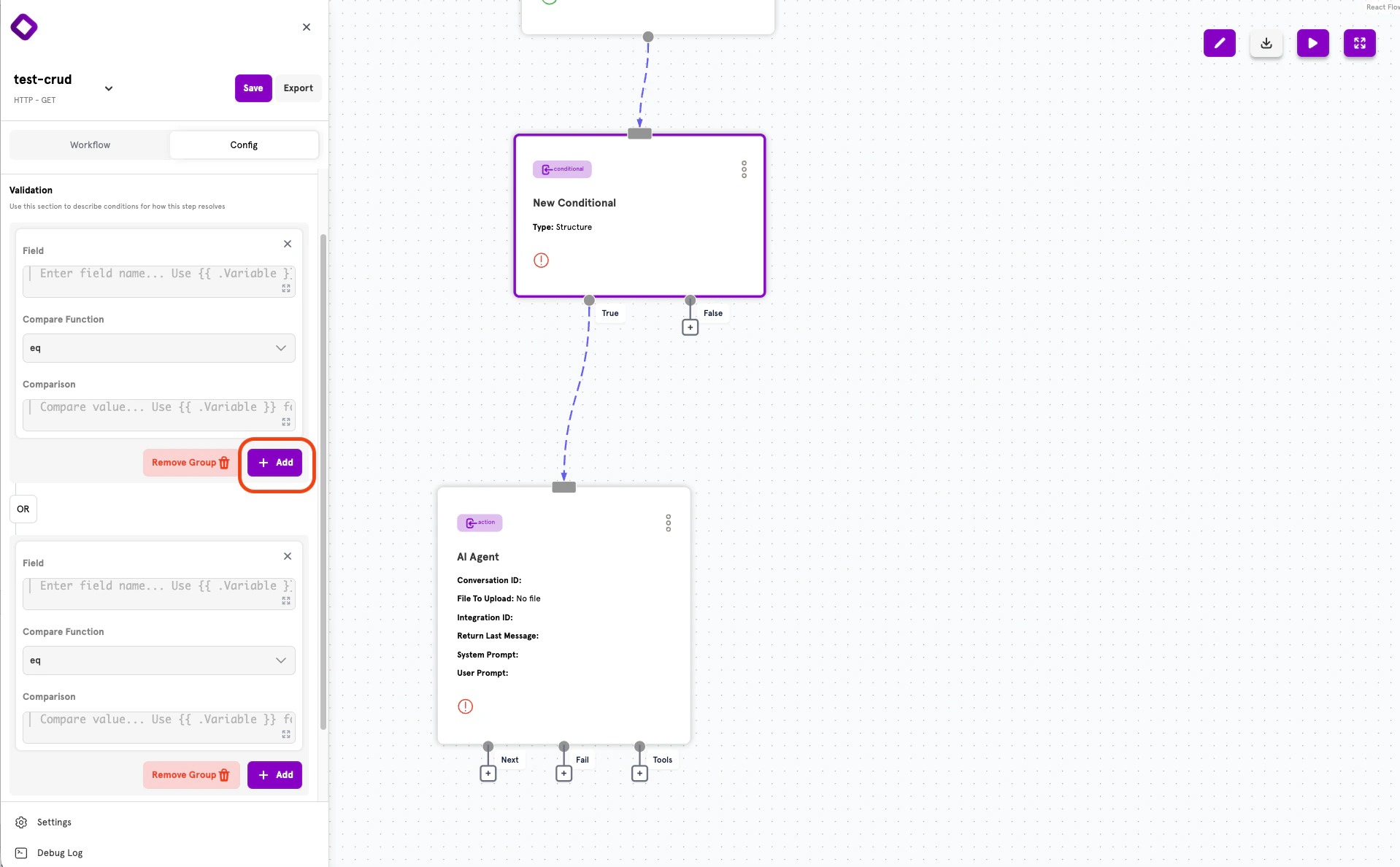 After clicking **+ Add**, a new condition appears in the same group, connected by **AND** logic:
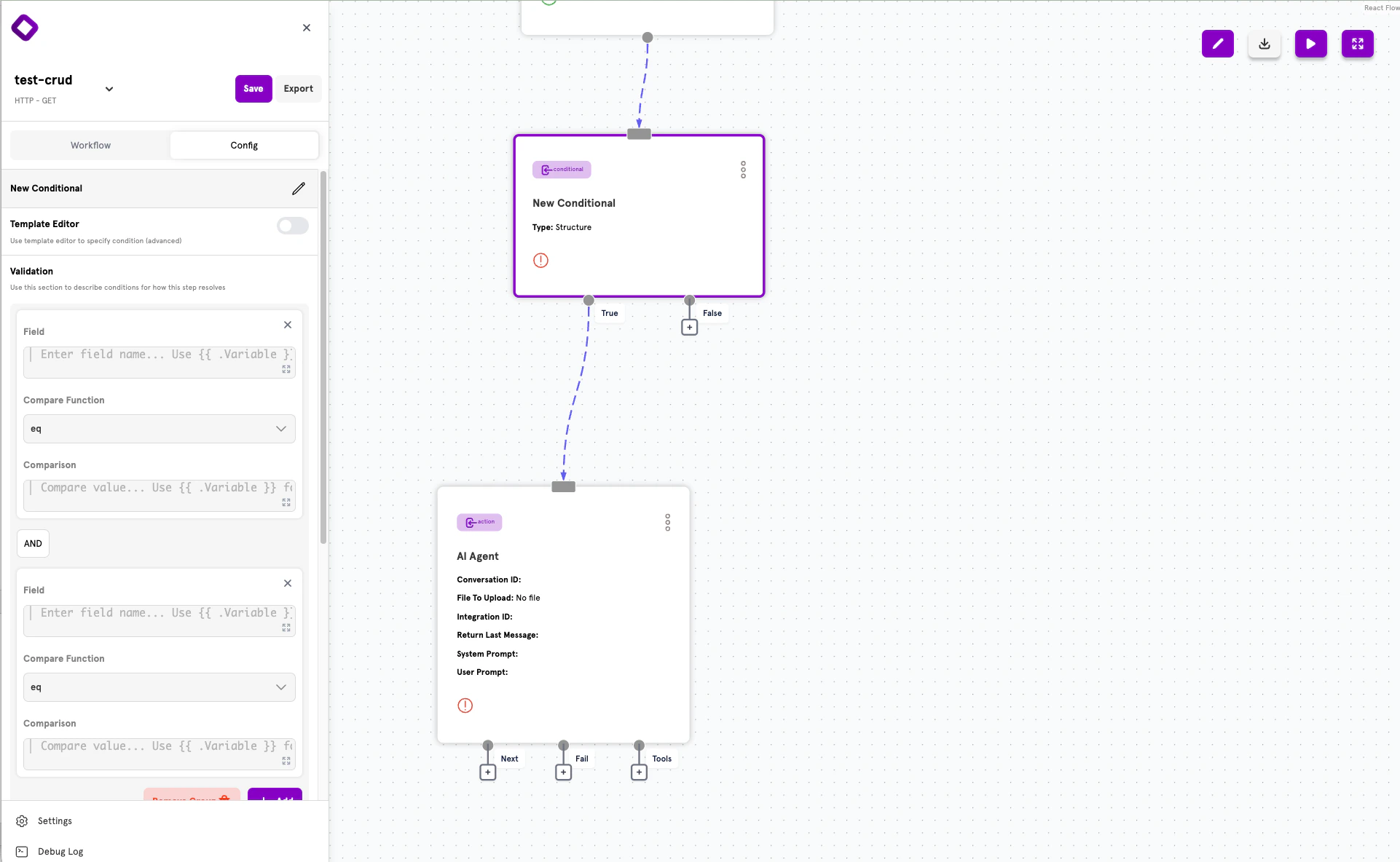 All conditions within a group must evaluate to true for the group to be true.
### Creating OR Groups
To create alternative conditions where only one needs to be true, click **+ "OR" Group** to add a new condition group.
Groups are connected by **OR** logic — the overall conditional evaluates to true if **any** group evaluates to true.
### How the Logic Works
ServFlow uses Disjunctive Normal Form (DNF) for combining conditions:
* **Within a group**: Conditions are combined with **AND** (all must be true)
* **Between groups**: Groups are combined with **OR** (any can be true)
For example, if you have:
* Group 1: Condition A AND Condition B
* Group 2: Condition C AND Condition D
The overall logic is: `(A AND B) OR (C AND D)`
This means the conditional evaluates to true if either:
* Both A and B are true, OR
* Both C and D are true
***
## Validation Functions
These functions are available for comparing and validating values in your conditions.
| Function | Description | Requires Comparison |
| ---------- | --------------------------------------- | ------------------- |
| `eq` | Checks if two values are equal | Yes |
| `ne` | Checks if two values are not equal | Yes |
| `gt` | Greater than comparison | Yes |
| `ge` | Greater than or equal | Yes |
| `lt` | Less than comparison | Yes |
| `le` | Less than or equal | Yes |
| `email` | Validates email format | No |
| `notempty` | Checks value is not empty | No |
| `empty` | Checks value is empty | No |
| `bcrypt` | Compares plain text against bcrypt hash | Yes |
Functions like `email`, `notempty`, and `bcrypt` can collect validation errors automatically. See [Validation Error Collection](#validation-error-collection) for details.
***
## Advanced: Template Editor
For complex expressions that can't be built with Structured Mode, toggle **Template Editor** to write Go template expressions directly.
All conditions within a group must evaluate to true for the group to be true.
### Creating OR Groups
To create alternative conditions where only one needs to be true, click **+ "OR" Group** to add a new condition group.
Groups are connected by **OR** logic — the overall conditional evaluates to true if **any** group evaluates to true.
### How the Logic Works
ServFlow uses Disjunctive Normal Form (DNF) for combining conditions:
* **Within a group**: Conditions are combined with **AND** (all must be true)
* **Between groups**: Groups are combined with **OR** (any can be true)
For example, if you have:
* Group 1: Condition A AND Condition B
* Group 2: Condition C AND Condition D
The overall logic is: `(A AND B) OR (C AND D)`
This means the conditional evaluates to true if either:
* Both A and B are true, OR
* Both C and D are true
***
## Validation Functions
These functions are available for comparing and validating values in your conditions.
| Function | Description | Requires Comparison |
| ---------- | --------------------------------------- | ------------------- |
| `eq` | Checks if two values are equal | Yes |
| `ne` | Checks if two values are not equal | Yes |
| `gt` | Greater than comparison | Yes |
| `ge` | Greater than or equal | Yes |
| `lt` | Less than comparison | Yes |
| `le` | Less than or equal | Yes |
| `email` | Validates email format | No |
| `notempty` | Checks value is not empty | No |
| `empty` | Checks value is empty | No |
| `bcrypt` | Compares plain text against bcrypt hash | Yes |
Functions like `email`, `notempty`, and `bcrypt` can collect validation errors automatically. See [Validation Error Collection](#validation-error-collection) for details.
***
## Advanced: Template Editor
For complex expressions that can't be built with Structured Mode, toggle **Template Editor** to write Go template expressions directly.
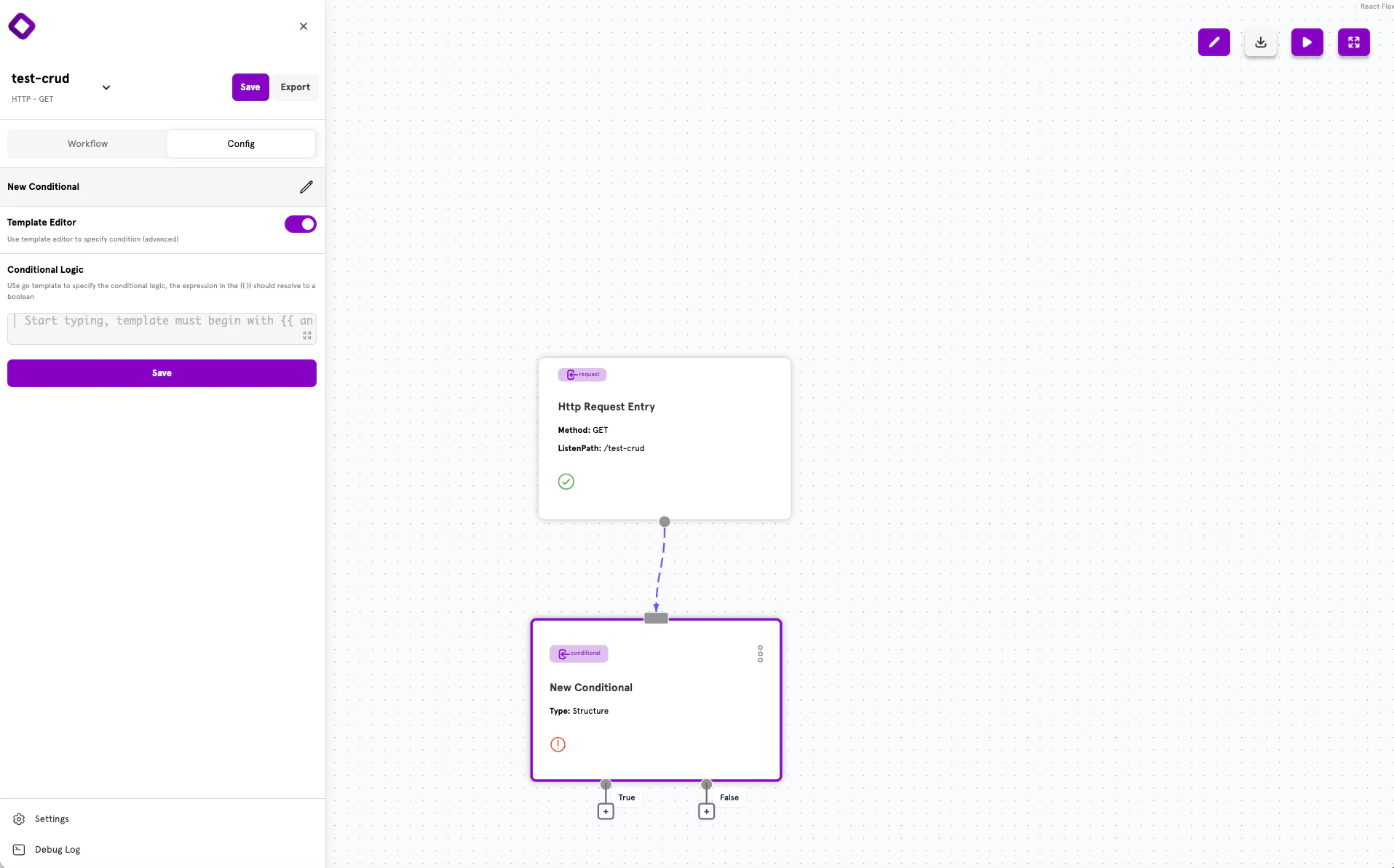 In template mode, write expressions that evaluate to a boolean value. The expression must be wrapped in `{{ }}` template delimiters.
### When to Use Template Editor
* Nested conditional logic
* Complex AND/OR combinations beyond what Structured Mode supports
* Custom validation functions
* Mathematical expressions
### Template Expression Examples
```docs/references/concepts/conditionals.mdx theme={null}
# Simple equality check
{{ eq .user.role "admin" }}
# Greater than with length
{{ gt (len .fetch_results) 0 }}
# Combined AND logic
{{ and (eq .status "active") (gt .balance 0) }}
# Combined OR logic
{{ or (eq .user.role "admin") (eq .user.role "moderator") }}
# Nested logic
{{ or (eq .user.role "admin") (and (eq .resource.owner_id .user.id) (eq .resource.status "published")) }}
```
***
## Advanced: YAML Configuration
ServFlow APIs can also be defined using YAML configuration files. This approach is useful for version control, CI/CD pipelines, or programmatic configuration generation.
### Conditional Structure
Every conditional follows this structure in YAML:
```docs/references/concepts/conditionals.mdx theme={null}
conditionals:
conditional_id:
expression: "{{ eq .status \"active\" }}"
onTrue: action.process_active
onFalse: response.inactive
type: template
```
### Common Fields
| Field | Type | Required | Description |
| ------------ | ------ | -------- | ------------------------------------------------------- |
| `expression` | string | Yes\* | Template expression that evaluates to `true` or `false` |
| `onTrue` | string | No | Step to execute if expression evaluates to `true` |
| `onFalse` | string | No | Step to execute if expression evaluates to `false` |
| `type` | string | No | Conditional type: `template` (default) or `structured` |
| `structure` | array | No | Structured condition definition (for `structured` type) |
\*Required for `template` type; `structure` is required for `structured` type.
### Routing Syntax
The `onTrue` and `onFalse` fields use the standard step reference syntax:
* `action.action_id` — Route to an action
* `conditional.conditional_id` — Route to another conditional
* `response.response_id` — Route to a response
### Template Conditionals
Template conditionals use Go template expressions:
```docs/references/concepts/conditionals.mdx theme={null}
conditionals:
is_admin:
type: template
expression: "{{ eq .user.role \"admin\" }}"
onTrue: action.admin_action
onFalse: response.forbidden
```
### Structured Conditionals
Structured conditionals use a visual-friendly format with nested arrays for AND/OR logic:
```docs/references/concepts/conditionals.mdx theme={null}
conditionals:
validate_input:
type: structured
structure:
- - content: .email
function: email
title: Email
- content: .password
function: notempty
title: Password
onTrue: action.create_user
onFalse: response.validation_error
```
**Logic structure:**
* Items in the same inner array are combined with **AND**
* Inner arrays are combined with **OR**
### Structured Condition Item Fields
| Field | Type | Required | Description |
| ------------ | ------ | -------- | ------------------------------------------------------------------ |
| `content` | string | Yes | Raw template expression to evaluate (no curly braces) |
| `function` | string | Yes | The validation function to use |
| `comparison` | string | No | Raw template expression for comparison functions (no curly braces) |
| `title` | string | No | Field name for validation error messages |
### Common YAML Patterns
**Input Validation:**
```docs/references/concepts/conditionals.mdx theme={null}
conditionals:
validate_registration:
expression: |
{{ and
(notempty (param "email") "Email" true)
(email (param "email") "Email")
(notempty (param "password") "Password" true)
}}
onTrue: action.create_user
onFalse: response.validation_error
```
**Checking if Data Exists:**
```docs/references/concepts/conditionals.mdx theme={null}
conditionals:
user_exists:
expression: "{{ gt (len .fetch_user) 0 }}"
onTrue: response.user_already_exists
onFalse: action.create_user
```
**Role-Based Access Control:**
```docs/references/concepts/conditionals.mdx theme={null}
conditionals:
is_privileged:
expression: |
{{ or
(eq .user.role "admin")
(eq .user.role "moderator")
}}
onTrue: action.privileged_action
onFalse: response.forbidden
```
**Password Verification:**
```docs/references/concepts/conditionals.mdx theme={null}
conditionals:
verify_password:
expression: "{{ bcrypt (param \"password\") .user.password \"Password\" }}"
onTrue: action.generate_token
onFalse: response.invalid_credentials
```
***
## Validation Error Collection
When validation functions like `notempty`, `email`, and `bcrypt` include a title parameter, validation errors are automatically collected. Access these errors in responses using the `.errors` variable.
```docs/references/concepts/conditionals.mdx theme={null}
conditionals:
validate:
expression: |
{{ and
(notempty (param "email") "Email" true)
(email (param "email") "Email")
(notempty (param "password") "Password" true)
}}
onTrue: action.create_user
onFalse: response.validation_error
responses:
validation_error:
code: 400
responseObject:
fields:
success:
value: "false"
errors:
value: "{{ .errors }}"
```
This returns a response like:
```docs/references/concepts/conditionals.mdx theme={null}
{
"success": false,
"errors": ["Email is required", "Password is required"]
}
```
***
## Next Steps
Learn about actions — the building blocks of workflows.
Use template syntax to create dynamic values.
See the complete ServFlow configuration options.
Securely store credentials used in your conditionals.
In template mode, write expressions that evaluate to a boolean value. The expression must be wrapped in `{{ }}` template delimiters.
### When to Use Template Editor
* Nested conditional logic
* Complex AND/OR combinations beyond what Structured Mode supports
* Custom validation functions
* Mathematical expressions
### Template Expression Examples
```docs/references/concepts/conditionals.mdx theme={null}
# Simple equality check
{{ eq .user.role "admin" }}
# Greater than with length
{{ gt (len .fetch_results) 0 }}
# Combined AND logic
{{ and (eq .status "active") (gt .balance 0) }}
# Combined OR logic
{{ or (eq .user.role "admin") (eq .user.role "moderator") }}
# Nested logic
{{ or (eq .user.role "admin") (and (eq .resource.owner_id .user.id) (eq .resource.status "published")) }}
```
***
## Advanced: YAML Configuration
ServFlow APIs can also be defined using YAML configuration files. This approach is useful for version control, CI/CD pipelines, or programmatic configuration generation.
### Conditional Structure
Every conditional follows this structure in YAML:
```docs/references/concepts/conditionals.mdx theme={null}
conditionals:
conditional_id:
expression: "{{ eq .status \"active\" }}"
onTrue: action.process_active
onFalse: response.inactive
type: template
```
### Common Fields
| Field | Type | Required | Description |
| ------------ | ------ | -------- | ------------------------------------------------------- |
| `expression` | string | Yes\* | Template expression that evaluates to `true` or `false` |
| `onTrue` | string | No | Step to execute if expression evaluates to `true` |
| `onFalse` | string | No | Step to execute if expression evaluates to `false` |
| `type` | string | No | Conditional type: `template` (default) or `structured` |
| `structure` | array | No | Structured condition definition (for `structured` type) |
\*Required for `template` type; `structure` is required for `structured` type.
### Routing Syntax
The `onTrue` and `onFalse` fields use the standard step reference syntax:
* `action.action_id` — Route to an action
* `conditional.conditional_id` — Route to another conditional
* `response.response_id` — Route to a response
### Template Conditionals
Template conditionals use Go template expressions:
```docs/references/concepts/conditionals.mdx theme={null}
conditionals:
is_admin:
type: template
expression: "{{ eq .user.role \"admin\" }}"
onTrue: action.admin_action
onFalse: response.forbidden
```
### Structured Conditionals
Structured conditionals use a visual-friendly format with nested arrays for AND/OR logic:
```docs/references/concepts/conditionals.mdx theme={null}
conditionals:
validate_input:
type: structured
structure:
- - content: .email
function: email
title: Email
- content: .password
function: notempty
title: Password
onTrue: action.create_user
onFalse: response.validation_error
```
**Logic structure:**
* Items in the same inner array are combined with **AND**
* Inner arrays are combined with **OR**
### Structured Condition Item Fields
| Field | Type | Required | Description |
| ------------ | ------ | -------- | ------------------------------------------------------------------ |
| `content` | string | Yes | Raw template expression to evaluate (no curly braces) |
| `function` | string | Yes | The validation function to use |
| `comparison` | string | No | Raw template expression for comparison functions (no curly braces) |
| `title` | string | No | Field name for validation error messages |
### Common YAML Patterns
**Input Validation:**
```docs/references/concepts/conditionals.mdx theme={null}
conditionals:
validate_registration:
expression: |
{{ and
(notempty (param "email") "Email" true)
(email (param "email") "Email")
(notempty (param "password") "Password" true)
}}
onTrue: action.create_user
onFalse: response.validation_error
```
**Checking if Data Exists:**
```docs/references/concepts/conditionals.mdx theme={null}
conditionals:
user_exists:
expression: "{{ gt (len .fetch_user) 0 }}"
onTrue: response.user_already_exists
onFalse: action.create_user
```
**Role-Based Access Control:**
```docs/references/concepts/conditionals.mdx theme={null}
conditionals:
is_privileged:
expression: |
{{ or
(eq .user.role "admin")
(eq .user.role "moderator")
}}
onTrue: action.privileged_action
onFalse: response.forbidden
```
**Password Verification:**
```docs/references/concepts/conditionals.mdx theme={null}
conditionals:
verify_password:
expression: "{{ bcrypt (param \"password\") .user.password \"Password\" }}"
onTrue: action.generate_token
onFalse: response.invalid_credentials
```
***
## Validation Error Collection
When validation functions like `notempty`, `email`, and `bcrypt` include a title parameter, validation errors are automatically collected. Access these errors in responses using the `.errors` variable.
```docs/references/concepts/conditionals.mdx theme={null}
conditionals:
validate:
expression: |
{{ and
(notempty (param "email") "Email" true)
(email (param "email") "Email")
(notempty (param "password") "Password" true)
}}
onTrue: action.create_user
onFalse: response.validation_error
responses:
validation_error:
code: 400
responseObject:
fields:
success:
value: "false"
errors:
value: "{{ .errors }}"
```
This returns a response like:
```docs/references/concepts/conditionals.mdx theme={null}
{
"success": false,
"errors": ["Email is required", "Password is required"]
}
```
***
## Next Steps
Learn about actions — the building blocks of workflows.
Use template syntax to create dynamic values.
See the complete ServFlow configuration options.
Securely store credentials used in your conditionals.