> ## Documentation Index
> Fetch the complete documentation index at: https://docs.servflow.io/llms.txt
> Use this file to discover all available pages before exploring further.
# Responses
> Understanding Responses in ServFlow — defining what your API returns to clients
Responses are the terminal steps in ServFlow workflows that define what data is returned to API clients. Every workflow path must eventually reach a response node, which specifies the HTTP status code and the structure of the JSON body sent back to the caller.
While actions perform operations and conditionals make decisions, responses complete the request-response cycle by packaging results into a properly formatted HTTP response.
***
## Adding a Response to Your Workflow
To add a response to your workflow in the ServFlow dashboard:
1. Click the **+** button below an existing node in the workflow canvas
2. Select **Response** from the node type options
3. The response node will be added to your workflow
Response nodes are terminal — they have no output handles because they end the workflow execution and return data to the client.
 ***
## Response Configuration
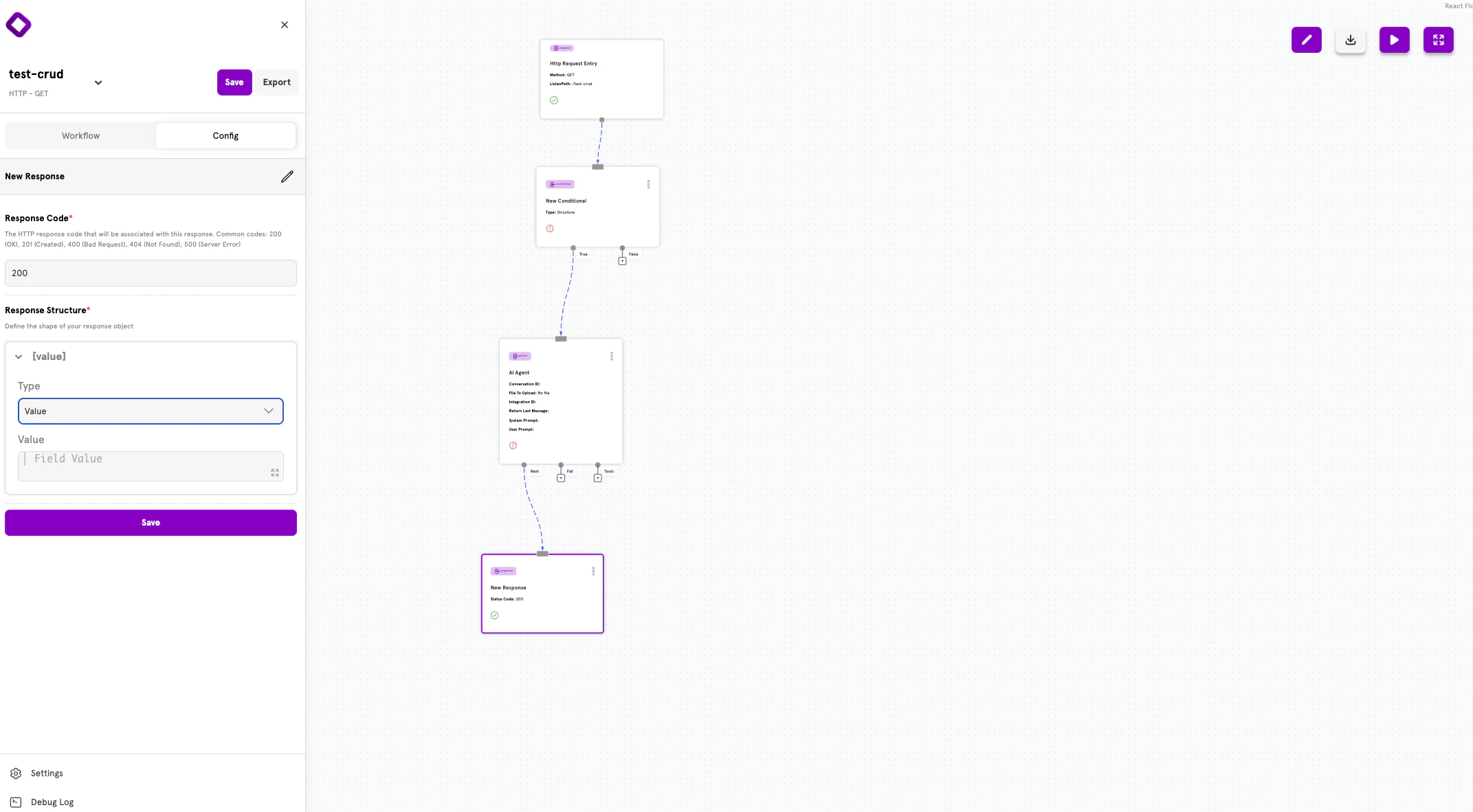
Selecting a response node opens the configuration panel on the left side of the screen. The panel contains two main sections:
* **Response Code** — The HTTP status code to return
* **Response Structure** — The shape of the JSON response body
### Response Code
The Response Code field specifies the HTTP status code that will be associated with this response. Common codes include:
* `200` (OK) — Successful request
* `201` (Created) — Resource successfully created
* `400` (Bad Request) — Validation or input errors
* `404` (Not Found) — Resource doesn't exist
* `500` (Server Error) — Unexpected server failure
### Response Structure
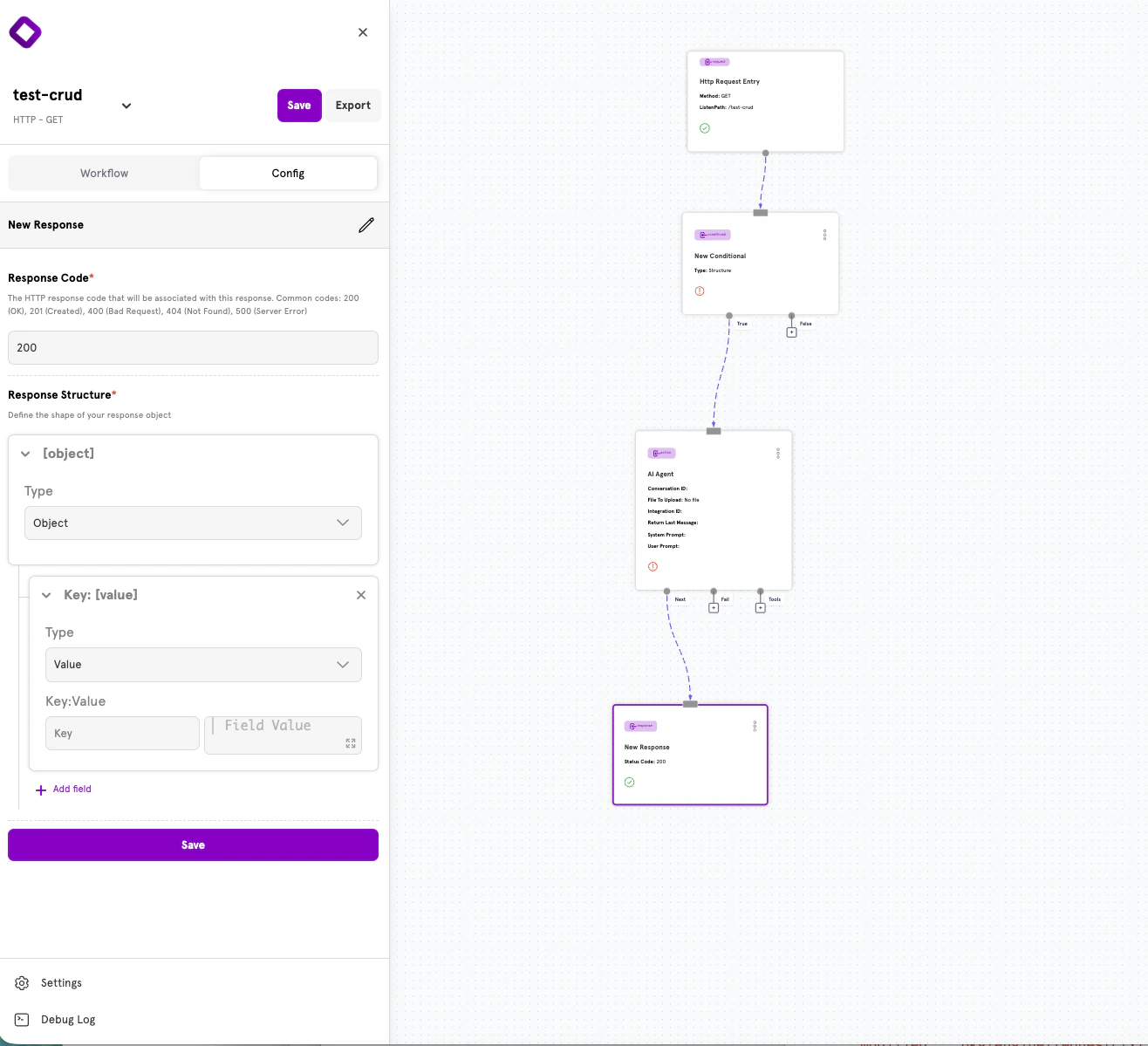
The Response Structure section lets you define the shape of your response object using a visual builder. You can create flat objects with simple key-value pairs or deeply nested structures.
***
## Response Configuration
Selecting a response node opens the configuration panel on the left side of the screen. The panel contains two main sections:
* **Response Code** — The HTTP status code to return
* **Response Structure** — The shape of the JSON response body
### Response Code
The Response Code field specifies the HTTP status code that will be associated with this response. Common codes include:
* `200` (OK) — Successful request
* `201` (Created) — Resource successfully created
* `400` (Bad Request) — Validation or input errors
* `404` (Not Found) — Resource doesn't exist
* `500` (Server Error) — Unexpected server failure
### Response Structure
The Response Structure section lets you define the shape of your response object using a visual builder. You can create flat objects with simple key-value pairs or deeply nested structures.
 #### Field Types
Each field in your response structure has a **Type** that determines how it behaves:
| Type | Description |
| ---------- | ------------------------------------------------- |
| **Object** | A nested JSON object containing additional fields |
| **Value** | A leaf field with a static or dynamic value |
#### Adding Fields
Click **+ Add field** to add a new field to your response structure. Each field requires:
* **Key** — The JSON property name
* **Type** — Either Object (for nesting) or Value (for leaf values)
* **Value** (for Value type) — The content to return, which can include dynamic template expressions
#### Field Types
Each field in your response structure has a **Type** that determines how it behaves:
| Type | Description |
| ---------- | ------------------------------------------------- |
| **Object** | A nested JSON object containing additional fields |
| **Value** | A leaf field with a static or dynamic value |
#### Adding Fields
Click **+ Add field** to add a new field to your response structure. Each field requires:
* **Key** — The JSON property name
* **Type** — Either Object (for nesting) or Value (for leaf values)
* **Value** (for Value type) — The content to return, which can include dynamic template expressions
 #### Creating Nested Objects
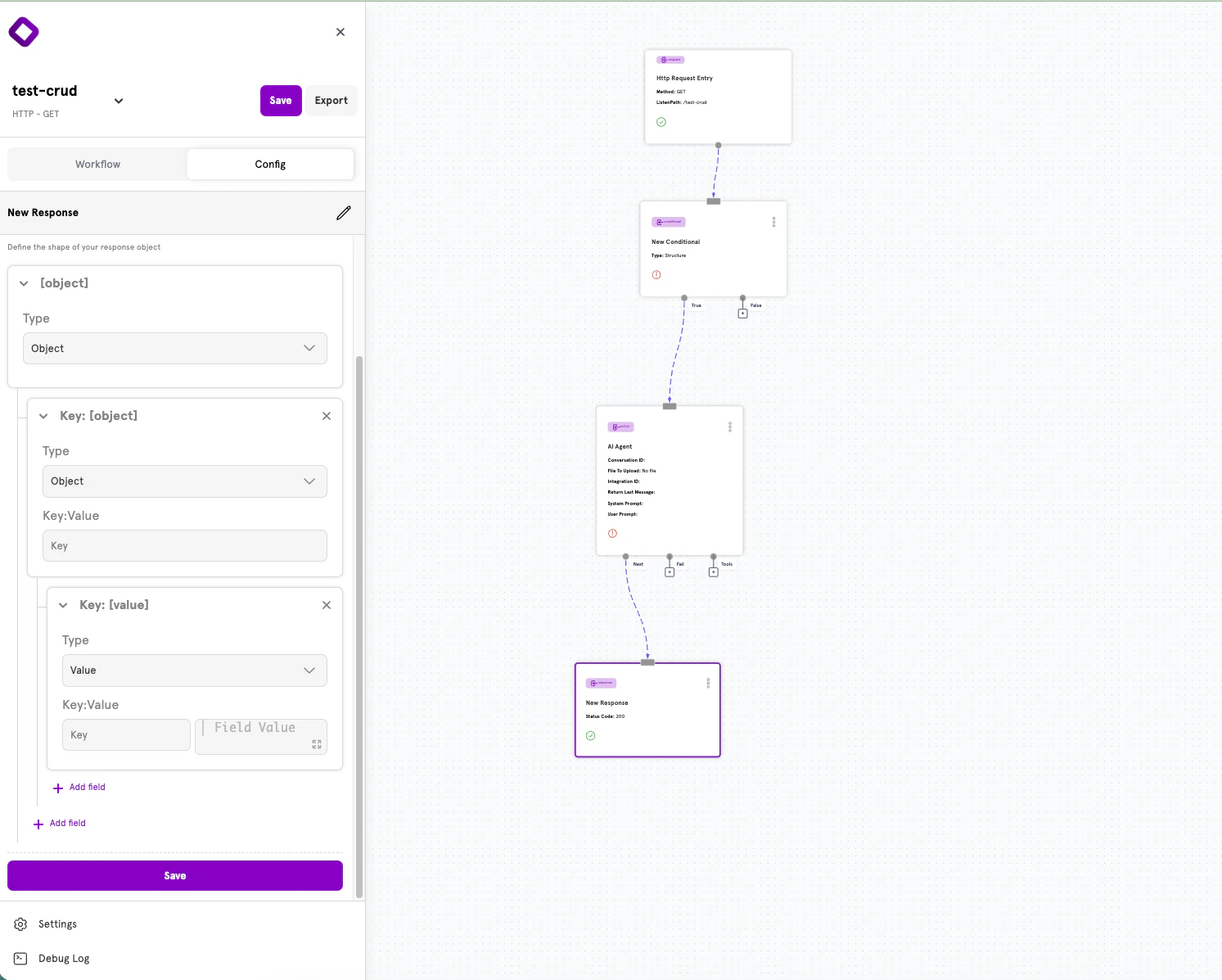
To create nested JSON structures:
1. Add a field and set its Type to **Object**
2. Click the expand arrow to reveal the nested field editor
3. Add child fields inside the object
4. Continue nesting as deeply as needed
This allows you to build complex response shapes like:
```/dev/null/example.json theme={null}
{
"success": true,
"data": {
"user": {
"id": "123",
"email": "user@example.com"
}
}
}
```
***
## HTTP Status Codes
Choosing the right HTTP status code helps API consumers understand the result of their request. Here are the most common codes and when to use them:
### Success Codes (2xx)
| Code | Name | When to Use |
| ----- | ---------- | ------------------------------------------- |
| `200` | OK | Successful GET, PUT, or PATCH requests |
| `201` | Created | Successful POST that creates a new resource |
| `204` | No Content | Successful DELETE with no response body |
### Client Error Codes (4xx)
| Code | Name | When to Use |
| ----- | ------------ | ----------------------------------------------- |
| `400` | Bad Request | Validation errors or malformed input |
| `401` | Unauthorized | Authentication required or invalid credentials |
| `403` | Forbidden | Authenticated but lacking permission |
| `404` | Not Found | Requested resource doesn't exist |
| `409` | Conflict | Resource already exists (e.g., duplicate email) |
### Server Error Codes (5xx)
| Code | Name | When to Use |
| ----- | --------------------- | -------------------------- |
| `500` | Internal Server Error | Unexpected server failures |
***
## Advanced: YAML Configuration
ServFlow APIs can also be defined using YAML configuration files. This approach is useful for version control, CI/CD pipelines, or programmatic configuration generation.
### Response Structure in YAML
Every response follows this structure:
```docs/references/concepts/responses.mdx theme={null}
responses:
response_id:
code: 200
responseObject:
fields:
field_name:
value: "static or {{ .template }} value"
```
### Common Fields
| Field | Type | Required | Description |
| ----------------------- | ------- | -------- | --------------------------------------- |
| `code` | integer | Yes | HTTP status code (100-599) |
| `responseObject` | object | Yes | Structured response object definition |
| `responseObject.fields` | map | Yes | Map of field names to field definitions |
### Field Definition
Each field in the `fields` map can have:
| Field | Type | Description |
| -------- | ------ | ------------------------------------------------ |
| `value` | string | The value for this field (can include templates) |
| `fields` | map | Nested field definitions (creates a JSON object) |
A field should have either `value` or `fields`, not both. Use `value` for leaf values and `fields` for nested objects.
### Nested Objects in YAML
Create nested JSON structures by using `fields` instead of `value`:
```docs/references/concepts/responses.mdx theme={null}
responses:
user_response:
code: 200
responseObject:
fields:
success:
value: "true"
data:
fields:
user:
fields:
id:
value: "{{ .create_user.id }}"
email:
value: "{{ .create_user.email }}"
```
This produces:
```/dev/null/output.json theme={null}
{
"success": true,
"data": {
"user": {
"id": "123",
"email": "user@example.com"
}
}
}
```
### Type Coercion
Values in `responseObject` are automatically converted to appropriate JSON types:
| Value | Output Type |
| ------------------------------------ | ------------ |
| `"true"` / `"false"` | Boolean |
| Numeric strings (`"123"`, `"45.67"`) | Number |
| Template returning array/object | Array/Object |
| Other strings | String |
***
## Accessing Data in Responses
Responses can include dynamic content from anywhere in your workflow using template syntax.
### Action Results
Access results from previous actions using the action ID with a dot prefix:
```docs/references/concepts/responses.mdx theme={null}
responseObject:
fields:
users:
value: "{{ .fetch_users }}"
user_count:
value: "{{ len .fetch_users }}"
first_user_email:
value: "{{ (index .fetch_users 0).email }}"
```
### Request Parameters
Access original request data with the `param` function:
```docs/references/concepts/responses.mdx theme={null}
responseObject:
fields:
received_email:
value: "{{ param \"email\" }}"
```
### Validation Errors
When using validation functions in conditionals, errors are collected in the `.errors` variable:
```docs/references/concepts/responses.mdx theme={null}
responses:
validation_error:
code: 400
responseObject:
fields:
success:
value: "false"
message:
value: "Validation failed"
errors:
value: "{{ .errors }}"
```
### Error Information
When an action fails and routes to a response via its `fail` path, access error details with `.error`:
```docs/references/concepts/responses.mdx theme={null}
responses:
error:
code: 500
responseObject:
fields:
success:
value: "false"
error:
value: "{{ .error }}"
```
For more details on template syntax and available functions, see the [Dynamic Content](/references/concepts/dynamic-content) documentation.
***
## Common Response Patterns
### Success Response with Data
```docs/references/concepts/responses.mdx theme={null}
responses:
success:
code: 200
responseObject:
fields:
success:
value: "true"
data:
value: "{{ .fetch_users }}"
```
### Resource Created Response
```docs/references/concepts/responses.mdx theme={null}
responses:
created:
code: 201
responseObject:
fields:
success:
value: "true"
message:
value: "User created successfully"
user:
fields:
id:
value: "{{ .create_user.id }}"
email:
value: "{{ .create_user.email }}"
```
### Validation Error Response
```docs/references/concepts/responses.mdx theme={null}
responses:
validation_error:
code: 400
responseObject:
fields:
success:
value: "false"
message:
value: "Validation failed"
errors:
value: "{{ .errors }}"
```
### Not Found Response
```docs/references/concepts/responses.mdx theme={null}
responses:
not_found:
code: 404
responseObject:
fields:
success:
value: "false"
message:
value: "Resource not found"
```
### Unauthorized Response
```docs/references/concepts/responses.mdx theme={null}
responses:
unauthorized:
code: 401
responseObject:
fields:
success:
value: "false"
message:
value: "Authentication required"
```
***
## Next Steps
Learn about actions — the building blocks of workflows.
Add branching logic to your workflows.
Use template syntax to create dynamic values.
See the complete ServFlow configuration options.
#### Creating Nested Objects
To create nested JSON structures:
1. Add a field and set its Type to **Object**
2. Click the expand arrow to reveal the nested field editor
3. Add child fields inside the object
4. Continue nesting as deeply as needed
This allows you to build complex response shapes like:
```/dev/null/example.json theme={null}
{
"success": true,
"data": {
"user": {
"id": "123",
"email": "user@example.com"
}
}
}
```
***
## HTTP Status Codes
Choosing the right HTTP status code helps API consumers understand the result of their request. Here are the most common codes and when to use them:
### Success Codes (2xx)
| Code | Name | When to Use |
| ----- | ---------- | ------------------------------------------- |
| `200` | OK | Successful GET, PUT, or PATCH requests |
| `201` | Created | Successful POST that creates a new resource |
| `204` | No Content | Successful DELETE with no response body |
### Client Error Codes (4xx)
| Code | Name | When to Use |
| ----- | ------------ | ----------------------------------------------- |
| `400` | Bad Request | Validation errors or malformed input |
| `401` | Unauthorized | Authentication required or invalid credentials |
| `403` | Forbidden | Authenticated but lacking permission |
| `404` | Not Found | Requested resource doesn't exist |
| `409` | Conflict | Resource already exists (e.g., duplicate email) |
### Server Error Codes (5xx)
| Code | Name | When to Use |
| ----- | --------------------- | -------------------------- |
| `500` | Internal Server Error | Unexpected server failures |
***
## Advanced: YAML Configuration
ServFlow APIs can also be defined using YAML configuration files. This approach is useful for version control, CI/CD pipelines, or programmatic configuration generation.
### Response Structure in YAML
Every response follows this structure:
```docs/references/concepts/responses.mdx theme={null}
responses:
response_id:
code: 200
responseObject:
fields:
field_name:
value: "static or {{ .template }} value"
```
### Common Fields
| Field | Type | Required | Description |
| ----------------------- | ------- | -------- | --------------------------------------- |
| `code` | integer | Yes | HTTP status code (100-599) |
| `responseObject` | object | Yes | Structured response object definition |
| `responseObject.fields` | map | Yes | Map of field names to field definitions |
### Field Definition
Each field in the `fields` map can have:
| Field | Type | Description |
| -------- | ------ | ------------------------------------------------ |
| `value` | string | The value for this field (can include templates) |
| `fields` | map | Nested field definitions (creates a JSON object) |
A field should have either `value` or `fields`, not both. Use `value` for leaf values and `fields` for nested objects.
### Nested Objects in YAML
Create nested JSON structures by using `fields` instead of `value`:
```docs/references/concepts/responses.mdx theme={null}
responses:
user_response:
code: 200
responseObject:
fields:
success:
value: "true"
data:
fields:
user:
fields:
id:
value: "{{ .create_user.id }}"
email:
value: "{{ .create_user.email }}"
```
This produces:
```/dev/null/output.json theme={null}
{
"success": true,
"data": {
"user": {
"id": "123",
"email": "user@example.com"
}
}
}
```
### Type Coercion
Values in `responseObject` are automatically converted to appropriate JSON types:
| Value | Output Type |
| ------------------------------------ | ------------ |
| `"true"` / `"false"` | Boolean |
| Numeric strings (`"123"`, `"45.67"`) | Number |
| Template returning array/object | Array/Object |
| Other strings | String |
***
## Accessing Data in Responses
Responses can include dynamic content from anywhere in your workflow using template syntax.
### Action Results
Access results from previous actions using the action ID with a dot prefix:
```docs/references/concepts/responses.mdx theme={null}
responseObject:
fields:
users:
value: "{{ .fetch_users }}"
user_count:
value: "{{ len .fetch_users }}"
first_user_email:
value: "{{ (index .fetch_users 0).email }}"
```
### Request Parameters
Access original request data with the `param` function:
```docs/references/concepts/responses.mdx theme={null}
responseObject:
fields:
received_email:
value: "{{ param \"email\" }}"
```
### Validation Errors
When using validation functions in conditionals, errors are collected in the `.errors` variable:
```docs/references/concepts/responses.mdx theme={null}
responses:
validation_error:
code: 400
responseObject:
fields:
success:
value: "false"
message:
value: "Validation failed"
errors:
value: "{{ .errors }}"
```
### Error Information
When an action fails and routes to a response via its `fail` path, access error details with `.error`:
```docs/references/concepts/responses.mdx theme={null}
responses:
error:
code: 500
responseObject:
fields:
success:
value: "false"
error:
value: "{{ .error }}"
```
For more details on template syntax and available functions, see the [Dynamic Content](/references/concepts/dynamic-content) documentation.
***
## Common Response Patterns
### Success Response with Data
```docs/references/concepts/responses.mdx theme={null}
responses:
success:
code: 200
responseObject:
fields:
success:
value: "true"
data:
value: "{{ .fetch_users }}"
```
### Resource Created Response
```docs/references/concepts/responses.mdx theme={null}
responses:
created:
code: 201
responseObject:
fields:
success:
value: "true"
message:
value: "User created successfully"
user:
fields:
id:
value: "{{ .create_user.id }}"
email:
value: "{{ .create_user.email }}"
```
### Validation Error Response
```docs/references/concepts/responses.mdx theme={null}
responses:
validation_error:
code: 400
responseObject:
fields:
success:
value: "false"
message:
value: "Validation failed"
errors:
value: "{{ .errors }}"
```
### Not Found Response
```docs/references/concepts/responses.mdx theme={null}
responses:
not_found:
code: 404
responseObject:
fields:
success:
value: "false"
message:
value: "Resource not found"
```
### Unauthorized Response
```docs/references/concepts/responses.mdx theme={null}
responses:
unauthorized:
code: 401
responseObject:
fields:
success:
value: "false"
message:
value: "Authentication required"
```
***
## Next Steps
Learn about actions — the building blocks of workflows.
Add branching logic to your workflows.
Use template syntax to create dynamic values.
See the complete ServFlow configuration options.