Build a fully functional Telegram bot that allows users to interact with their Binance accounts through natural language. The bot uses an AI agent to understand user requests and execute trading operations on their behalf — all configured through the ServFlow dashboard without writing code.
What you’ll build:
A Telegram bot that responds to messages via webhook
Secure per-user credential storage in MongoDB
AI-powered natural language processing for trading commands
Dynamic Binance integration using stored credentials
Account balance checking and price history tools
Time to complete: ~15 minutes
Quick Import
Want to skip ahead? Import the complete workflow configuration directly:
Download the configuration from the ServFlow Cookbook
In the ServFlow dashboard, click Import in the Files panel
Select the downloaded YAML file
Configure your integrations (MongoDB, OpenAI, Binance)
Add your TELEGRAM_BOT_TOKEN secret
The rest of this tutorial explains each component in detail.
Architecture Overview
Before building, let’s understand how the bot processes messages:
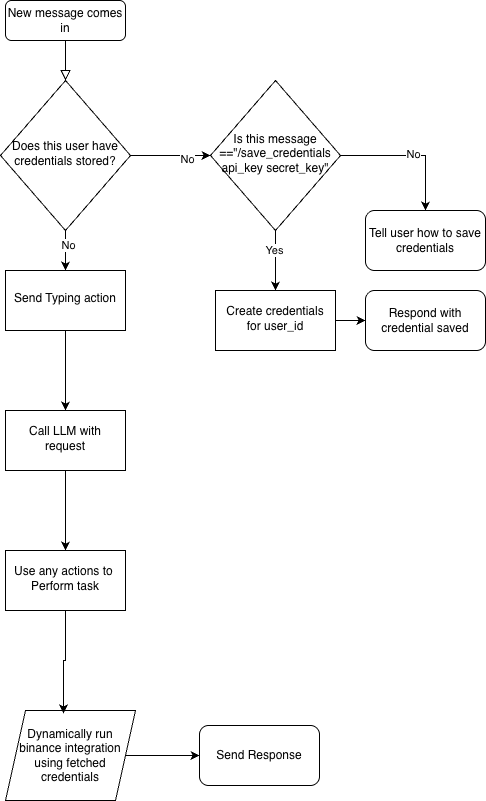
The workflow follows this decision tree:
New message arrives → Check if user has stored Binance credentials
If credentials exist → Send typing indicator → Process with AI agent → Send response
If no credentials → Check if message is a /save_creds command
If save command → Store credentials → Confirm to user
If not save command → Tell user how to save credentials
Prerequisites
Before starting, ensure you have:
ServFlow Pro Running
ServFlow Pro with the dashboard enabled. See Installation if needed.
Telegram Bot Token
Create a bot via BotFather and save your bot token.
OpenAI Integration
A configured OpenAI integration named open-ai-main.
Binance API Credentials (Optional)
For testing trades, you’ll need Binance API keys. The bot stores user credentials, so each user provides their own.
Step 1: Create the Workflow
Start by creating a new workflow in the ServFlow dashboard.
Open the ServFlow dashboard
Click the + button in the Files Available panel
Enter a name for your workflow: telegram-bot
Click Create
Configure the HTTP Entry Point
Click on the HTTP Request Entry node that appears. In the settings panel on the right, configure:
Field Value Listen Path /telegramHTTP Method POST
Telegram sends webhook payloads as POST requests with a JSON body containing message details. The key fields we’ll use are message.chat.id, message.from.id, and message.text.
Step 2: Check for User Credentials
The first action checks if the user has already stored their Binance credentials in the database.
Add a Fetch Action
Click the + button below the HTTP Entry node
Select Actions
Choose fetch from the list
Click on the new fetch node and configure these fields:
Field Value Name fetch credentialsIntegration ID mongo-mainTable credentialsSingle Result ✅ Enabled Should Fail ✅ Enabled Fail If Empty ✅ Enabled
Add a Filter
In the Filters section, click Add Filter and configure:
Field Value Field user_idOperation ==Comparator Select User ID from Telegram variables (see below)
Using Telegram Field Presets
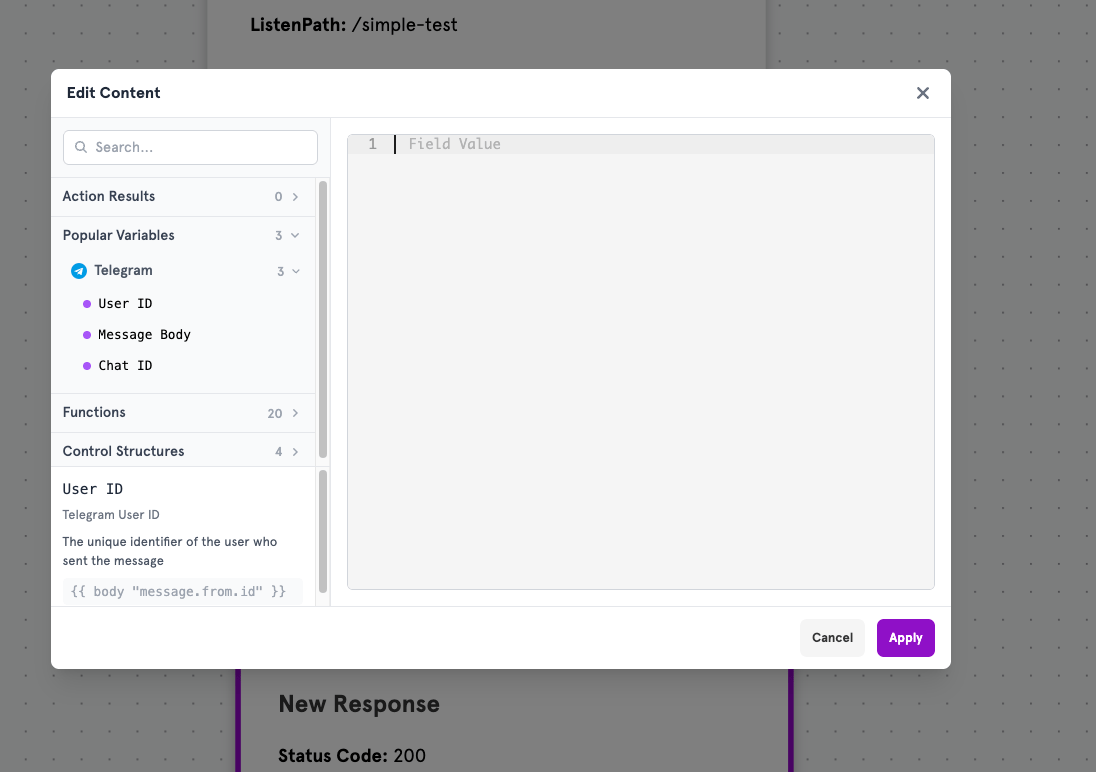
When you click into the Comparator field and open the content editor, you’ll see Popular Variables in the left panel. Expand the Telegram section to find pre-configured variables:
ServFlow automatically detects that this is a Telegram webhook and provides convenient presets:
Variable Template Syntax Description User ID {{ body "message.from.id" }}The unique identifier of the user who sent the message Message Body {{ body "message.text" }}The text content of the message Chat ID {{ body "message.chat.id" }}The chat/conversation identifier
Click User ID to insert it, then click Apply .
These presets save you from memorizing Telegram’s payload structure. Just click the variable you need and it’s inserted automatically!
Set the Connections
We’ll connect the Next and Fail paths after creating the other actions:
Next → Will connect to the typing indicator (for users with credentials)
Fail → Will connect to command parsing (for users without credentials)
Step 3: Parse the Save Command
When a user doesn’t have credentials stored, we need to check if they’re sending a /save_creds command.
Add a JavaScript Action
Click + to add a new action
Select Actions → javascript
Field Value Name parse_command
In the Script field, enter:
function servflowRun ( vars ) {
const paramText = "{{ body \" message.text \" }}" ;
try {
const text = paramText ;
const match = text . trim (). match ( / ^ \/ ( \w + ) \s * ( . * ) $ / );
if ( ! match || match [ 1 ]. toLowerCase () !== "save_creds" ) {
return { command: "" , args: [] };
}
const command = "/" + match [ 1 ];
let args ;
try {
args = JSON . parse ( match [ 2 ]);
} catch {
args = match [ 2 ]?. trim ()
? match [ 2 ]. trim (). split ( / \s + / )
: [];
}
return { command , args };
} catch ( err ) {
return { command: "" , args: [] };
}
}
This script parses messages like /save_creds api_key_here secret_key_here and extracts the command and arguments.
Step 4: Add the Save Credentials Conditional
Now we need a conditional to check if the parsed command is /save_creds.
Add a Conditional
Click + below the parse_command action
Select Branch
Choose Conditional
Field Value Name is_save_creds
In the Expression field, enter:
{{ eq .parse_command.command "/save_creds" }}
This checks if the command extracted by the JavaScript action equals /save_creds.
Step 5: Save User Credentials
When the conditional is true (user sent a save command), we store their credentials.
Add a Store Action
From the True path of the conditional, click +
Select Actions → store
Field Value Name save_credsIntegration ID mongo-mainTable credentials
Add Fields to Store
In the Fields section, add these fields:
Field Name Value user_idSelect User ID from Telegram presets api_key{{ index .parse_command.args 0 }}api_secret{{ index .parse_command.args 1 }}saved_at{{ now }}
Remember, you can use the Telegram presets from the content editor instead of typing {{ body "message.from.id" }} manually!
Step 6: Send Confirmation Message
After saving credentials, confirm to the user via Telegram.
Add an HTTP Action
Click + below the save_creds action
Select Actions → http
Field Value Name Credentials savedHTTP Method POSTURL https://api.telegram.org/bot{{ secret "TELEGRAM_BOT_TOKEN" }}/sendMessageFail If Response Empty ✅ Enabled
Click Add Header :
Header Value Content-Typeapplication/json
Configure Request Body
In the Request Body section, add:
Field Value chat_idSelect Chat ID from Telegram presets textCredentials saved successfully
Step 7: Tell Users How to Save Credentials
When the conditional is false (user doesn’t have credentials and isn’t sending a save command), tell them how to save their credentials.
Add an HTTP Action
From the False path of the conditional, click +
Select Actions → http
Field Value Name Add credentialsHTTP Method POSTURL https://api.telegram.org/bot{{ secret "TELEGRAM_BOT_TOKEN" }}/sendMessageExpected Response Code 200Fail If Response Empty ✅ Enabled
Header Value Content-Typeapplication/json
Configure Request Body
Field Value chat_idSelect Chat ID from Telegram presets textPlease add credentials first with /save_creds <api_key> <secret_key>
Step 8: Send Typing Indicator
When a user has credentials stored, we first send a “typing” indicator so they know the bot is processing their request.
Add an HTTP Action
Connect from the Next path of fetch credentials
Add an http action
Field Value Name Is typingHTTP Method GETURL See below Fail If Response Empty ✅ Enabled
For the URL field, enter:
https://api.telegram.org/bot{{ secret "TELEGRAM_BOT_TOKEN" }}/sendChatAction?chat_id={{ body "message.chat.id" }}&action=typing
In the URL field, you can also use the content editor to insert Chat ID from the Telegram presets instead of typing the template syntax manually.
The AI agent is the brain of the bot. It understands natural language requests and decides which tools to use.
Add an Agent Action
Click + below the Is typing action
Select Actions → agent
Field Value Name agent_llmIntegration ID open-ai-mainConversation ID Select Chat ID from Telegram presets Return Last Message ❌ Disabled
Set the System Prompt
In the System Prompt field, enter:
You are a helpful telegram bot for performing actions on behalf of a user. You have access to tools to help you achieve your request.
Set the User Prompt
For the User Prompt field, select Message Body from the Telegram presets (or enter {{ body "message.text" }}).
The Conversation ID uses the chat ID to maintain conversation context across messages. This enables natural multi-turn conversations where the AI remembers previous messages.
The AI agent needs tools to perform Binance operations. We’ll add two workflow tools.
In the Tool Configurations section of the agent, click Add Tool and configure:
Field Value Type workflowName price_differenceDescription This is for getting the price history ticks for a certain period over every hour. The period is the number of 1hr intervals to get e.g 12, the symbol is the pair e.g BTCUSDTReturn Type stringReturn Value {{ escape (jsonout .get_price_difference) }}
Add parameters:
Click Add Tool again and configure:
Field Value Type workflowName account_balanceDescription This tool is for fetching the account balance of the userReturn Type stringReturn Value {{ .get_account_balance }}
Leave Parameters empty for this tool.
Now create the actions that the agent’s tools will call.
Add Price Difference Action
Add a new action (this will be called by the agent tool)
Select Actions → binance/pricedifference
Field Value Name Binance Price DifferenceIntegration ID telegram_bot_cred_storage_binanceInterval 1hPeriod {{ tool_param "period" }}Symbol {{ tool_param "symbol" }}
Add Account Balance Action
Add another action
Select Actions → binance/accountbalance
Field Value Name fetch account balanceIntegration ID telegram_bot_cred_storage_binanceFutures ❌ Disabled Symbol (leave empty for all balances)
Go back to the agent’s tool configurations and set the Start action for each tool:
price_difference tool → Start : Binance Price Difference
account_balance tool → Start : fetch account balance
The tool_param function accesses parameters passed by the AI agent when it decides to use a tool.
Step 12: Send the Response
After the AI agent processes the request, send the response back to Telegram.
Add an HTTP Action
Click + from the Next path of the agent
Select Actions → http
Field Value Name telegram_replyHTTP Method POSTURL https://api.telegram.org/bot{{ secret "TELEGRAM_BOT_TOKEN" }}/sendMessageFail If Response Empty ✅ Enabled
Header Value Content-Typeapplication/json
Configure Request Body
Field Value chat_idSelect Chat ID from Telegram presets text{{ .agent_llm | escape }}
The escape function ensures special characters in the AI response don’t break the JSON payload.
Step 13: Add Response Nodes
Add response nodes to properly terminate each workflow path.
Add Success Response
Click + at the end of successful paths
Select Responses
Configure:
Field Value Name successStatus Code 200
Add a response field:
Field Value messageReply sent via Telegram
Add Error Response
Create another response for error paths:
Field Value Name errorStatus Code 500
Add a response field:
Field Value error{{ .error }}
Here’s the key to making this work for multiple users: lazy-loaded integrations that use each user’s stored credentials.
Open the Config Tab
Click on the Config tab (next to Workflow at the top)
Find the Integrations section
Add a New Integration
Click Add Integration and configure:
Field Value ID telegram_bot_cred_storage_binanceType binanceLazy Load ✅ Enabled
Field Value API Key {{ .fetch_credentials.api_key }}Secret Key {{ .fetch_credentials.api_secret }}Testnet ❌ Disabled (or enable for testing) Timeout 30
Lazy Load means the integration is only initialized when first used. The credentials reference the data fetched from MongoDB in Step 2, so each user’s Binance actions use their own stored credentials!
Step 15: Connect All the Nodes
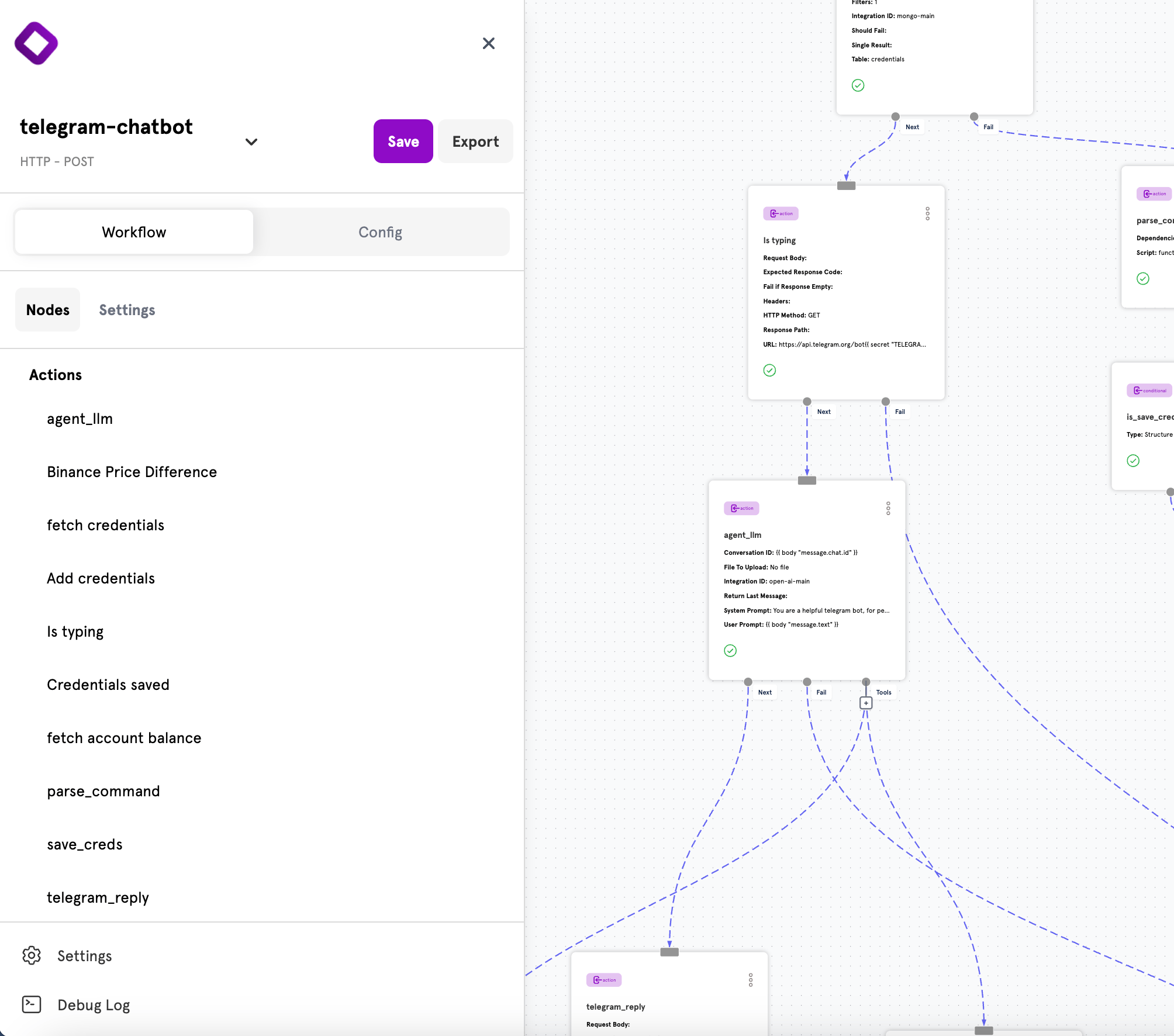
Now connect all the workflow paths:
From fetch credentials:
Next → Is typing
Fail → parse_command
From parse_command:
Next → is_save_creds (conditional)
From is_save_creds conditional:
True → save_creds
False → Add credentials
From save_creds:
Next → Credentials saved
Fail → error response
From Credentials saved:
From Add credentials:
From Is typing:
From agent_llm:
Next → telegram_reply
Fail → error response
From telegram_reply:
Next → success response
Fail → error response
Step 16: Save Your Workflow
Click the Save button in the top-left corner to save your workflow.
Testing Your Bot
Using Test Mode
ServFlow’s test mode lets you simulate requests without setting up the Telegram webhook.
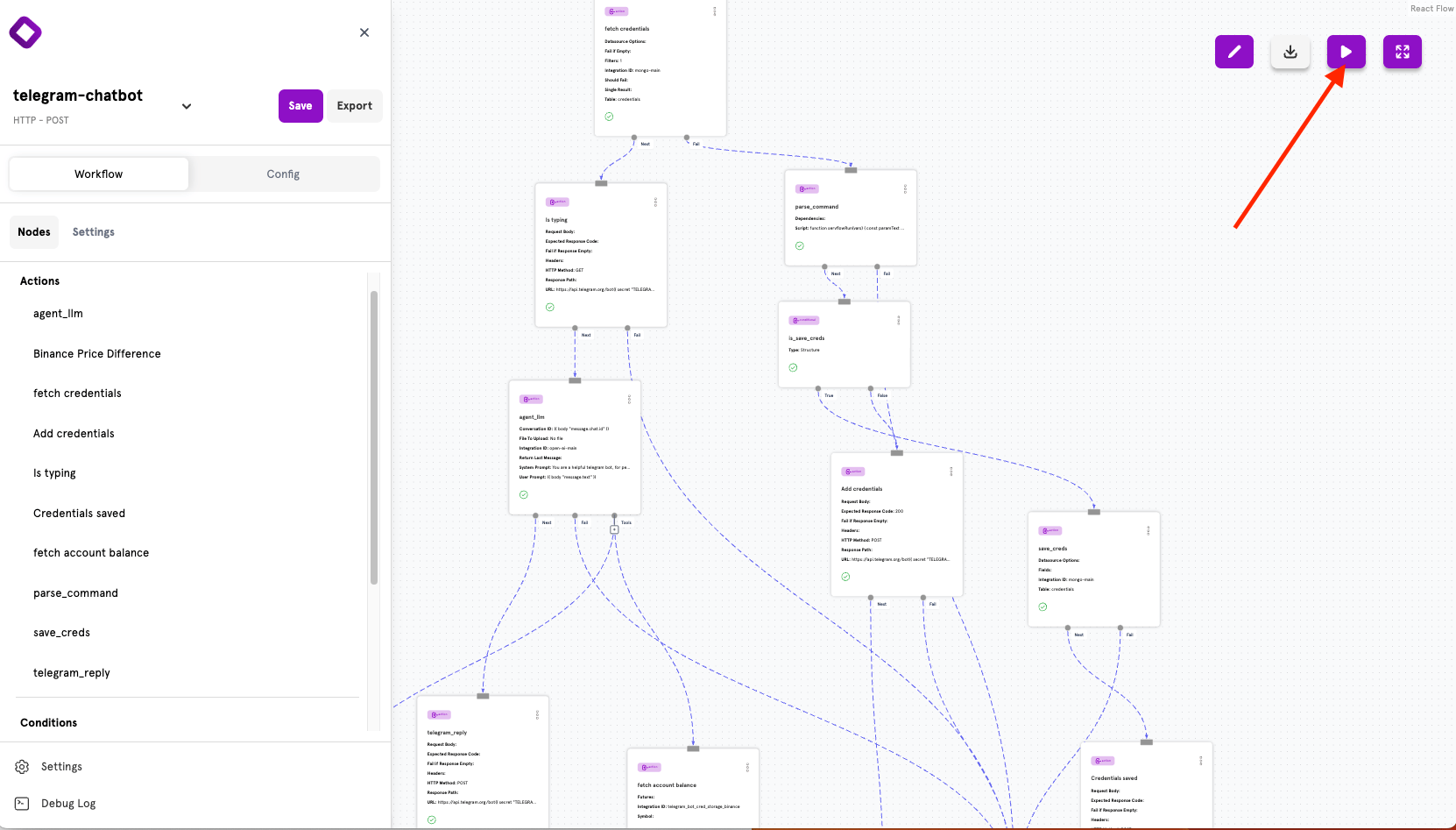
Click the Play button in the top-right corner of the workflow editor
Enter a sample Telegram webhook payload:
{
"message" : {
"message_id" : 123 ,
"from" : {
"id" : 12345678 ,
"first_name" : "Test" ,
"username" : "testuser"
},
"chat" : {
"id" : 12345678 ,
"type" : "private"
},
"text" : "What is my account balance?"
}
}
Click Run and observe the workflow execution in the debug log
Testing Credential Save
Test the credential save flow with:
{
"message" : {
"message_id" : 124 ,
"from" : {
"id" : 12345678 ,
"first_name" : "Test" ,
"username" : "testuser"
},
"chat" : {
"id" : 12345678 ,
"type" : "private"
},
"text" : "/save_creds your_api_key your_secret_key"
}
}
Going Live
Once testing is complete, connect your bot to Telegram.
1. Add Your Bot Token Secret
In the ServFlow dashboard, go to Settings → Secrets and add:
Name Value TELEGRAM_BOT_TOKENYour bot token from BotFather
2. Set the Webhook URL
Tell Telegram where to send messages by calling the setWebhook API:
curl -X POST "https://api.telegram.org/bot<YOUR_BOT_TOKEN>/setWebhook" \
-H "Content-Type: application/json" \
-d '{"url": "https://your-servflow-domain.com/telegram"}'
Replace:
<YOUR_BOT_TOKEN> with your actual bot token
your-servflow-domain.com with your ServFlow deployment URL
For local development, use a tunneling service like ngrok to expose your local ServFlow instance to the internet.
3. Verify the Webhook
Check that the webhook is configured correctly:
curl "https://api.telegram.org/bot<YOUR_BOT_TOKEN>/getWebhookInfo"
You should see your URL in the response with no errors.
4. Test with Telegram
Open your bot in Telegram and send a message! Try:
/save_creds your_api_key your_secret_key — Save your Binance credentials
“What’s my account balance?” — Check your Binance balance
“Show me BTC price history for the last 12 hours” — Get price data
Security Considerations
Important security notes:
Never share your bot token — Anyone with the token can control your bot
Use HTTPS — Always deploy with SSL to protect credentials in transit
Consider encryption — For production, encrypt stored API credentials at rest
Rate limiting — Consider adding rate limiting to prevent abuse
API key permissions — Use Binance API keys with minimal required permissions
Extending the Bot
Now that you have a working bot, consider adding:
More Binance tools — Add spot/futures trading, order management
Price alerts — Schedule checks and notify users of price movements
Trade logging — Store trades to MongoDB for user history
Multi-exchange support — Add integrations for other exchanges
Complete Configuration Reference
For reference, here’s the complete YAML configuration:
Complete YAML Configuration
enabled : true
id : telegram_bot_cred_storage
http :
listenPath : /telegram
method : POST
next : action.fetch_credentials
corsAllowedOrigins : []
actions :
fetch_credentials :
name : fetch_credentials
type : fetch
config :
integrationID : mongo-main
table : credentials
filters :
- field : user_id
operation : "=="
comparator : '{{ body "message.from.id" }}'
single : true
shouldFail : true
failIfEmpty : true
next : action.send_typing
fail : action.parse_command
parse_command :
name : parse_command
type : javascript
config :
script : |
function servflowRun(vars) {
const paramText = "{{ body \"message.text\"}}";
try {
const text = paramText;
const match = text.trim().match(/^\/(\w+)\s*(.*)$/);
if (!match || match[1].toLowerCase() !== "save_creds") {
return { command: "", args: [] };
}
const command = "/" + match[1];
let args;
try {
args = JSON.parse(match[2]);
} catch {
args = match[2]?.trim() ? match[2].trim().split(/\s+/) : [];
}
return { command, args };
} catch (err) {
return { command: "", args: [] };
}
}
next : conditional.is_save_creds
fail : response.error
save_creds :
name : save_creds
type : store
config :
integrationID : mongo-main
table : credentials
fields :
user_id : '{{ body "message.from.id" }}'
api_key : '{{ index .parse_command.args 0 }}'
api_secret : '{{ index .parse_command.args 1 }}'
saved_at : '{{ now }}'
next : action.confirm_save
fail : response.error
confirm_save :
name : confirm_save
type : http
config :
method : POST
url : https://api.telegram.org/bot{{ secret "TELEGRAM_BOT_TOKEN" }}/sendMessage
headers :
Content-Type : application/json
body :
chat_id : '{{ body "message.chat.id" }}'
text : "Credentials saved successfully"
failIfResponseEmpty : true
next : response.success
fail : response.error
tell_user_to_save :
name : tell_user_to_save
type : http
config :
method : POST
url : https://api.telegram.org/bot{{ secret "TELEGRAM_BOT_TOKEN" }}/sendMessage
headers :
Content-Type : application/json
body :
chat_id : '{{ body "message.chat.id" }}'
text : "Please add credentials first with /save_creds <api_key> <secret_key>"
expectedResponseCode : "200"
failIfResponseEmpty : true
next : response.success
fail : response.error
send_typing :
name : send_typing
type : http
config :
method : GET
url : https://api.telegram.org/bot{{ secret "TELEGRAM_BOT_TOKEN" }}/sendChatAction?chat_id={{ body "message.chat.id" }}&action=typing
failIfResponseEmpty : true
next : action.agent_llm
fail : response.error
agent_llm :
name : agent_llm
type : agent
config :
integrationID : open-ai-main
conversationID : '{{ body "message.chat.id" }}'
systemPrompt : >
You are a helpful telegram bot for performing actions on behalf of a user.
You have access to tools to help you achieve your request.
userPrompt : '{{ body "message.text" }}'
returnLastMessage : false
toolConfigs :
- type : workflow
workflowConfig :
name : price_difference
description : >
This is for getting the price history ticks for a certain period
over every hour. The period is the number of 1hr intervals to get
e.g 12, the symbol is the pair e.g BTCUSDT
params :
- period
- symbol
start : action.get_price_difference
returnValue : '{{ escape (jsonout .get_price_difference) }}'
type : string
- type : workflow
workflowConfig :
name : account_balance
description : This tool is for fetching the account balance of the user
params : []
start : action.get_account_balance
returnValue : '{{ .get_account_balance }}'
type : string
next : action.telegram_reply
fail : response.error
get_price_difference :
name : get_price_difference
type : binance/pricedifference
config :
integrationID : telegram_bot_cred_storage_binance
interval : 1h
period : '{{ tool_param "period" }}'
symbol : '{{ tool_param "symbol" }}'
get_account_balance :
name : get_account_balance
type : binance/accountbalance
config :
integrationID : telegram_bot_cred_storage_binance
futures : false
symbol : ""
telegram_reply :
name : telegram_reply
type : http
config :
method : POST
url : https://api.telegram.org/bot{{ secret "TELEGRAM_BOT_TOKEN" }}/sendMessage
headers :
Content-Type : application/json
body :
chat_id : '{{ body "message.chat.id" }}'
text : '{{ .agent_llm | escape }}'
failIfResponseEmpty : true
next : response.success
fail : response.error
conditionals :
is_save_creds :
name : is_save_creds
expression : '{{ eq .parse_command.command "/save_creds" }}'
onTrue : action.save_creds
onFalse : action.tell_user_to_save
responses :
success :
name : success
code : 200
responseObject :
fields :
message :
value : "Reply sent via Telegram"
error :
name : error
code : 500
responseObject :
fields :
error :
value : '{{ .error }}'
integrations :
telegram_bot_cred_storage_binance :
type : binance
lazyLoad : true
config :
api_key : '{{ .fetch_credentials.api_key }}'
secret_key : '{{ .fetch_credentials.api_secret }}'
testnet : false
timeout : 30
Next Steps
AI Agents Learn more about configuring AI agents and tools.
Binance Trading Explore all available Binance actions.
Data Operations Master MongoDB and database operations.
Secrets Management Securely manage API tokens and credentials.