Dynamic content allows your workflows to respond to real data — request parameters, action results, headers, and more. Instead of hardcoding values, you use template syntax to reference and transform data at runtime. You can create dynamic content in two ways:
  • Content Editor — Visual interface in the dashboard for building dynamic values with helper panels
  • Template Syntax — Code-based expressions in YAML configuration files
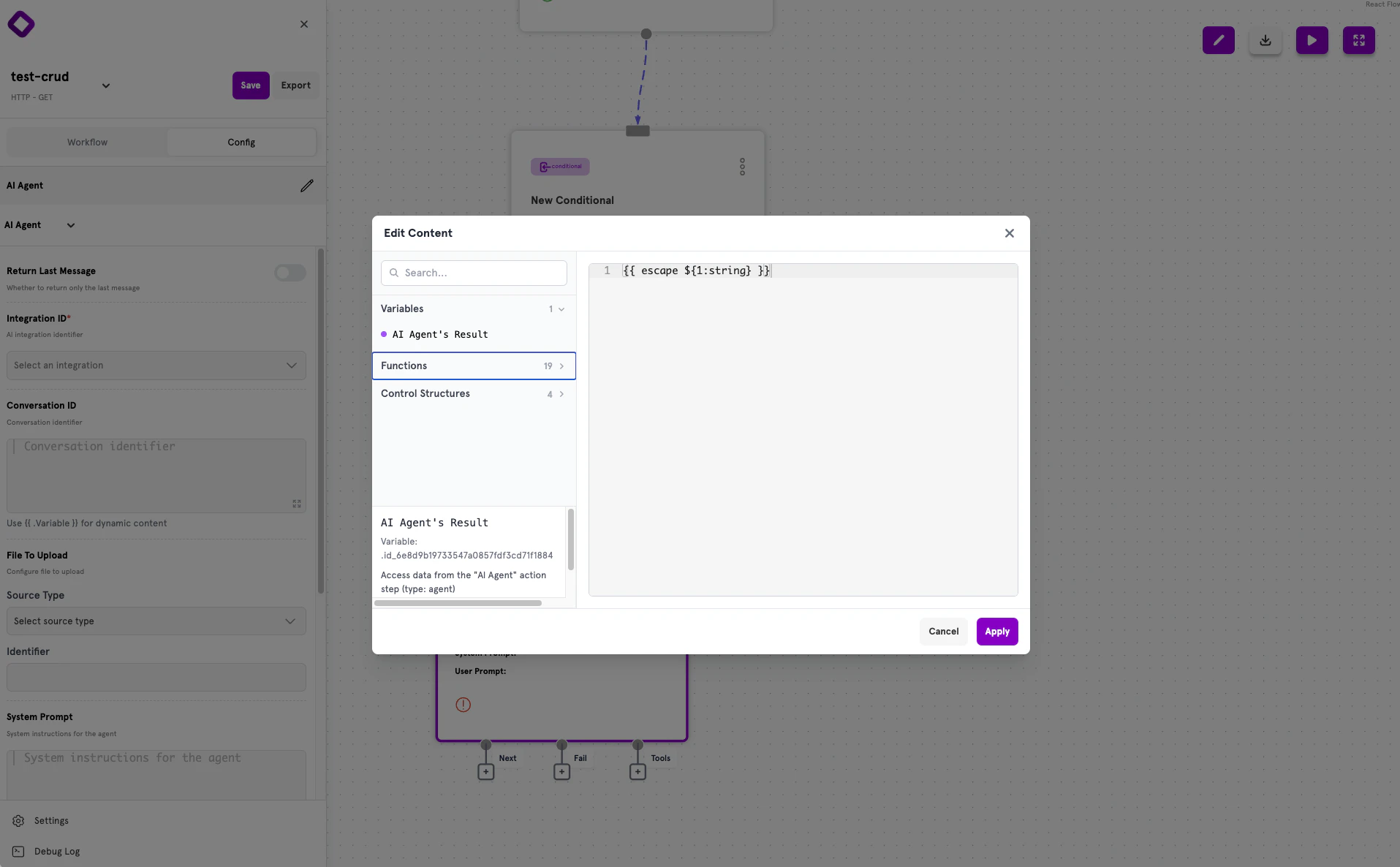
Any text input field that displays the expand icon (⋮⋮) supports dynamic content.

The Content Editor

The Content Editor is a popup interface that helps you build dynamic content with access to variables, functions, and control structures.

Opening the Content Editor

To open the Content Editor:
  1. Click on any text input field in a node’s configuration panel
  2. Look for the expand icon (⋮⋮) in the corner of the field
  3. Click the icon to open the “Edit Content” popup
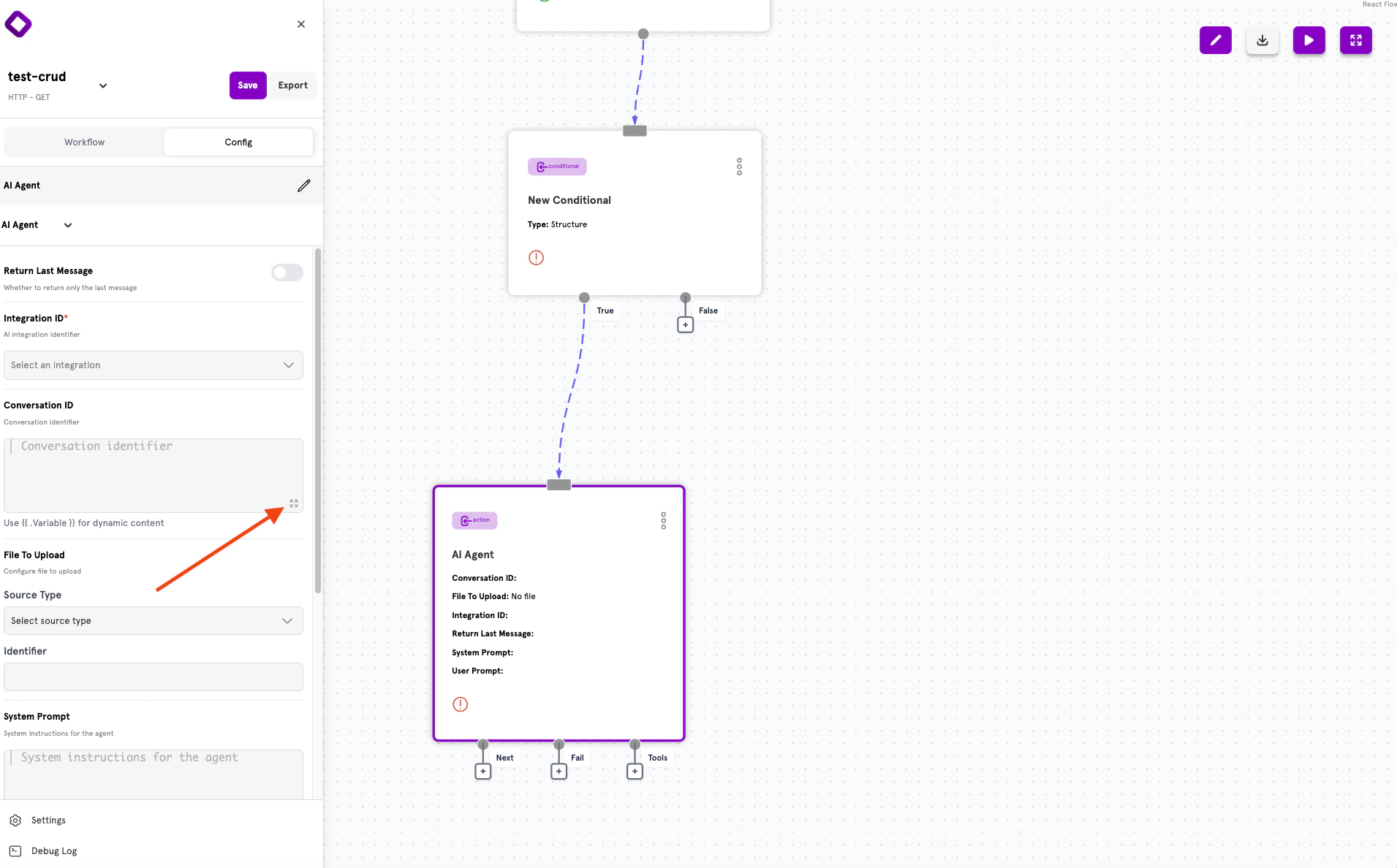
Content Editor popup showing variables panel and code editor

Editor Layout

The Content Editor has two main areas:
  • Left panel — Collapsible sections for Variables, Functions, and Control Structures
  • Right panel — Code editor where you write your dynamic content
Use the Search field to filter available options. Click Apply to save your changes or Cancel to discard them.

Variables Panel

The Variables panel lists all action results available from previous steps in your workflow. Each variable shows:
  • Name — The action’s display name (e.g., “AI Agent’s Result”)
  • Variable reference — The internal ID to use in templates
  • Description — What data the variable contains
Click a variable to insert it into the editor. Hover over a variable to see its documentation.
Variables are only available from actions that execute before the current step in your workflow. If you don’t see an expected variable, check that the action is connected earlier in the flow.

Functions Panel

The Functions panel lists 19 available functions for transforming and validating data. Functions are organized by purpose:
  • String manipulation (strip, upper, lower, escape)
  • Data transformation (jsonout, pluck)
  • Comparison and validation (eq, notempty, email)
Click a function to insert it with placeholder syntax like ${1:string}. Replace the placeholder with your actual value.

Control Structures Panel

The Control Structures panel provides 4 structures for conditional logic:
  • if / else — Conditional rendering
  • range — Iteration over collections
  • with — Scoped variable access

Template Syntax

ServFlow uses Go’s text/template syntax for dynamic values. The syntax you use depends on where you’re editing.

Full Template Mode

Most input fields use full template mode, where expressions must be wrapped in {{ }} delimiters.
Full template mode showing expressions with curly brace delimiters
# Simple variable reference
value: "{{ .fetch_user.name }}"

# Request parameter
value: "{{ param \"email\" }}"

# With transformation
value: "{{ param \"email\" | lower }}"

# Combining static and dynamic content
value: "Hello, {{ .fetch_user.name }}!"

Expression Mode

Structured conditional fields (Field and Comparison inputs) use expression mode, where you write raw expressions without {{ }} delimiters. The system automatically wraps your expression.
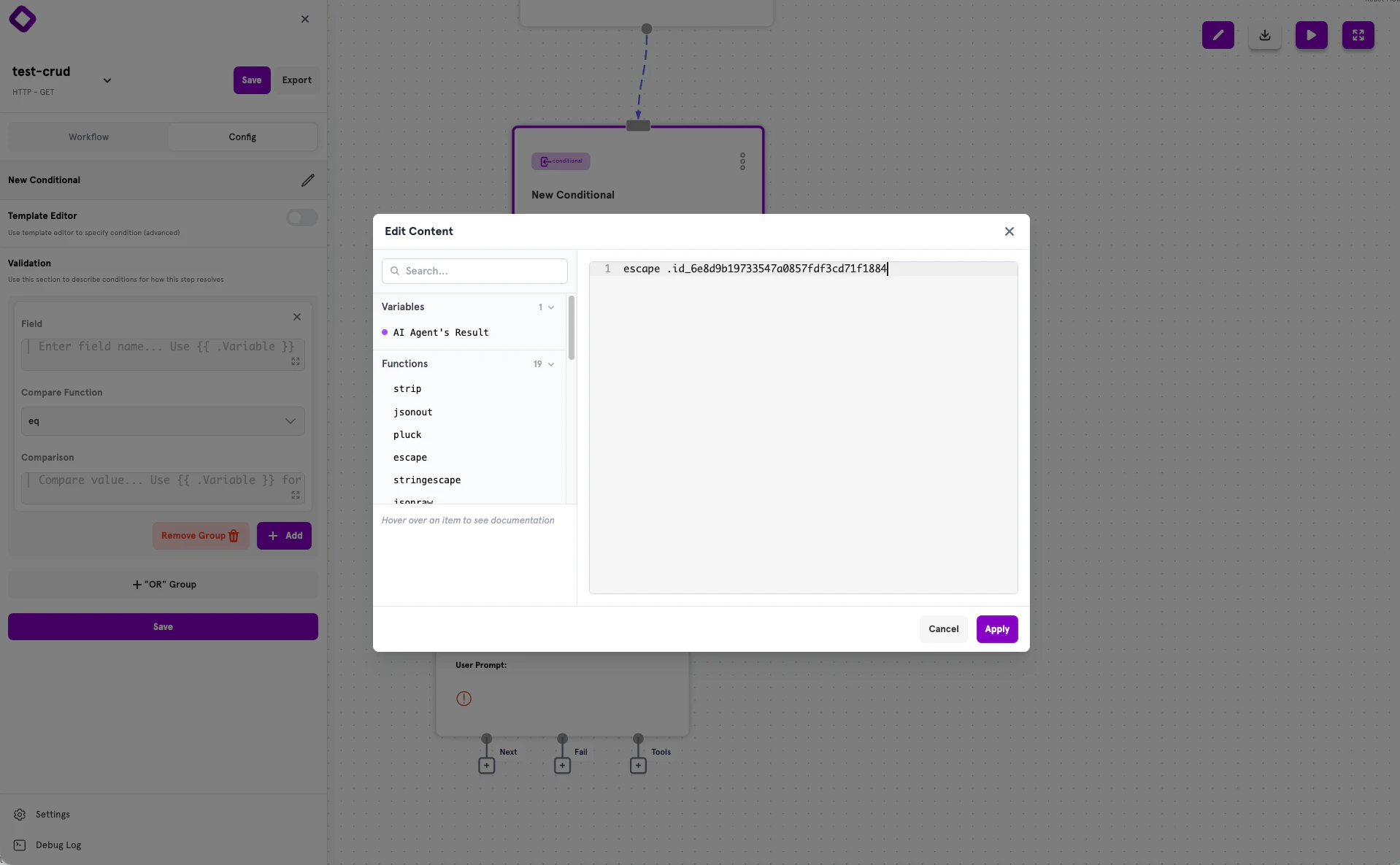
Expression mode in structured conditionals without curly braces
# In structured conditionals, write raw expressions:
content: .user.email
comparison: param "email"

# NOT like this:
content: "{{ .user.email }}"  # Wrong for structured conditionals
See the Conditionals documentation for details on structured vs template conditionals.

Accessing Data

Dynamic content can reference data from multiple sources throughout your workflow.

Action Results

Access results from previous actions using the action ID with a dot prefix:
# Full result from action 'fetch_user'
value: "{{ .fetch_user }}"

# Nested field access
value: "{{ .fetch_user.email }}"

# Array index access
value: "{{ index .fetch_user 0 }}"

# Field from array element
value: "{{ (index .fetch_users 0).email }}"

Request Parameters

Access request body fields and query parameters with the param function:
# Get a parameter
value: "{{ param \"email\" }}"

# Use in filters
filters:
  - field: email
    operator: eq
    value: "{{ param \"email\" }}"

Request Headers

Access HTTP headers with the header function:
# Get Authorization header
value: "{{ header \"Authorization\" }}"

# Extract Bearer token
value: "{{ header \"Authorization\" | trimPrefix \"Bearer \" }}"

Tool Parameters

When an action is called from an AI agent’s workflow tool, access tool parameters:
# Get tool parameter
value: "{{ tool_param \"search_term\" }}"

Secrets

Access securely stored environment variables with the secret function:
# Get secret value
value: "{{ secret \"API_KEY\" }}"
value: "{{ secret \"DATABASE_URL\" }}"

Available Functions

String Functions

FunctionDescriptionExample
trimPrefixRemove prefix from string{{ header "Auth" | trimPrefix "Bearer " }}
trimSuffixRemove suffix from string{{ .path | trimSuffix "/" }}
upperConvert to uppercase{{ .name | upper }}
lowerConvert to lowercase{{ .email | lower }}
replaceReplace substring{{ replace .text "old" "new" -1 }}
printfFormat string{{ printf "%s-%d" .name .id }}
stripStrip whitespace{{ .input | strip }}
escapeEscape special characters{{ .text | escape }}
stringescapeEscape string for JSON{{ param "query" | stringescape }}

Comparison Functions

FunctionDescriptionExample
eqEqual{{ eq .status "active" }}
neNot equal{{ ne .status "deleted" }}
ltLess than{{ lt .age 18 }}
leLess than or equal{{ le .price 100 }}
gtGreater than{{ gt .count 0 }}
geGreater than or equal{{ ge .balance 0 }}

Logical Functions

FunctionDescriptionExample
andLogical AND{{ and .isActive .isVerified }}
orLogical OR{{ or .isAdmin .isModerator }}
notLogical NOT{{ not .isDeleted }}

Collection Functions

FunctionDescriptionExample
lenGet length{{ len .items }}
indexGet element by index{{ index .items 0 }}
firstGet first element{{ first .items }}
lastGet last element{{ last .items }}
pluckExtract field from array{{ pluck .users "email" }}

Data Functions

FunctionDescriptionExample
jsonoutJSON encode value{{ jsonout .data }}
jsonrawRaw JSON output{{ jsonraw .data }}
defaultDefault value if empty{{ default .name "Unknown" }}
nowCurrent timestamp{{ now }}

Validation Functions

These functions are primarily used in conditionals and collect validation errors:
FunctionDescriptionExample
emailValidate email format{{ email (param "email") "Email" }}
emptyCheck if empty{{ empty .field "Field" }}
notemptyCheck if not empty{{ notempty (param "name") "Name" true }}
bcryptCompare bcrypt hash{{ bcrypt (param "password") .user.hash "Password" }}

Pipelines

Chain multiple functions together using the pipe operator |. Data flows left to right through each function:
# Chain multiple operations
value: "{{ param \"email\" | lower | trimPrefix \"mailto:\" }}"

# Format and transform
value: "{{ .user.name | upper }}"

# Default with transformation
value: "{{ param \"status\" | default \"pending\" | upper }}"

# Complex pipeline
value: "{{ header \"Authorization\" | trimPrefix \"Bearer \" | strip }}"

Control Structures

If/Else

Conditionally render content based on a value:
value: "{{ if .isAdmin }}Admin{{ else }}User{{ end }}"

# With comparison
value: "{{ if eq .status \"active\" }}Active{{ else }}Inactive{{ end }}"

With Block

Create a scoped context for nested access:
value: "{{ with .user }}{{ .name }} ({{ .email }}){{ end }}"

Range (Iteration)

Iterate over collections:
value: "{{ range .items }}{{ .name }}, {{ end }}"
For complex array processing, consider using a JavaScript action instead of range loops in templates.

Common Patterns

Authentication Token Extraction

value: "{{ header \"Authorization\" | trimPrefix \"Bearer \" }}"

Default Values

# Default for missing parameter
value: "{{ default (param \"page\") \"1\" }}"

# Default for missing field
value: "{{ default .user.avatar \"/images/default.png\" }}"

Safe Strings for JSON

# Escape user input in JSON
filterQuery: '{"name": "{{ param "name" | stringescape }}"}'

# Convert object to JSON
template: '{"data": {{ jsonout .results }}}'

Combining Multiple Values

# String concatenation
value: "{{ param \"firstName\" }} {{ param \"lastName\" }}"

# Using printf
value: "{{ printf \"%s %s\" (param \"firstName\") (param \"lastName\") }}"

Conditional Display

value: "{{ if .user.isVerified }}Verified{{ else }}Unverified{{ end }}"

Checking Collection Length

# Has results
expression: "{{ gt (len .fetch_results) 0 }}"

# Is empty
expression: "{{ eq (len .items) 0 }}"

Best Practices

  1. Use direct action access — Prefer .actionID syntax for accessing action results
  2. Escape user input — Always use stringescape for user input in JSON or database queries
  3. Provide defaults — Use the default function for optional values to prevent empty outputs
  4. Keep templates simple — Move complex logic to JavaScript actions when templates become difficult to read
  5. Use multi-line YAML — For complex templates, use | for better readability:
value: |
  {{ if .user }}
    Hello, {{ .user.name }}!
  {{ else }}
    Hello, Guest!
  {{ end }}
  1. Validate early — Use conditionals to validate inputs before processing them in actions

Next Steps

Actions

Learn about actions — the building blocks of workflows.

Conditionals

Add branching logic to your workflows.

Configuration Reference

See the complete ServFlow configuration options.

Secrets Management

Securely store credentials for your workflows.