Responses are the terminal steps in ServFlow workflows that define what data is returned to API clients. Every workflow path must eventually reach a response node, which specifies the HTTP status code and the structure of the JSON body sent back to the caller. While actions perform operations and conditionals make decisions, responses complete the request-response cycle by packaging results into a properly formatted HTTP response.

Adding a Response to Your Workflow

To add a response to your workflow in the ServFlow dashboard:
  1. Click the + button below an existing node in the workflow canvas
  2. Select Response from the node type options
  3. The response node will be added to your workflow
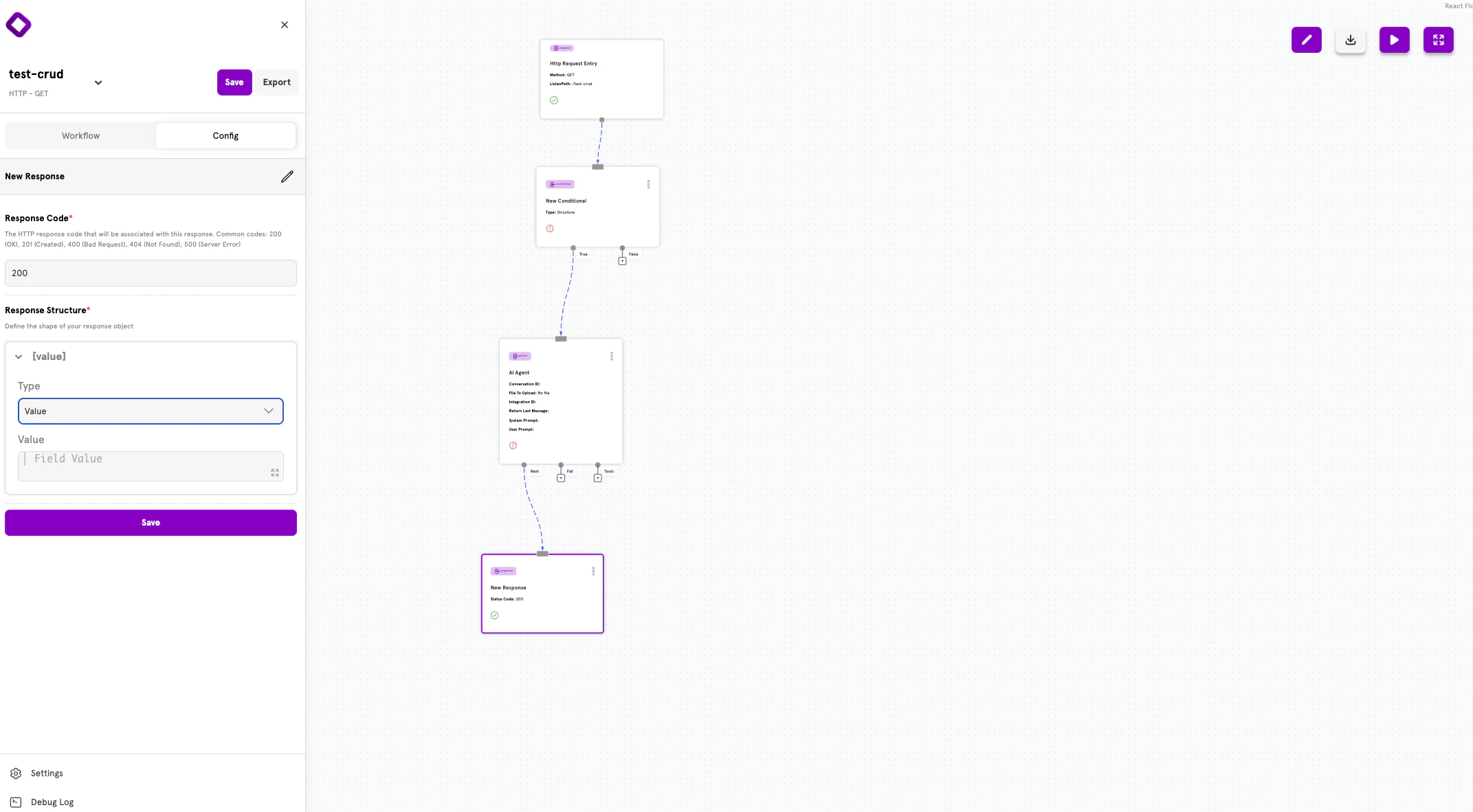
Response nodes are terminal — they have no output handles because they end the workflow execution and return data to the client.
Response node in the workflow canvas showing status code configuration

Response Configuration

Selecting a response node opens the configuration panel on the left side of the screen. The panel contains two main sections:
  • Response Code — The HTTP status code to return
  • Response Structure — The shape of the JSON response body

Response Code

The Response Code field specifies the HTTP status code that will be associated with this response. Common codes include:
  • 200 (OK) — Successful request
  • 201 (Created) — Resource successfully created
  • 400 (Bad Request) — Validation or input errors
  • 404 (Not Found) — Resource doesn’t exist
  • 500 (Server Error) — Unexpected server failure

Response Structure

The Response Structure section lets you define the shape of your response object using a visual builder. You can create flat objects with simple key-value pairs or deeply nested structures.
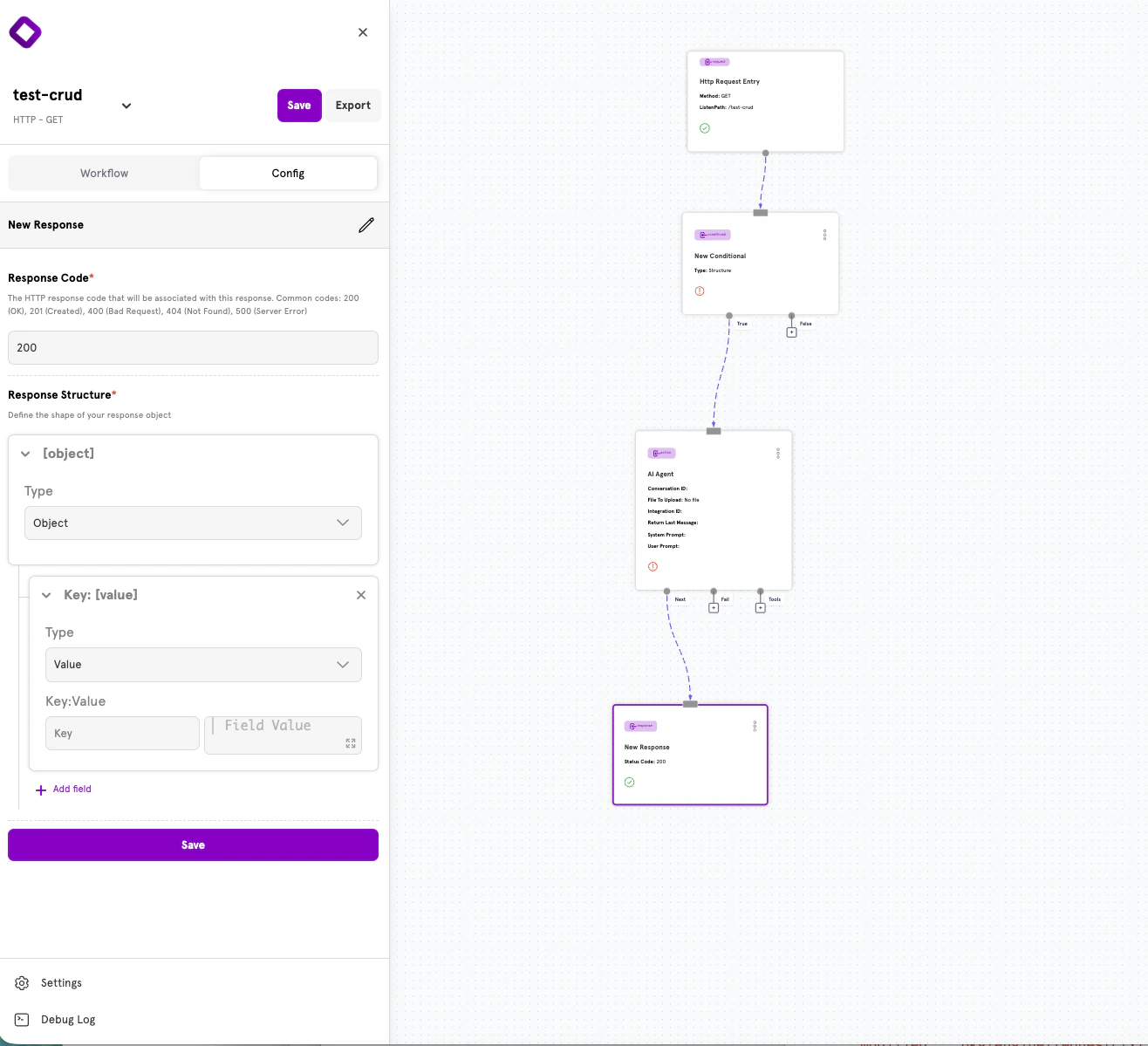
Response Structure configuration panel showing root object type

Field Types

Each field in your response structure has a Type that determines how it behaves:
TypeDescription
ObjectA nested JSON object containing additional fields
ValueA leaf field with a static or dynamic value

Adding Fields

Click + Add field to add a new field to your response structure. Each field requires:
  • Key — The JSON property name
  • Type — Either Object (for nesting) or Value (for leaf values)
  • Value (for Value type) — The content to return, which can include dynamic template expressions
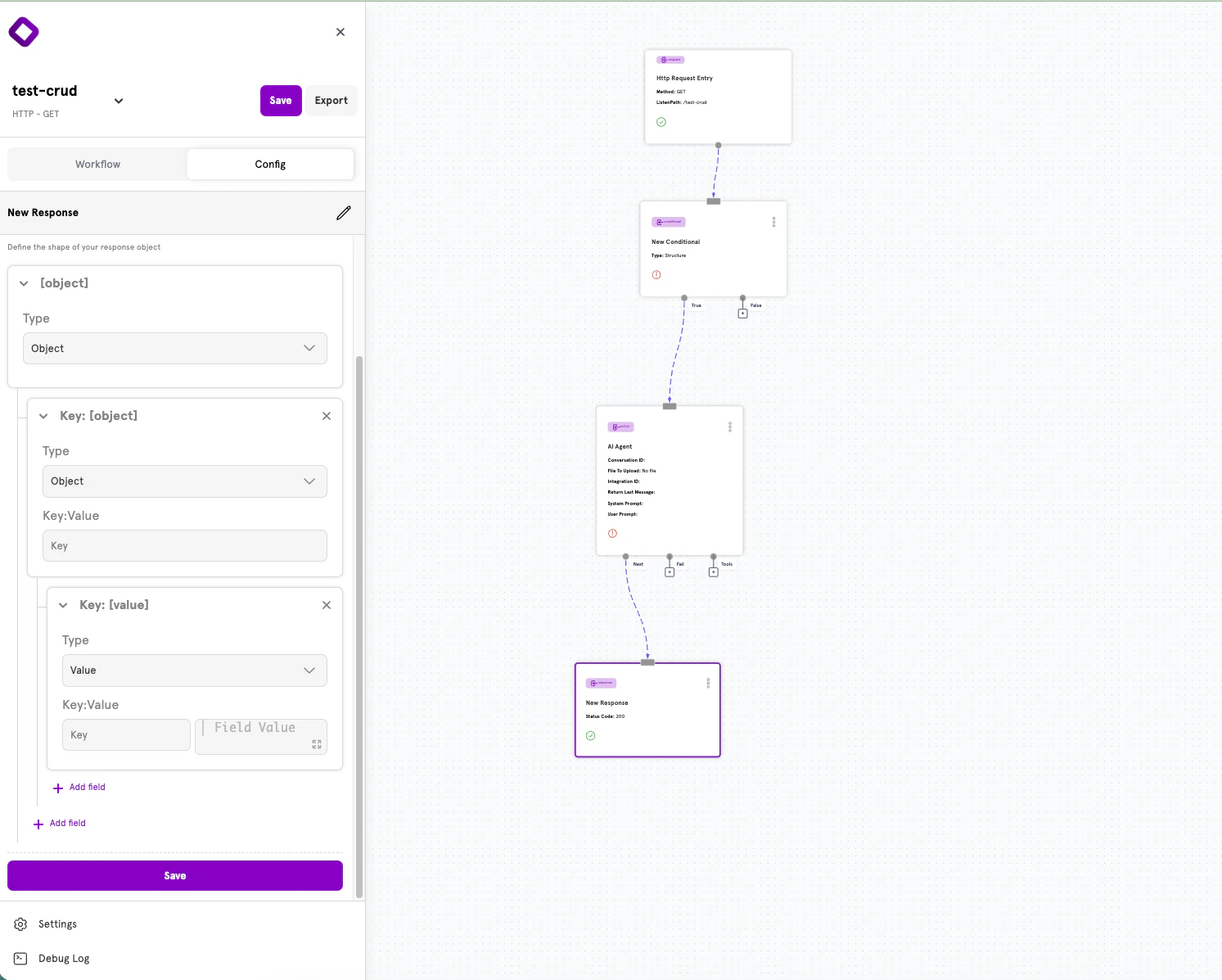
Nested response structure with object and value fields

Creating Nested Objects

To create nested JSON structures:
  1. Add a field and set its Type to Object
  2. Click the expand arrow to reveal the nested field editor
  3. Add child fields inside the object
  4. Continue nesting as deeply as needed
This allows you to build complex response shapes like:
{
  "success": true,
  "data": {
    "user": {
      "id": "123",
      "email": "user@example.com"
    }
  }
}

HTTP Status Codes

Choosing the right HTTP status code helps API consumers understand the result of their request. Here are the most common codes and when to use them:

Success Codes (2xx)

CodeNameWhen to Use
200OKSuccessful GET, PUT, or PATCH requests
201CreatedSuccessful POST that creates a new resource
204No ContentSuccessful DELETE with no response body

Client Error Codes (4xx)

CodeNameWhen to Use
400Bad RequestValidation errors or malformed input
401UnauthorizedAuthentication required or invalid credentials
403ForbiddenAuthenticated but lacking permission
404Not FoundRequested resource doesn’t exist
409ConflictResource already exists (e.g., duplicate email)

Server Error Codes (5xx)

CodeNameWhen to Use
500Internal Server ErrorUnexpected server failures

Advanced: YAML Configuration

ServFlow APIs can also be defined using YAML configuration files. This approach is useful for version control, CI/CD pipelines, or programmatic configuration generation.

Response Structure in YAML

Every response follows this structure:
responses:
  response_id:
    code: 200
    responseObject:
      fields:
        field_name:
          value: "static or {{ .template }} value"

Common Fields

FieldTypeRequiredDescription
codeintegerYesHTTP status code (100-599)
responseObjectobjectYesStructured response object definition
responseObject.fieldsmapYesMap of field names to field definitions

Field Definition

Each field in the fields map can have:
FieldTypeDescription
valuestringThe value for this field (can include templates)
fieldsmapNested field definitions (creates a JSON object)
A field should have either value or fields, not both. Use value for leaf values and fields for nested objects.

Nested Objects in YAML

Create nested JSON structures by using fields instead of value:
responses:
  user_response:
    code: 200
    responseObject:
      fields:
        success:
          value: "true"
        data:
          fields:
            user:
              fields:
                id:
                  value: "{{ .create_user.id }}"
                email:
                  value: "{{ .create_user.email }}"
This produces:
{
  "success": true,
  "data": {
    "user": {
      "id": "123",
      "email": "user@example.com"
    }
  }
}

Type Coercion

Values in responseObject are automatically converted to appropriate JSON types:
ValueOutput Type
"true" / "false"Boolean
Numeric strings ("123", "45.67")Number
Template returning array/objectArray/Object
Other stringsString

Accessing Data in Responses

Responses can include dynamic content from anywhere in your workflow using template syntax.

Action Results

Access results from previous actions using the action ID with a dot prefix:
responseObject:
  fields:
    users:
      value: "{{ .fetch_users }}"
    user_count:
      value: "{{ len .fetch_users }}"
    first_user_email:
      value: "{{ (index .fetch_users 0).email }}"

Request Parameters

Access original request data with the param function:
responseObject:
  fields:
    received_email:
      value: "{{ param \"email\" }}"

Validation Errors

When using validation functions in conditionals, errors are collected in the .errors variable:
responses:
  validation_error:
    code: 400
    responseObject:
      fields:
        success:
          value: "false"
        message:
          value: "Validation failed"
        errors:
          value: "{{ .errors }}"

Error Information

When an action fails and routes to a response via its fail path, access error details with .error:
responses:
  error:
    code: 500
    responseObject:
      fields:
        success:
          value: "false"
        error:
          value: "{{ .error }}"
For more details on template syntax and available functions, see the Dynamic Content documentation.

Common Response Patterns

Success Response with Data

responses:
  success:
    code: 200
    responseObject:
      fields:
        success:
          value: "true"
        data:
          value: "{{ .fetch_users }}"

Resource Created Response

responses:
  created:
    code: 201
    responseObject:
      fields:
        success:
          value: "true"
        message:
          value: "User created successfully"
        user:
          fields:
            id:
              value: "{{ .create_user.id }}"
            email:
              value: "{{ .create_user.email }}"

Validation Error Response

responses:
  validation_error:
    code: 400
    responseObject:
      fields:
        success:
          value: "false"
        message:
          value: "Validation failed"
        errors:
          value: "{{ .errors }}"

Not Found Response

responses:
  not_found:
    code: 404
    responseObject:
      fields:
        success:
          value: "false"
        message:
          value: "Resource not found"

Unauthorized Response

responses:
  unauthorized:
    code: 401
    responseObject:
      fields:
        success:
          value: "false"
        message:
          value: "Authentication required"

Next Steps

Actions

Learn about actions — the building blocks of workflows.

Conditionals

Add branching logic to your workflows.

Dynamic Content

Use template syntax to create dynamic values.

Configuration Reference

See the complete ServFlow configuration options.