

{{ }}. ServFlow calls this dynamic content. This page explains how to read and write it. For every function, see the Dynamic content reference.
Reading a template
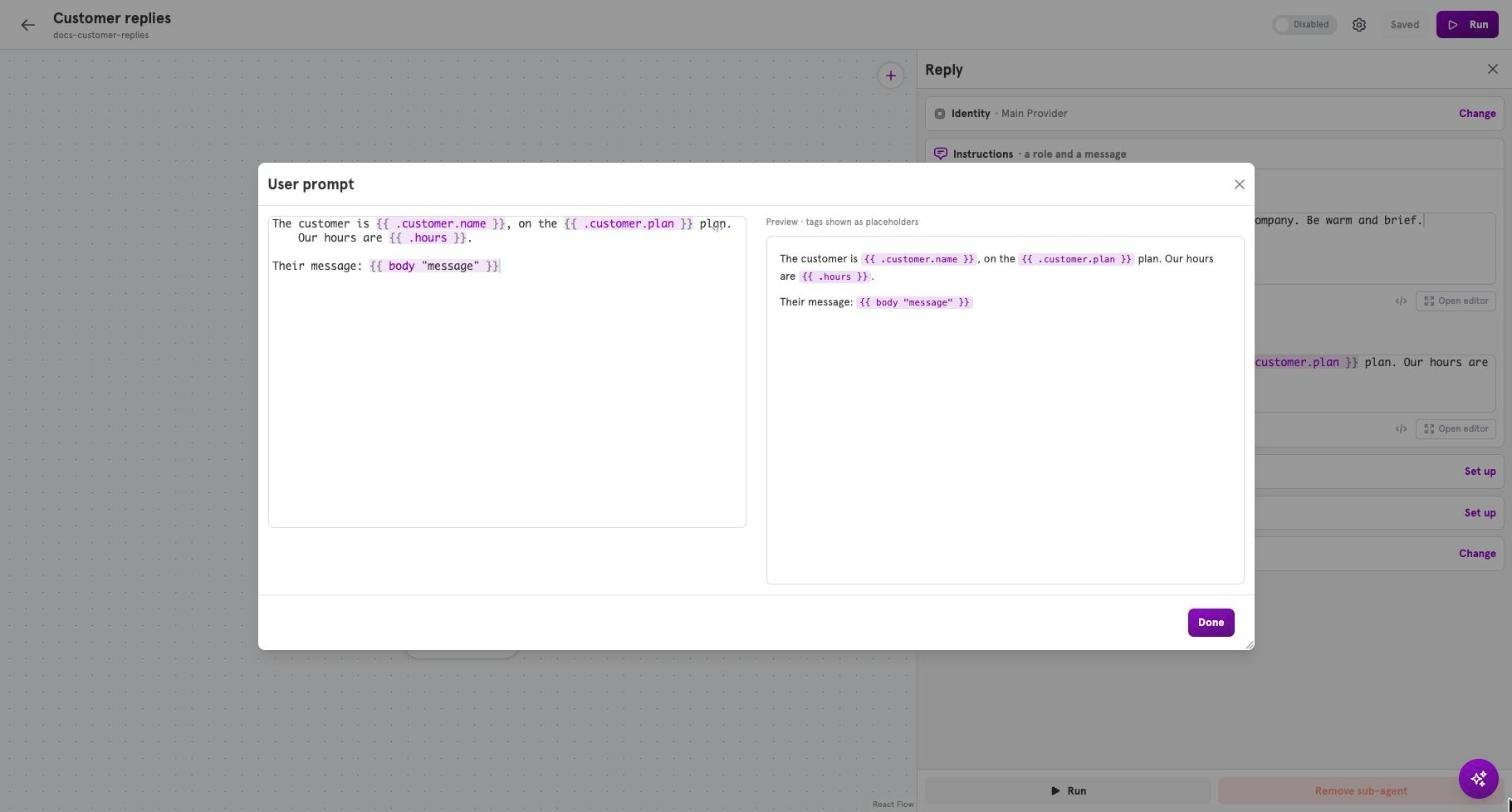
Text with gaps in it is called a template. This one is the User prompt of a Discord agent:Where you can use it
In a System prompt and a User prompt, in a tool’s settings, in a step’s settings, and in a guard’s condition. A field that accepts dynamic content showsSupports {{ }} templates under its label.
What you can read depends on how the agent was started
Three things to watch:
- A Discord agent cannot use
body. It has no web request to read. bodyreads a web request only when the request is sent as JSON.- An agent that runs on a schedule has no message to read, so leave
inputout of its prompts.
.discord, .telegram, and .github.
What you can read from any agent
- What an earlier step found.
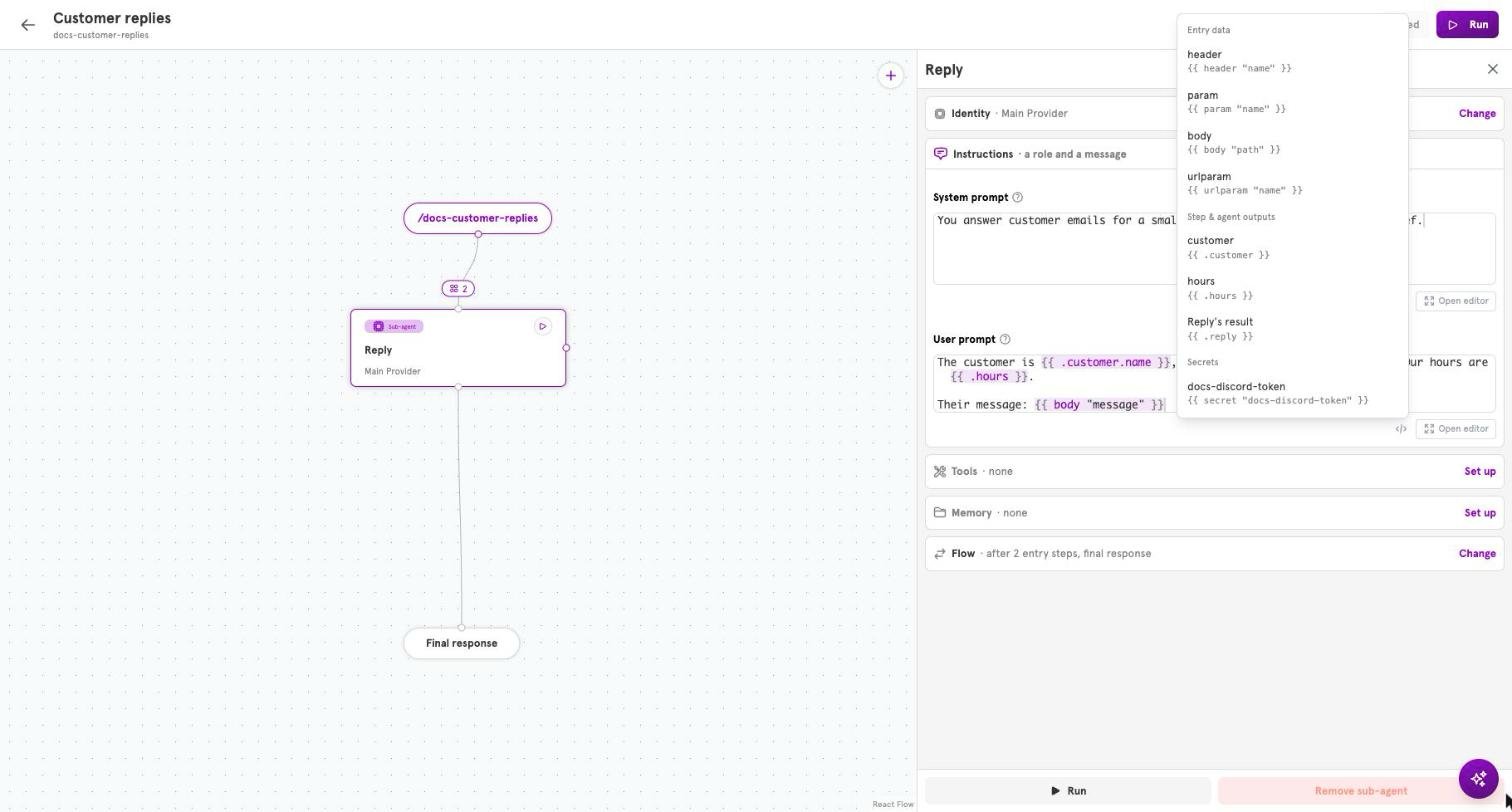
{{ .customer.name }}readsnamefrom a step calledcustomer. See Steps before the agent. - A stored secret.
{{ secret "weather-api-key" }}. See Secrets. - Inside a tool, what the agent passed to it.
{{ tool_param "question" }}. See Add a tool to an agent.
Small changes to a value
A function can change a value on its way in. Three common ones:
The brackets in
(body "count") mean “work this out first”.
If something is missing
A gap whose value is missing is left empty, and the prompt still goes out. Write prompts that read sensibly when that happens. A misspelt function name is different. In a guard, ServFlow refuses it when you save. In a prompt, the agent fails when it runs.Dynamic content in the dashboard
Every field that accepts dynamic content has two small buttons. A short field keeps them in its corner; a prompt, or a field whose value has grown long, shows them in a row under the field. Typing inside braces suggests names as you go. Insert a variable opens a menu of what the field can read, such as the results of steps and your secrets, and writes the braces for you. Open editor opens the field in a larger window. A prompt opens as Markdown, with a preview beside the text that shows each pair of braces as a placeholder. A field that can hold other kinds of text has a Text, Markdown, and HTML switch; it only changes how the text is shown, and what is saved is what you typed. In a tool’s fields, the window also offers Tags: one for each input the model sends the tool, which writes{{ tool_param "..." }} for you. Done closes the window.
Related
Dynamic content reference
Every function, with what it takes and returns.
Available entry handlers
Every name a Discord, Telegram, or GitHub entry provides.
Guard rails
Conditions that decide whether a tool may run.
Entries and entry handlers
The steps an entry runs, whose results a prompt can read.