

Before you begin
- A ServFlow account at dash.servflow.io, or a self-hosted instance.
- An API key from the company whose models you want to use. You enter the key yourself. After you save it, it is hidden.
Add a provider
1
Open the Providers page
In the sidebar under Configure, open Providers. The page lists the providers you already have.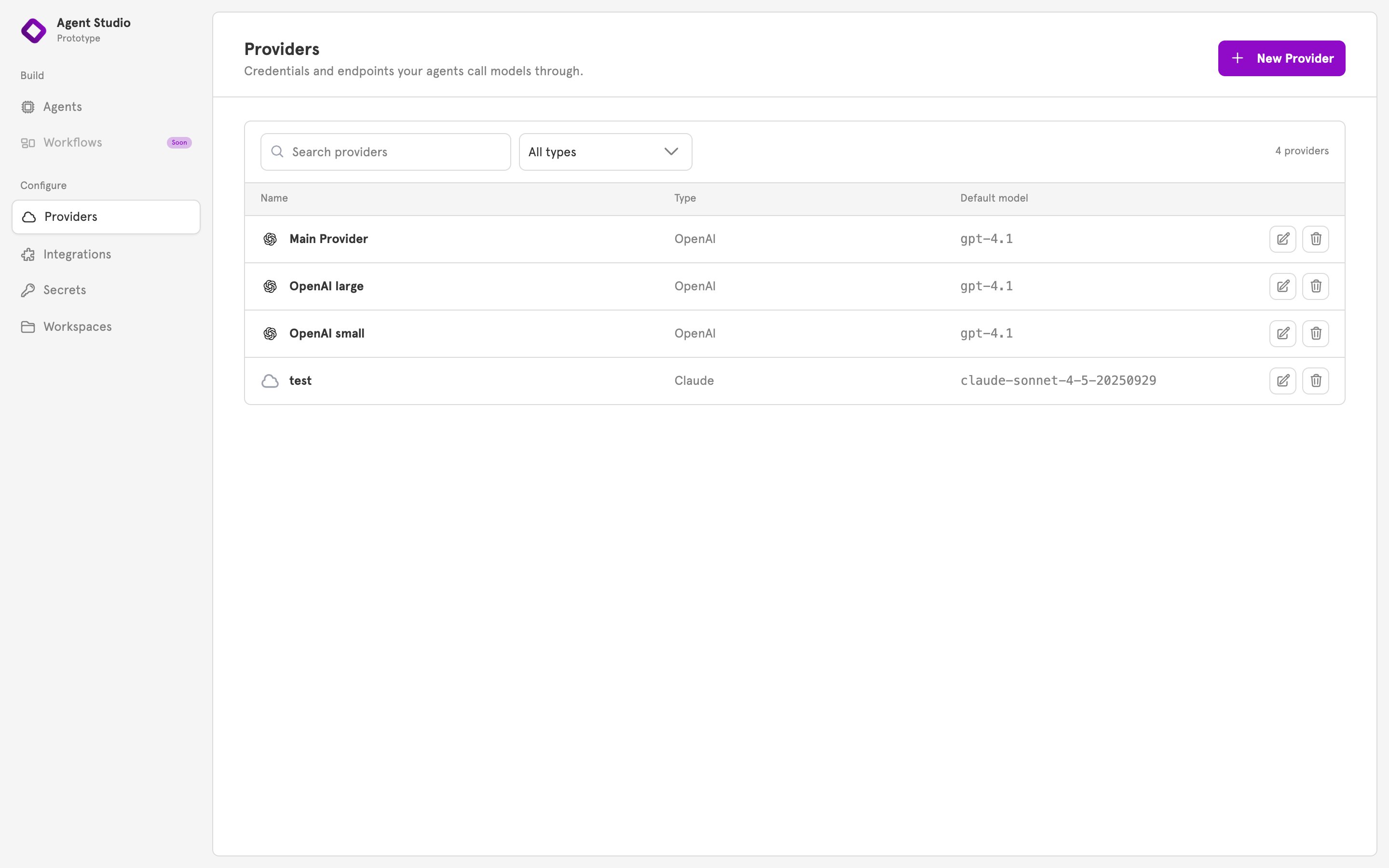
2
Click New Provider
Click New Provider in the top right. The New Provider dialog opens.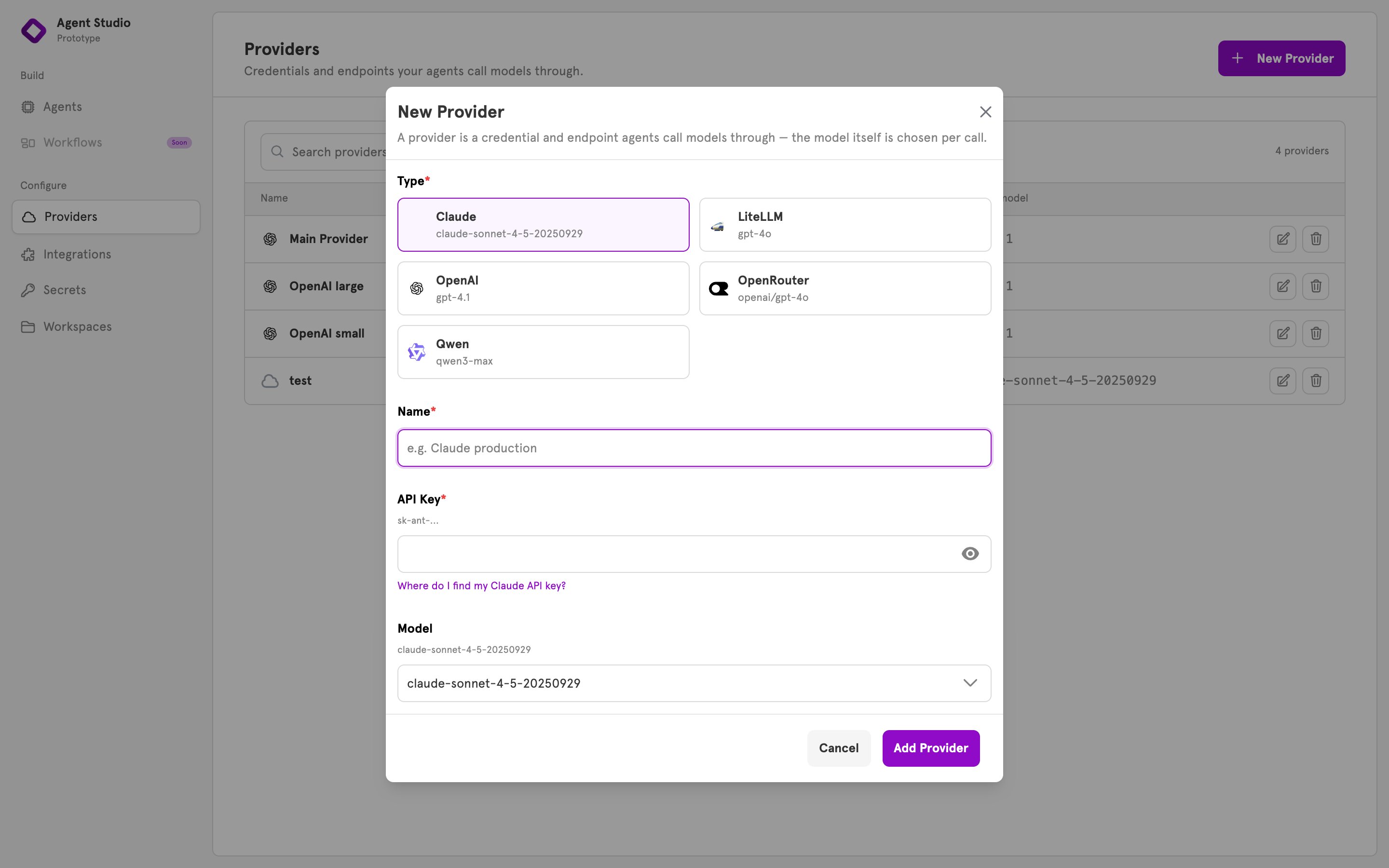
3
Choose a type
Under Type, click the card for your model company: Claude, LiteLLM, OpenAI, OpenRouter, or Qwen. The fields below the cards change to match.LiteLLM, OpenRouter, and Qwen also ask for the web address of the service. OpenRouter adds a Reasoning setting. Leave it on its default unless you know you need it.
4
Enter a name
Enter a Name, for example
OpenAI production. This is the name you choose in a sub-agent.5
Enter your API key
Enter your key under API Key. The field hides what you type. If you do not have a key yet, the link under the field opens the company’s page for creating one.
6
Choose a model
Under Model, pick a model from the list or type a model name.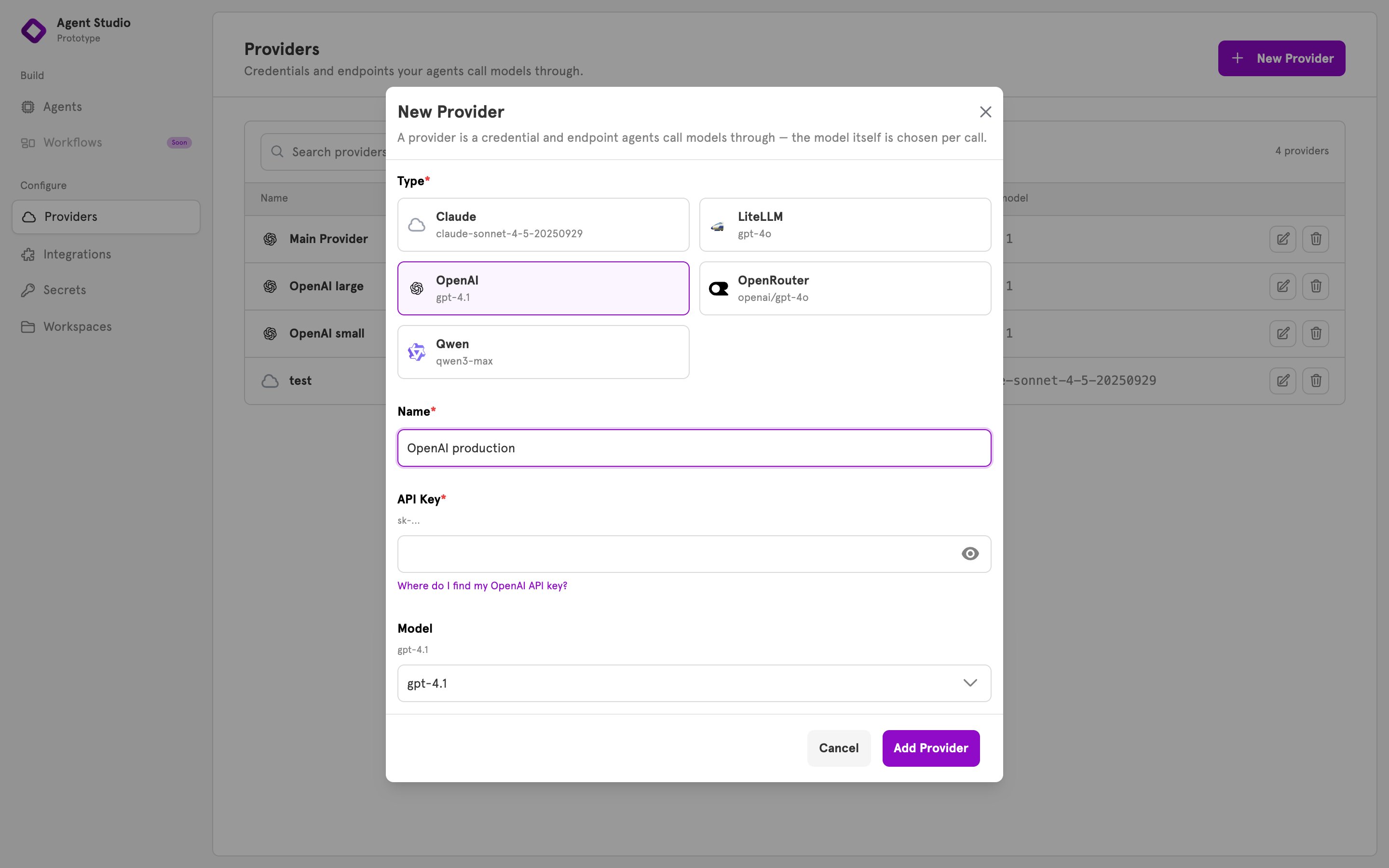
7
Click Add Provider
Click Add Provider. The dialog closes and the provider appears in the list with its type and model.
Point a sub-agent at the provider
1
Open a sub-agent
In the sidebar under Build, open Agents and open an agent. Click a sub-agent on the canvas. Its panel opens.
2
Choose the provider
Under Provider, choose the provider. The panel confirms with “Calls” and the provider’s name.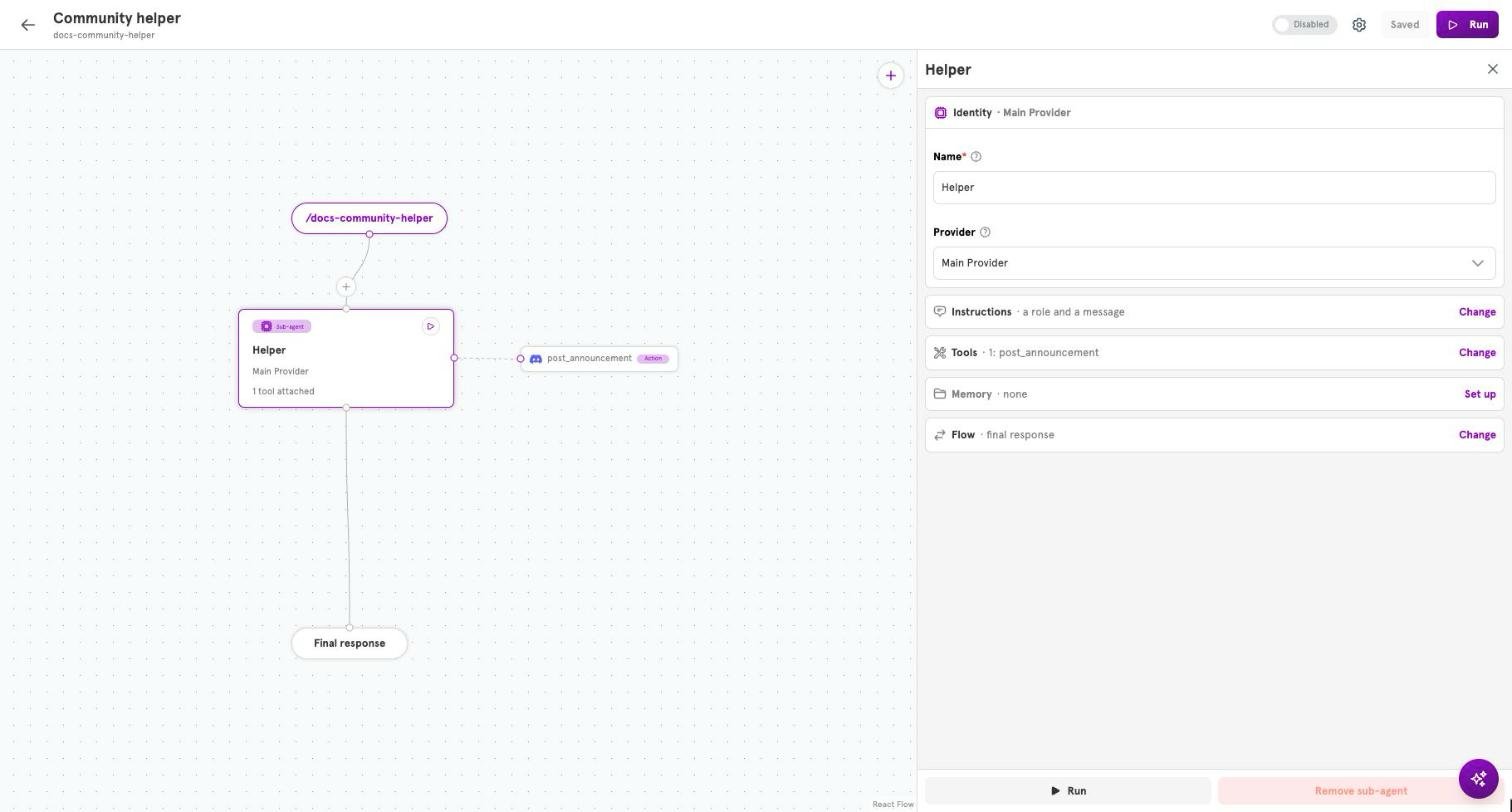
3
Save
Click Save in the top bar.
Use a different model for one sub-agent
The model belongs to the provider, not to the sub-agent, so a sub-agent’s panel has no model setting. To give one sub-agent a different model, add a second provider of the same type with the other model, and choose it in that sub-agent. The same API key works for both.Change a provider’s key or model
To change a provider’s type, add a new provider instead. The type of an existing provider is fixed.1
Open the provider
On the Providers page, click the Edit provider icon on the provider’s row. The Edit Provider dialog opens.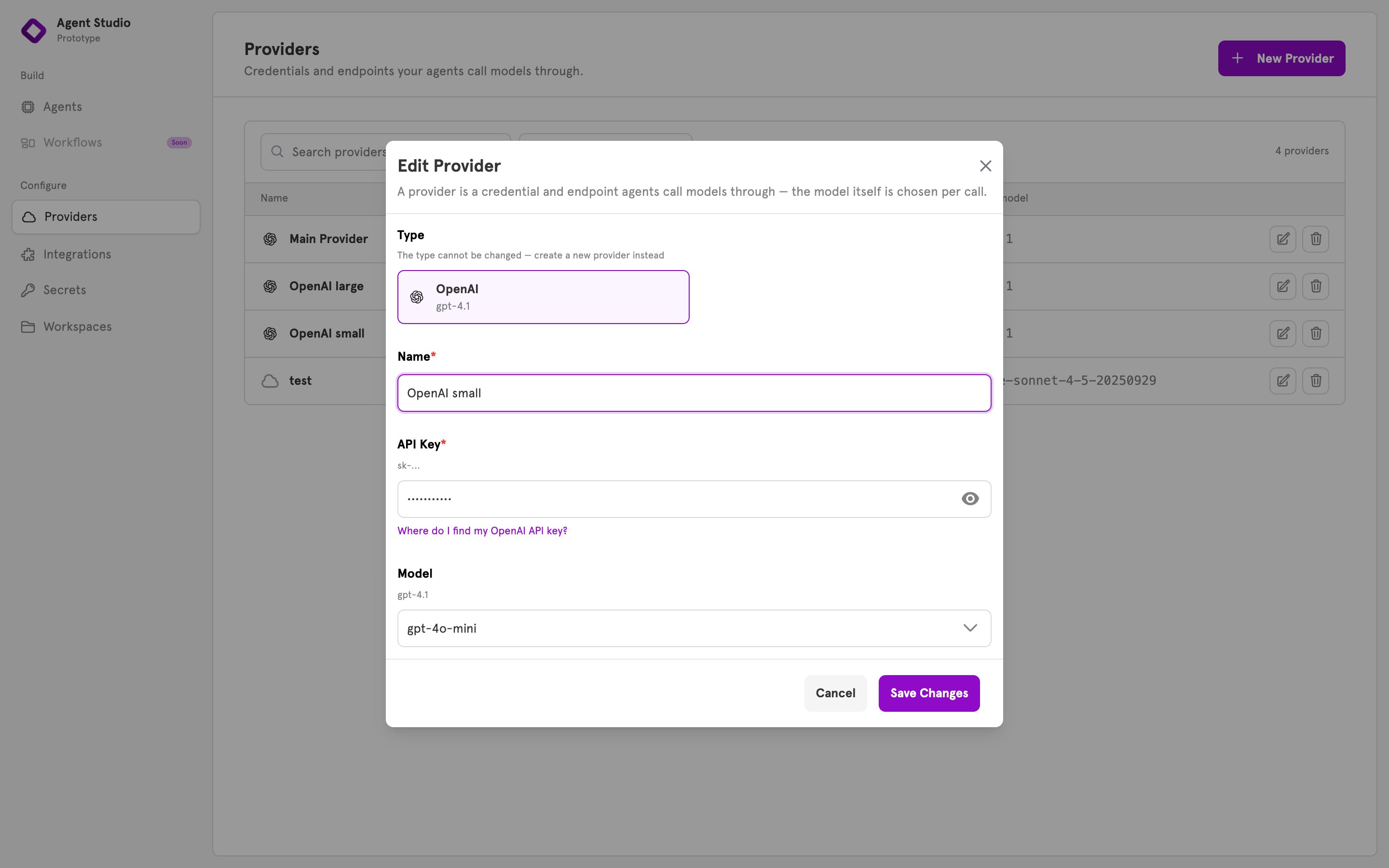
2
Change the key or the model and save
Enter a new API Key or choose another Model, then click Save Changes. Every agent that uses the provider picks up the change on its next run. You do not need to save the agents again.
Delete a provider
Before you delete a provider, point every sub-agent that uses it at another one. ServFlow does not stop the delete, and an agent left pointing at a deleted provider fails the next time it runs. On the Providers page, click the Delete provider icon on the provider’s row and confirm.Manage providers from the CLI
To create a provider from a file, write its name, type, and config, and pass it tocreate:
Related
Providers
What a provider is and why sub-agents share one.
Available providers
Every provider type and its fields.
Create an agent
Build an agent and choose a provider for each sub-agent.
Secrets
Where tokens for integrations are kept, and why a provider’s key is not one of them.