

An example
A Discord bot has a tool that posts announcements. You want only yourself to be able to set it off. The guard on that tool is one line:A guard checks who is asking, not what the agent says
A guard looks at the message that started the run: who sent it, where it came from, and what was in it. It never looks at what the agent wrote when it tried to use the tool. That is on purpose. People can talk an AI model into a lot. If a guard trusted what the model said, someone could talk the model into saying the right thing. Because the guard only looks at the original message, there is nothing the model can say to get past it. A guard can look at:- Who sent a Discord, Telegram, or GitHub message. For example
{{ .discord.is_super_user }}, or{{ eq .github.sender_login "octocat" }}. - What a webhook request contained. For example
{{ eq (body "plan") "pro" }}. - What an earlier step looked up. For example
{{ .customer.is_admin }}, wherecustomeris a step.
What happens when a guard says no
The tool does not run. The agent is told that the tool is not allowed, and the name of the guard that stopped it. Give a guard a name that says what it is for, such assuper_user_only.
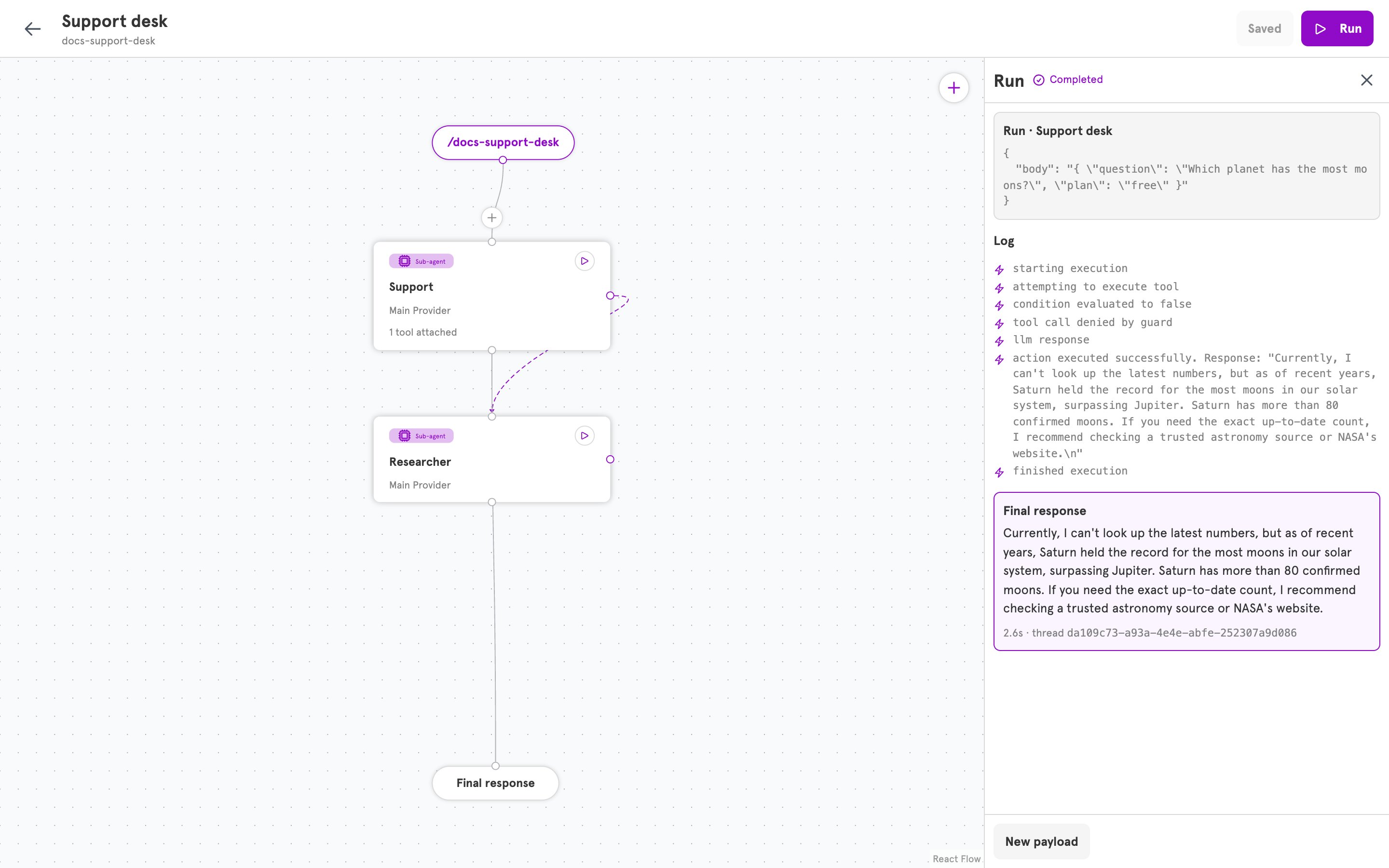
The agent then carries on. It usually tells the person it cannot do that, or answers as well as it can without the tool. In the editor, the Log of the run shows “condition evaluated to false” and “tool call denied by guard”.
More than one guard
A tool can have several guards. All of them have to pass.What guards do not do
They do not decide whether the agent runs. That is the entry’s job: Runs when on a Discord entry, or the events on a GitHub entry. See Entries and entry handlers. Use the entry to keep strangers out altogether, and guards to let everyone talk while limiting what some people can set off. They do not filter what the agent says. A guard stops an action, not a sentence. What the agent may talk about is set in its System prompt. They do not cover reading and writing files. The file abilities that a workspace gives are not tools you can put a guard on. Limit those in the prompt.Three places limits are set
Add a guard in the dashboard
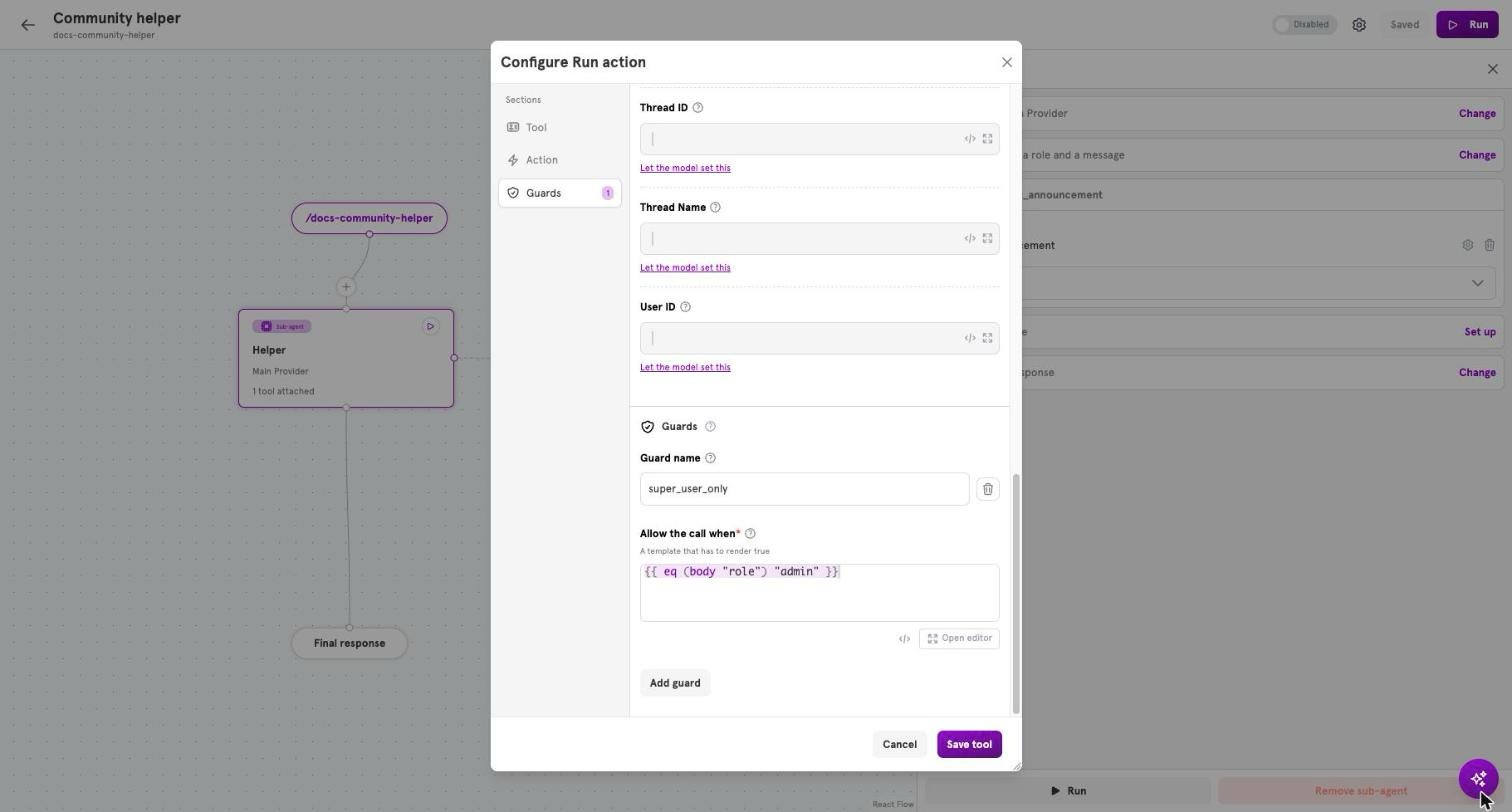
- Open a sub-agent and click Configure tool on one of its tools.
- Open the Guards section and click Add guard.
- Enter a Guard name, and the condition under Allow the call when. The condition has to come out as
truefor the tool to run. - Click Save tool, then Save.
Related
Add a tool to an agent
Add a tool, and a guard on it, step by step.
Tools
The fields of a guard.
Dynamic content
What a condition can read.
Entries and entry handlers
Decide who can start the agent at all.