

Before you begin
- A ServFlow account at dash.servflow.io, or a self-hosted instance.
- The credential for the service you are connecting. Each type’s fields are listed in the Available integrations.
Add the integration
1
Open Integrations
In the sidebar under Configure, open Integrations. The page lists every integration by name, type, and status. Each row has edit and delete controls, and a Connect integration action when a guided OAuth setup still needs to be completed.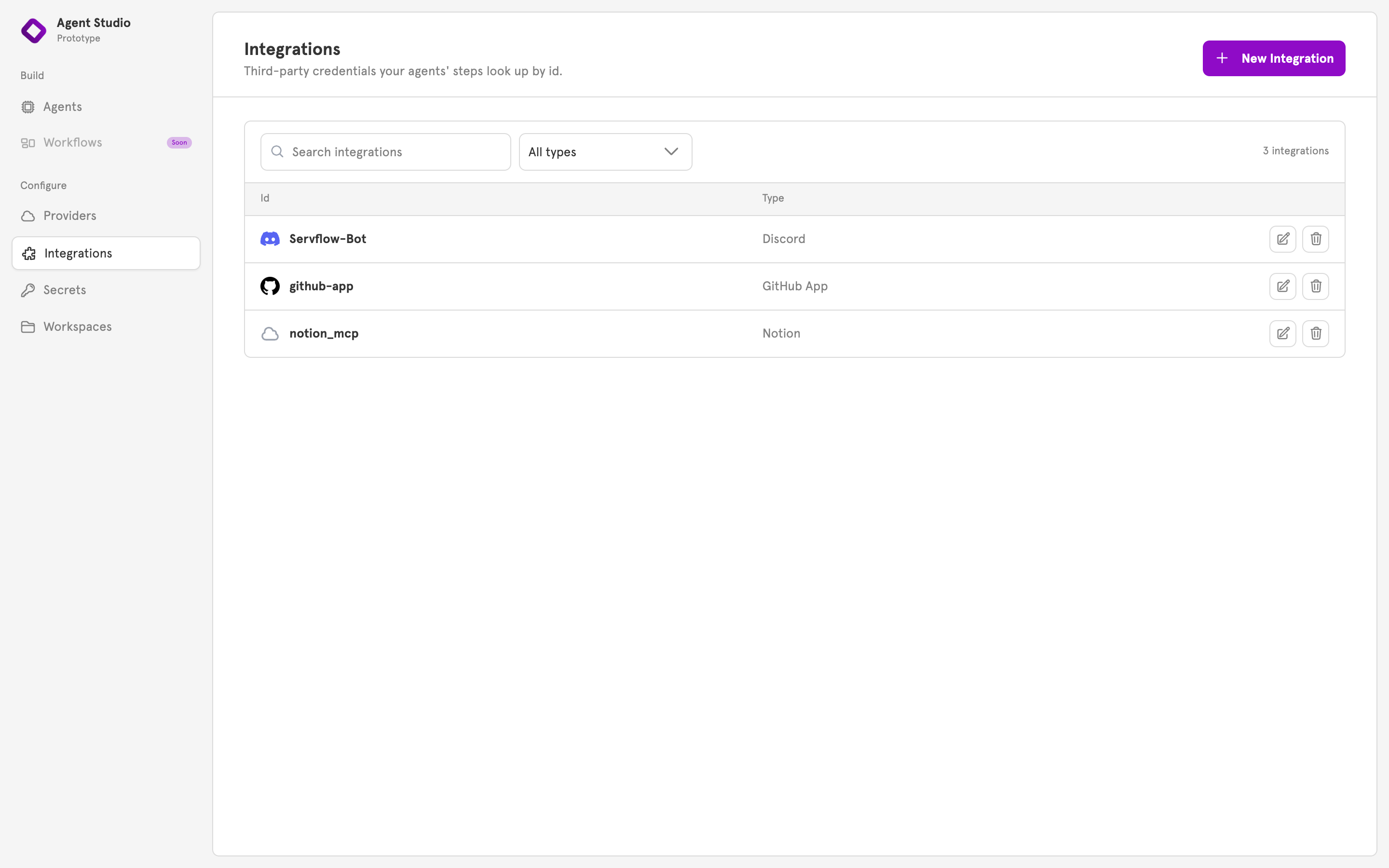
2
Choose a type
Click New Integration and choose a type. Discord, GitHub App, and Notion are marked Guided setup and open a flow of their own. Every other type opens a form with one input per field.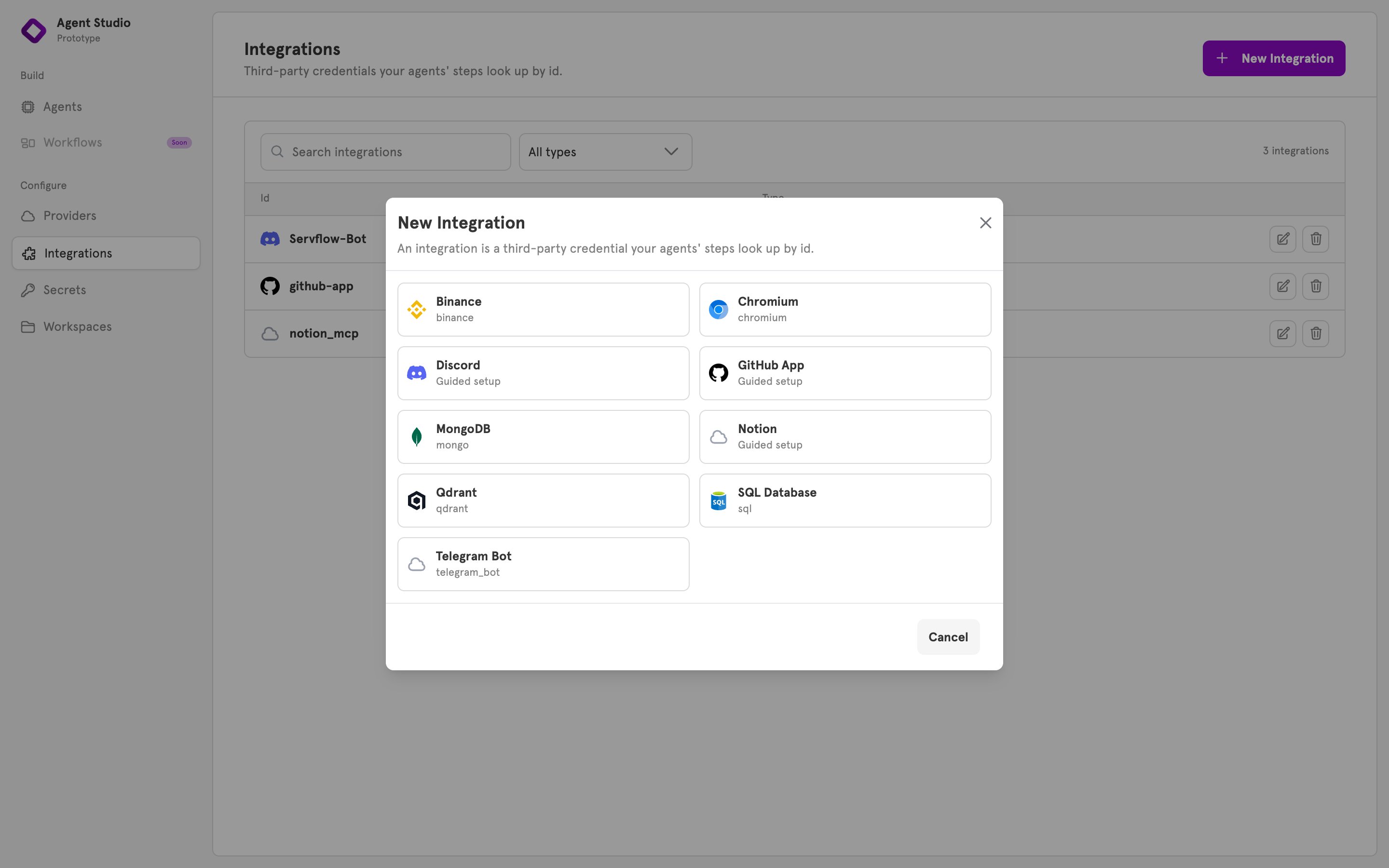
3
Enter a name and the fields
Enter a Name, for example 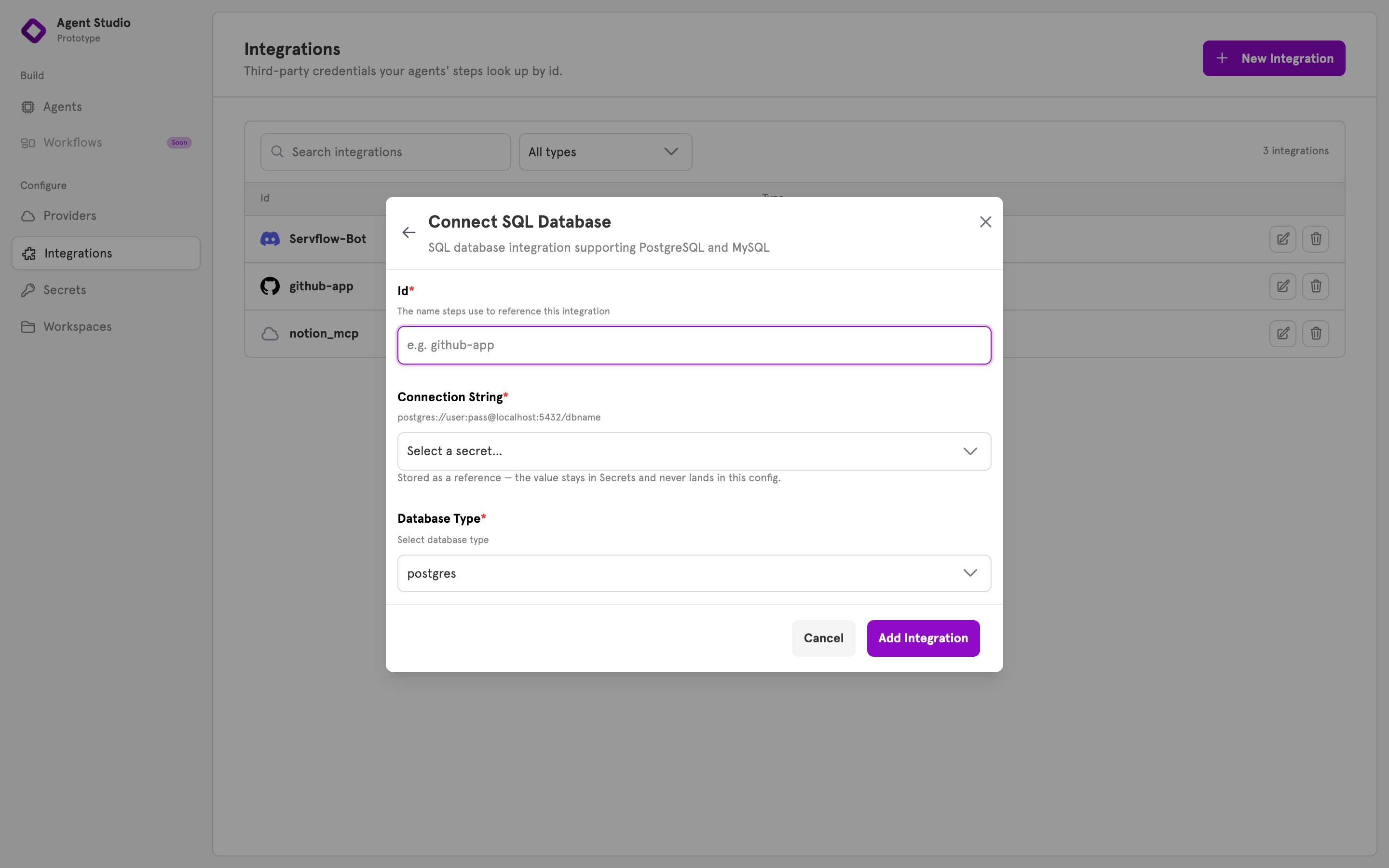
Orders database. This is what you will see and pick everywhere else in the dashboard, and you can change it later if you need to.For Notion, the guided setup asks for this name before it sends you to Notion to approve the connection.Fill in the fields. A required field is marked with an asterisk. A select field, such as SQL Database’s Database Type, lists its allowed values.4
Keep the credential in Secrets
A password field, such as Connection String or Bot Token, opens a secret picker. Choose a stored secret, or choose + New secret… to store the value now. The form then keeps a reference, and the value stays in Secrets.To paste the value into the integration instead, choose Enter a value directly…. The form warns that the value is stored in the integration’s config as typed. Any other field can hold a reference too: click Use a stored secret instead under it. See Secrets.
5
Add it
Click Add Integration. The dialog closes, and the integration appears in the list with its type. A new integration starts disabled, so enable it before an agent can use it.A guided OAuth setup such as Notion may create the integration before the approval finishes. Until it is approved, the row shows Not connected. Use the row’s Connect integration action to start the approval again. When the approval finishes, enable the integration to start serving it.
Use the integration from an agent
Any field that takes an integration lists the stored ones by name, filtered to the types that field accepts. In an action step, this is the step’s integration field. In an entry, it is a field such as the Discord entry’s Bot. Choose the integration, or choose + New integration… to add one without leaving the editor.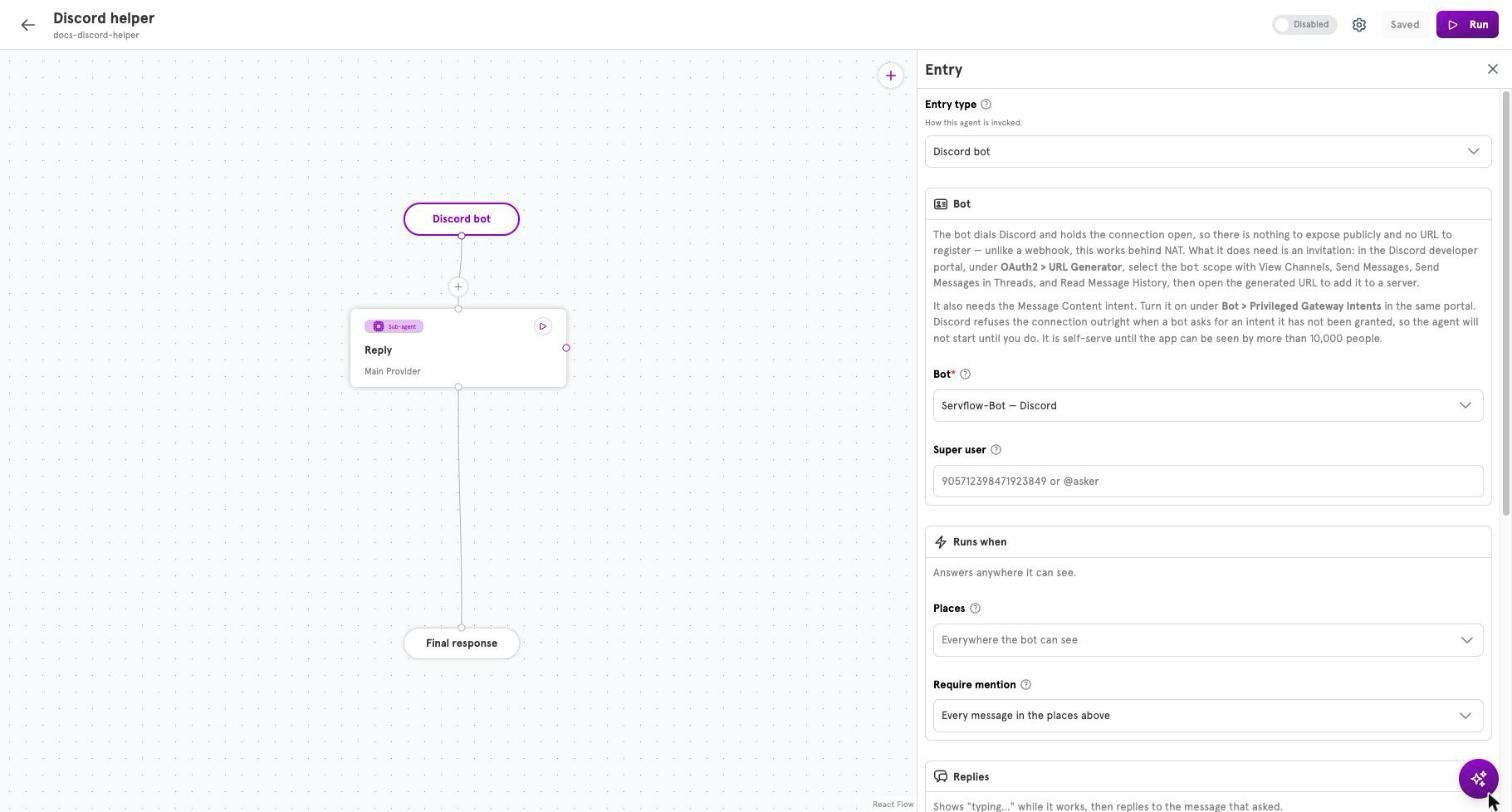
Edit or delete an integration
On the Integrations page, the pencil on a row opens the same form. Change the Name or the fields and click Save Changes. A password field that holds a literal value opens blank. Leave it blank to keep the stored value, or enter a replacement. Saving does not replace what an enabled integration is serving yet; enable the integration again to make the saved change live.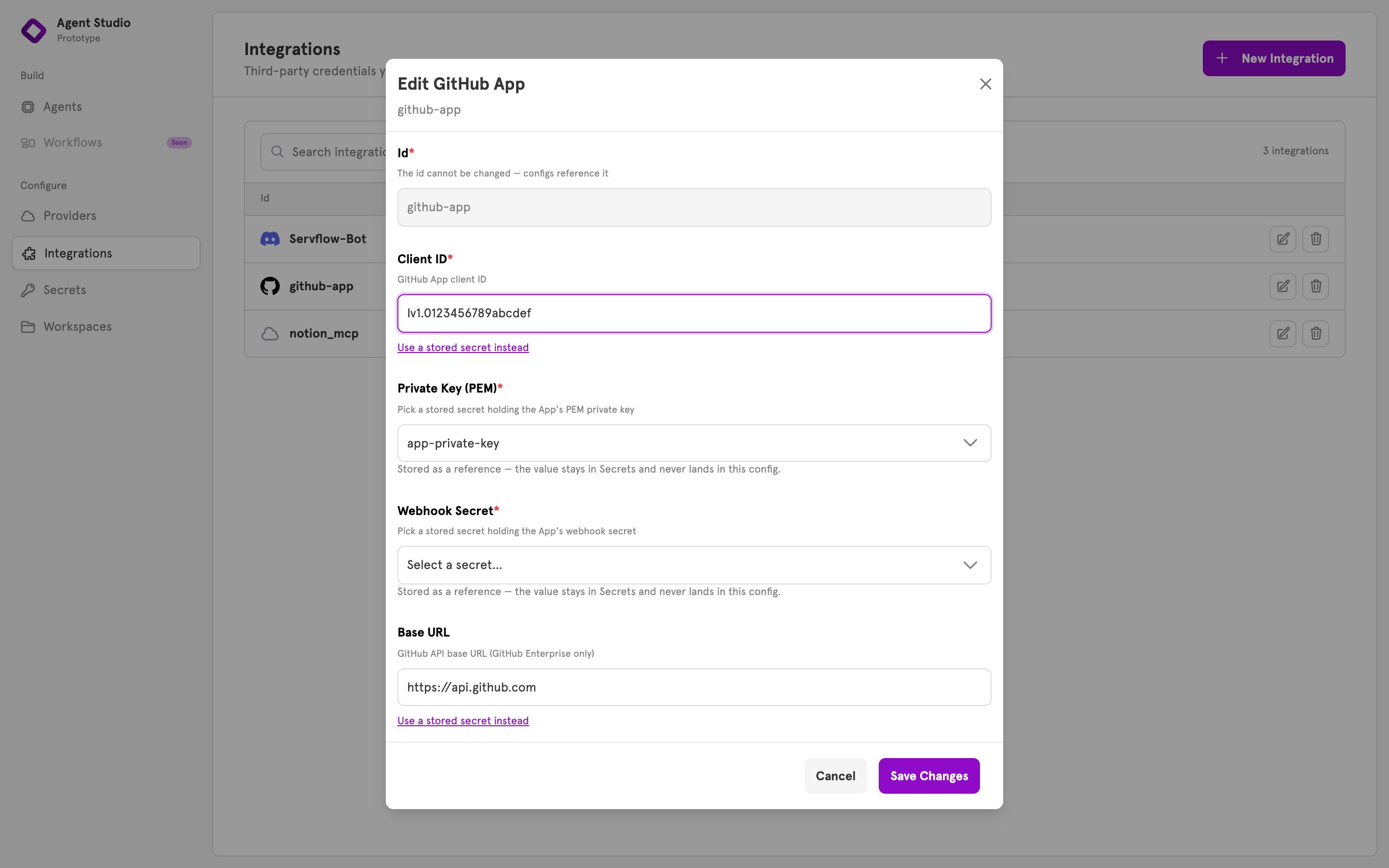
Verify
The integration appears in the list on the Integrations page. Once you enable it, its status is Ready. From the terminal, it also appears in:Related
Available integrations
Every type, its fields, and what uses it.
Secrets
Store a credential once and reference it from an integration.
Connect an agent to Discord
A guided setup, end to end.
Create an agent
Build the agent that uses the integration.