

Open Runs
1
Open the Runs page
In the sidebar, click Runs. The page lists every run of every agent, newest first.Each row shows the agent’s name, what started the run, a line about how it ended, the credits it used, and when it ran. A green tick marks a run that worked, and a red cross marks a run that failed.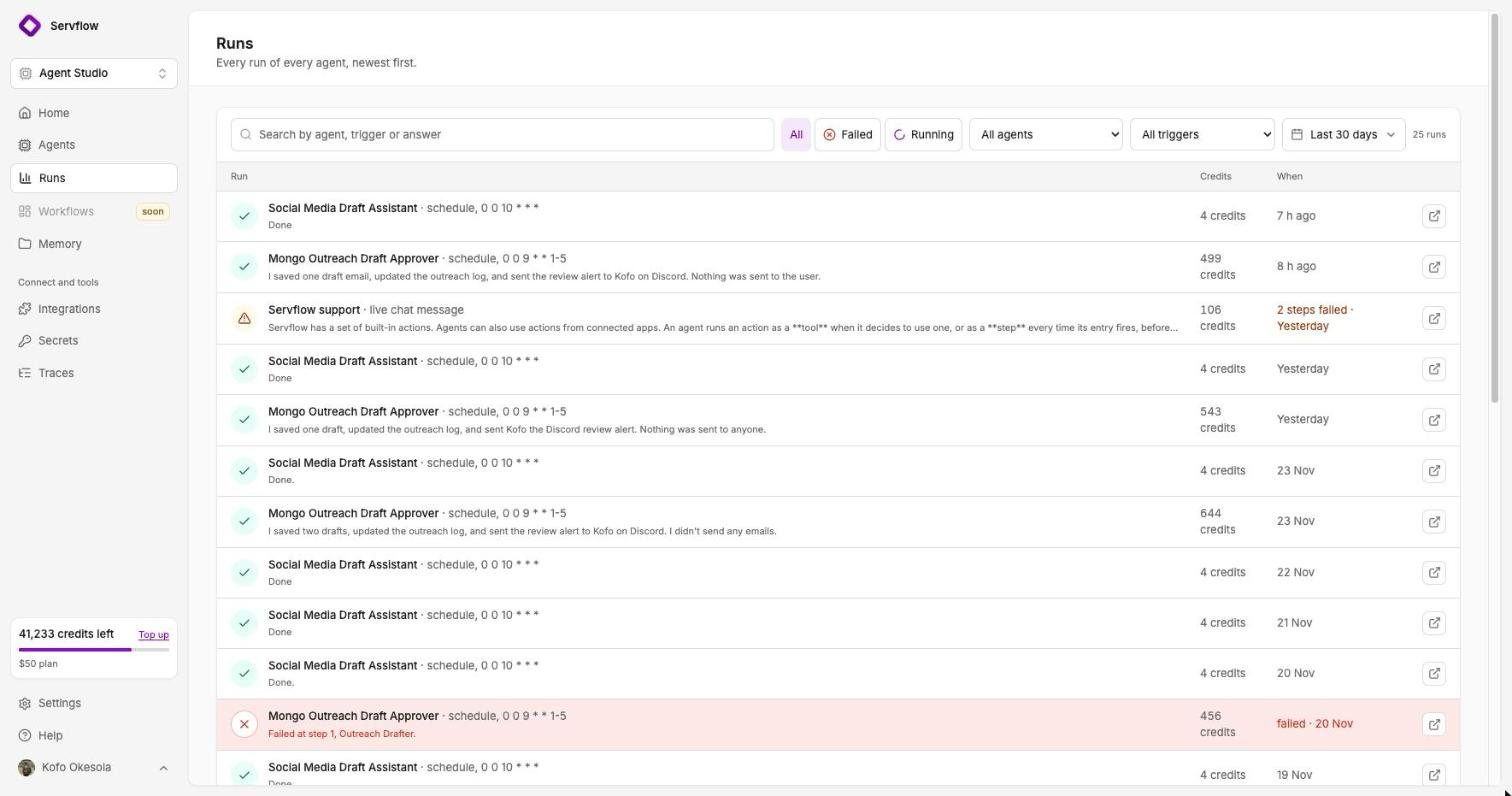
2
Narrow the list
To find a run, use the controls above the list:
- Type in Search by agent, trigger or answer.
- Under Status, choose Failed or Running.
- Choose one agent instead of All agents, or one trigger instead of All triggers, such as Slack or Schedule.
- Pick a time range.
Read a run
1
Open the run
Click a row. The run’s page opens with the agent’s name and its status: succeeded, failed, or running.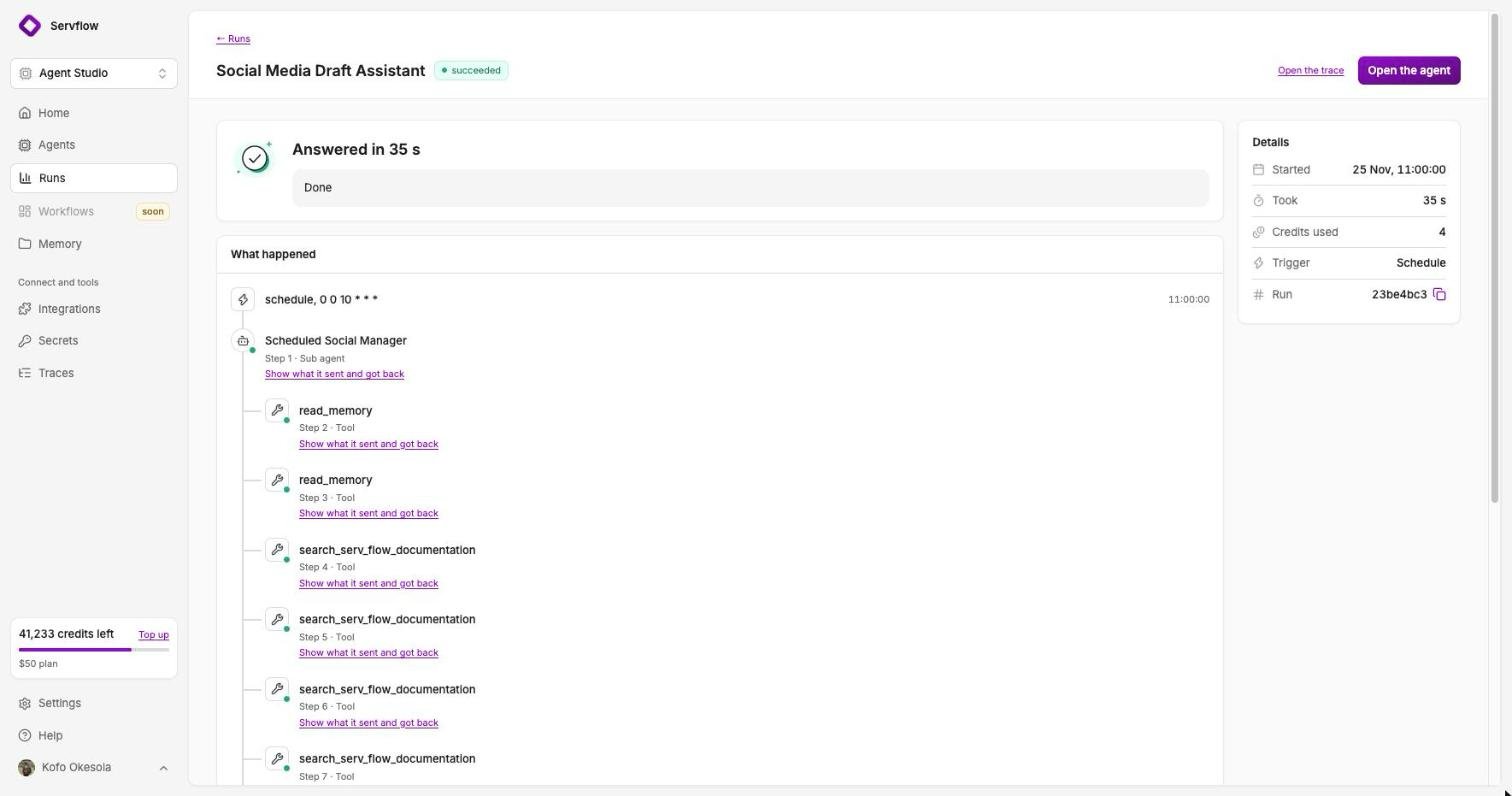
2
Read the outcome
The first card says what the run came to. For a run that worked, it reads Answered in and the time it took, then shows the agent’s answer.A run that kept going after one step failed reads Answered, but step and the step’s number. It names the step that failed and says the agent answered without it.While a run is still going, the card says which step it is on, and the page updates as each step finishes.
3
Follow what happened
Under What happened, the run reads from top to bottom in the order the agent ran it:
- What started the run, with the time. For a run that an app started, click See what and the app’s name, for example See what Slack sent, to read what the app sent.
- Each step, numbered, marked Sub agent, Tool, or the action it ran. A tool that a sub agent called sits under that sub agent. Each step shows the credits it used.
- The answer: Answered, or No answer when the agent finished without one.
4
Check the details and the cost
The Details card beside the run shows when it Started, how long it Took, the Credits used, the Trigger, and the run’s id. Credits include the 4-credit run fee. A run that is still going shows its credits when it ends.For how credits are counted, see Plans and credits.
Find a failed run
The dashboard points you to a failed run in three places:- Runs in the sidebar shows a badge such as 2 failed with the number of today’s failed runs.
- Home shows the newest failed run of today, with Open the run, and a failed today count that opens the Runs page on failed runs.
- The Runs page shows a red banner for the newest run that failed in the last day, with Open the run.
Open the trace
For every step’s timing and raw data, click Open the trace at the top of a run’s page.Related
Plans and credits
What a run costs and where credits go.
Top up credits
Add credits when runs stop.
Add an integration
Reconnect an account a run could not use.
Create an agent
Change what the agent does.