

- An agent to connect. See Create an agent or Describe an agent with Assist.
- Permission to add apps to the Slack workspace you want the agent in.
Add the Slack integration
1
Open Integrations
In the sidebar under Connect and tools, click Integrations, then New Integration.
2
Choose Servflow SlackBot
Search for Slack and choose Servflow SlackBot, which is marked Guided setup.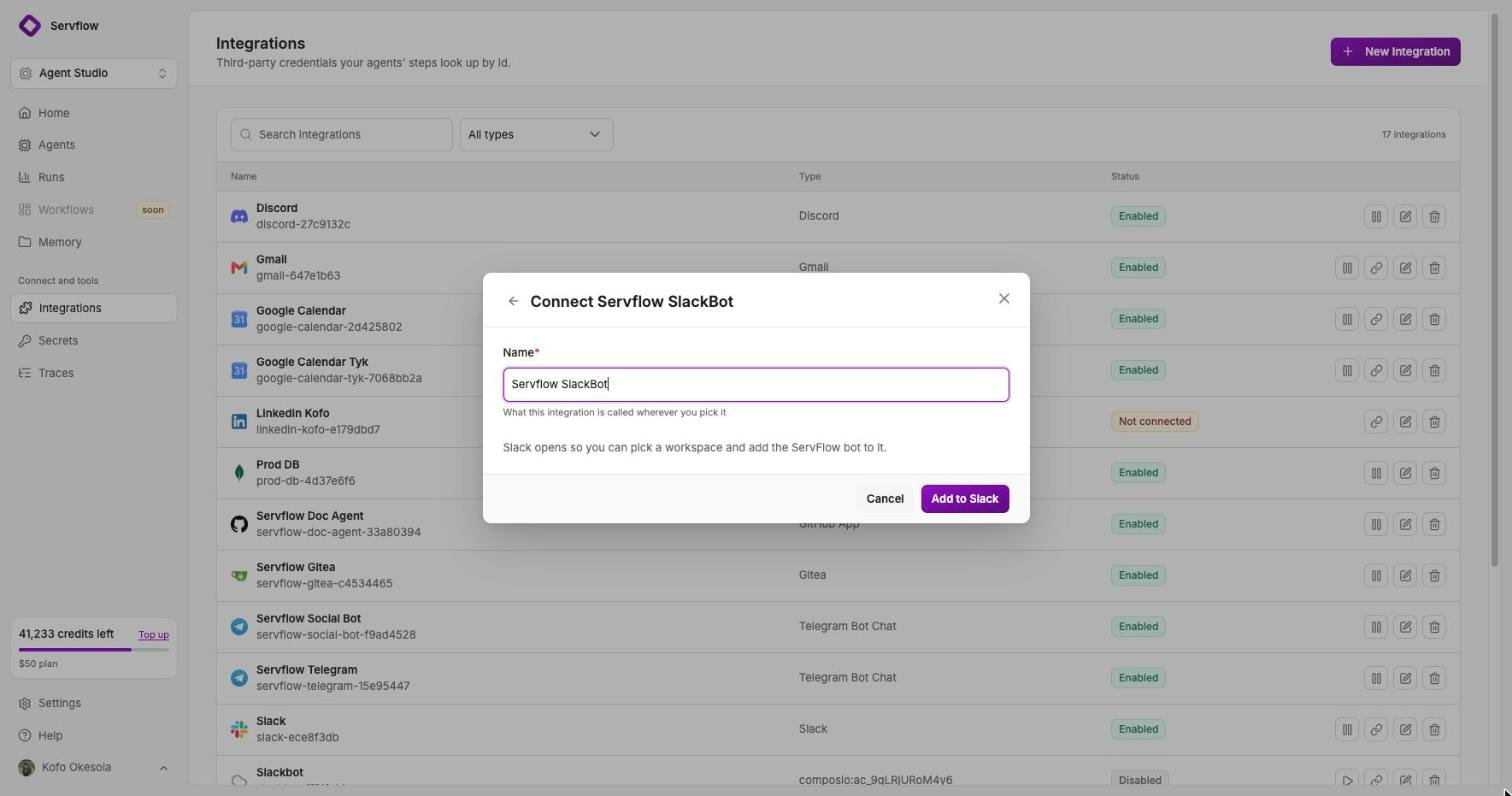
3
Name it and install the bot
Enter a Name, for example
Work Slack. This is what you pick later when an agent answers in this workspace.Click Add to Slack. Slack opens. Pick your workspace and allow the bot.4
Check the integration
Slack sends you back to Integrations. The integration is in the list with the status Enabled.If you leave Slack before allowing the bot, the integration shows Not connected. Open the row’s actions and click Connect integration to try again.
Set the trigger to Slack bot
1
Open the Entry panel
Open the agent in the editor and click the trigger node at the top of the canvas. The Entry panel opens.
2
Choose Slack bot
Under Entry type, choose Slack bot.
3
Choose the workspace
Under Slack workspace, choose the integration you added.In each workspace, one agent answers direct messages and one answers mentions. If another agent already answers either in this workspace, enabling this one is refused.
4
Decide what the agent answers
Under Runs when, each setting starts at Answer them:
- Direct messages: someone writing to the bot in its Messages tab.
- Mentions: someone mentioning the bot in a channel or group DM the bot is in.
Read the message in the prompt
Click the agent’s first sub agent and set its User prompt to the message:{{ .slack.user_name }}, and whether the message was a direct message as {{ .slack.is_dm }}. For every variable, see Entry handlers.
Enable the agent
1
Test in the editor
Click Run. For a Slack bot trigger, the dialog asks for the Message, the Place (
im for a direct message), and the sender. Enter a message and click Run. Nothing is sent to Slack, and the run panel shows the agent’s answer.2
Save and enable
Click Save, then turn on the Enabled switch in the top bar. The agent starts listening to the workspace.
Test in Slack
In Slack, open the bot’s Messages tab and send it a question, or mention the bot in a channel it is in. The answer arrives in the message’s thread. Each thread keeps its own conversation. The run appears on the Runs page with the trigger Slack. See Check what your agent did.If the bot does not answer
- The agent is disabled. Turn on Enabled in the editor.
- The setting is off. Check that Direct messages or Mentions is set to Answer them for the kind of message you sent.
- The bot is not in the channel. A mention reaches the bot only in a channel or group DM it is in. Add the bot to the channel.
- The thread went quiet. After a day without messages, mention the bot again.
- The bot’s access changed. On Integrations, open the row’s actions and click Reinstall in Slack.
Related
Run an agent on an app event
Start an agent from an event in a connected app.
Connect an agent to Discord
Run an agent as a Discord bot.
Entry handlers
Every trigger’s fields and variables.
Check what your agent did
Read the runs the bot started.