

Top up
1
Open Billing and usage
In the sidebar, click Settings, then the Billing and usage tab.The Credits card shows how many credits you have left. On a paid plan it also shows when the plan renews and with how many credits.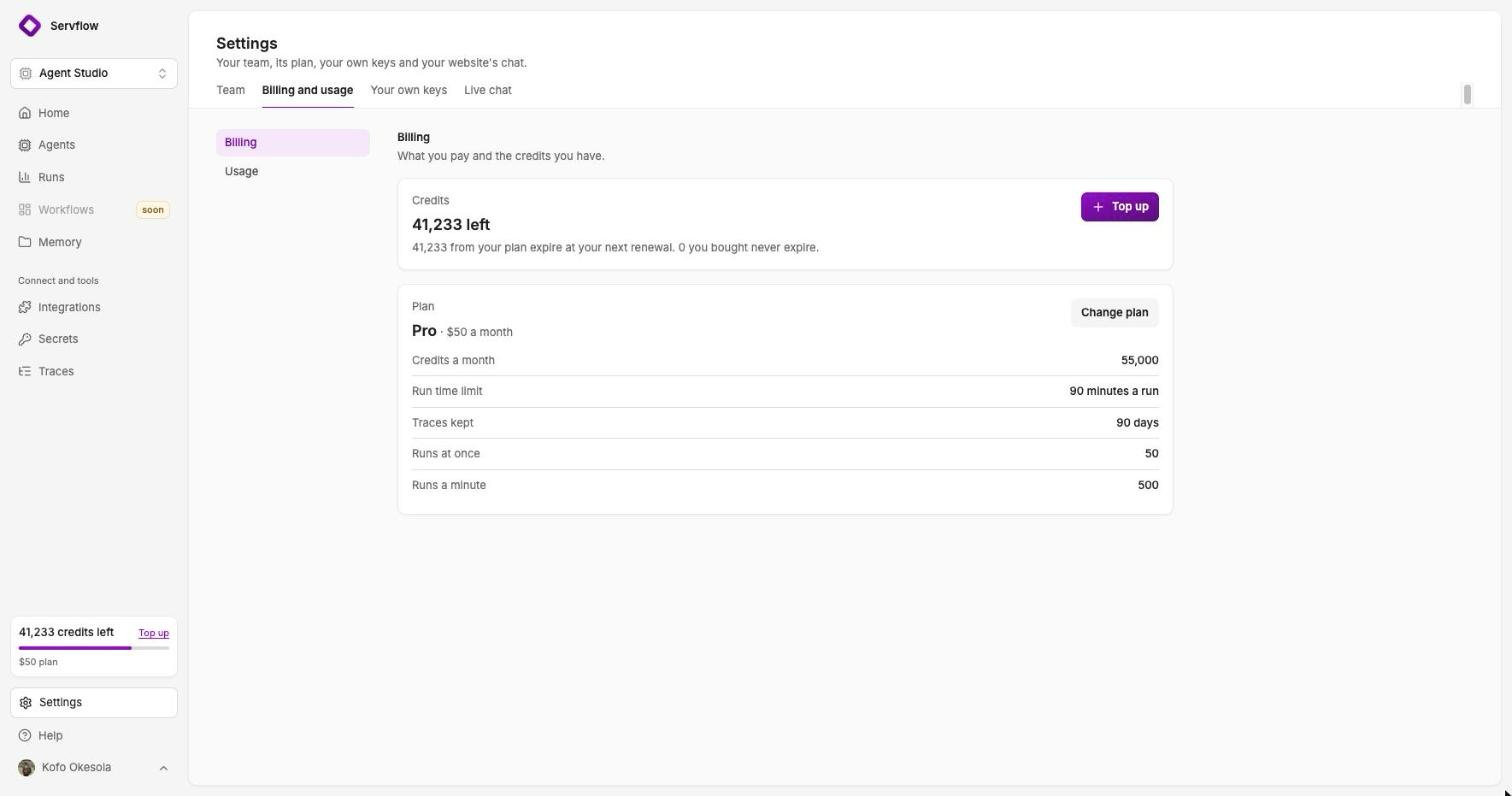
2
Choose an amount
On the Credits card, click Top up. Choose one of the amounts: 5,000, 10,000, 25,000 or 50,000 credits.For another amount, type it in Other. You can buy from 5,000 to 500,000 credits, in thousands.The line under the amounts shows the price. Credits cost $1 for 1,000, with no fee, so 10,000 credits cost $10.
3
Pay
Click Pay and the price. Stripe opens. Pay there.When the payment is done, the dashboard shows Payment received. Click Continue to go back to Billing and usage.
Check the balance
On Billing and usage, the Credits card shows the new balance. The credits appear as soon as the payment clears. If runs had stopped, they start again then. The line under the balance says how many of your credits are plan credits that expire at your next renewal. Credits you buy never expire. Under Usage, Credits this period shows how many of your plan’s credits you have used, and Runs since you joined and Built-in AI since you joined show what your agents have spent.Change plan
A plan gives you credits every month instead of one top-up at a time.1
Open the plans
On the Plan card, click Choose a plan on Free, or Change plan on a paid plan. The plans open side by side.
2
Choose a plan
On Free, click Choose and the plan’s name, then pay on Stripe. The plan’s credits arrive when you pay, and the credits you already have stay.On a paid plan, click Switch to and the plan’s name. Stripe’s billing portal opens, where you change or cancel your plan. Moving up gives you the new plan’s credits at once.
Related
Plans and credits
What credits pay for and when they expire.
Check what your agent did
See what each run cost.